
Invoices bill your clients — for completed Sales/Service Orders, for items received on a purchase, or created directly for a one-off charge. Saving an invoice posts it to your books (receivables and revenue) automatically.
Where to Find Invoices #
Open a client in Client View and click Invoices to see just that client’s invoices, or choose Invoices from Sales/Service in the main menu to see every client. Global Find also searches invoices.
The Invoice List #
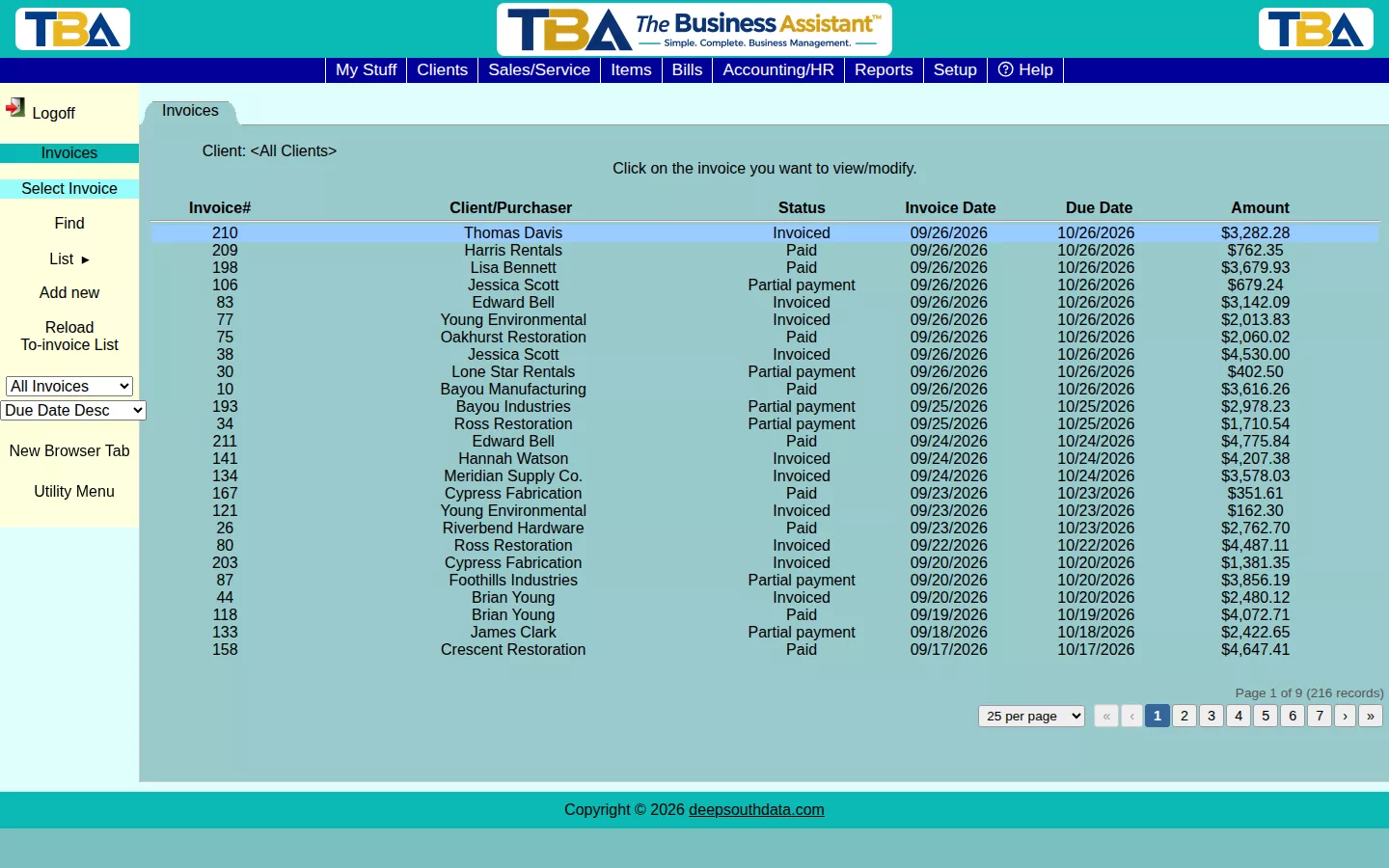
Columns: Invoice#, Client/Purchaser, Status, Invoice Date, Due Date, and Amount. Click an invoice to open it. The sidebar has:
- Add new — create an invoice directly. From the main menu you first choose the client.
- Find — search (see below).
- List Recurring Invoices — opens the list of invoices that repeat on a schedule; see Recurring Invoices.
- Reload To-invoice List — on the all-clients list, reopens the Items to Invoice dialog (below).
- Client Statement — makes a statement for a client covering their open invoices; see Client Statements.
- Status filter — All Invoices, Invoiced/Partial (unpaid or part-paid), or Paid.
- Sort — Due Date, Invoice Date (each ascending or descending), or Invoice#.
Items to Invoice #
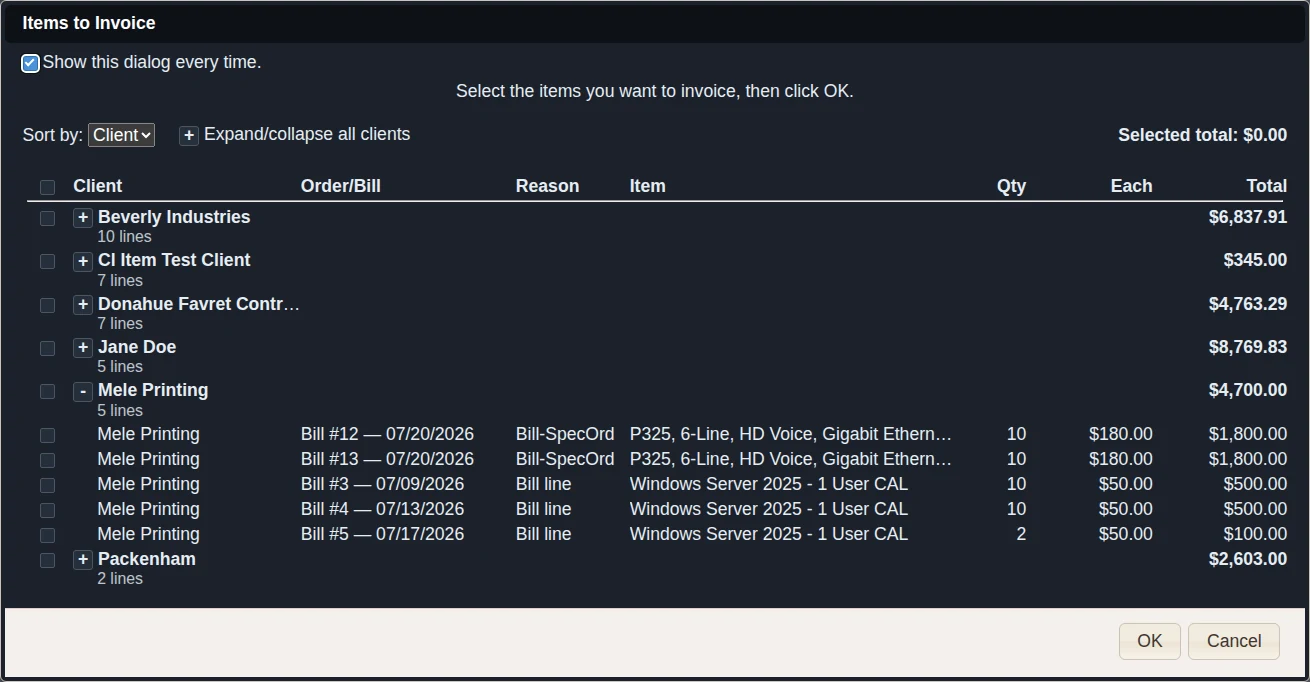
When you open the all-clients invoice list, TBA can show an Items to Invoice list of work that is ready to bill but hasn’t been. It is a check-list: tick what you want, and TBA opens a new invoice with those items filled in.
The Columns #
- Client — who the item is for.
- Order/Bill — where it came from: SO #77 — 10/09/2026 (a Sales/Service Order and its date) or Bill #7491 — 09/30/2026 (a vendor Bill and its bill date). Click the row to look at that order or bill in a read-only window. A committed unit with no order and no bill (added by hand on Inventory) shows (no order) and has nothing to open.
- Reason — why it is on the list (see below).
- Item — the line’s description.
- Qty, Each (the selling price for one), and Total (Qty × Each). For an order line the price is the one agreed on the order; for a bill item it is the item’s current price for that client.
The Reasons #
- Completed — a line on an order whose status is Completed.
- Received — a special-order item that has arrived from the vendor on an order that is still open.
- Bill-SpecOrd — a unit that came in on a vendor Bill for a specific client’s special order (or stock committed to a client with no order), and hasn’t been invoiced yet.
- Bill line — a non-inventory or service line on a vendor bill that is billed straight through to a client.
Grouping by Client #
- Sort by — Client (the default) or Date. Under Client sort, each client with two or more lines gets one summary row: a +/− box, the client’s name, the number of lines (for example 4 lines) underneath, and the combined total on the right. Click the box to show or hide that client’s individual lines. A client with a single line shows just that line, with no box. Clients start collapsed. Under Date sort the list is flat, oldest first.
- Expand/collapse all clients — the box beside the sort control opens or closes every client at once. It appears only when at least one client has several lines.
- Checkboxes — each line has one. A client’s summary row has a box that ticks all of that client’s lines at once; it shows a half-filled box when only some are ticked. The box above the list ticks everything. Ticks on lines hidden inside a collapsed client still count.
- Selected total — the total of everything ticked, which is what will land on the invoice.
- Show this dialog every time — untick to stop it opening on each visit; the sidebar link always brings it back.
- A long list scrolls inside the dialog, so the title and the OK and Cancel buttons always stay on the screen.
No Double Billing #
A unit that was received for a client’s special order can also appear on that client’s Sales/Service Order as a line. TBA lists it once. If an open order line for the same client and item will use that unit (because you chose it under Unit Details, or because the order’s special-order line is waiting on that very unit), the matching quantity is taken off the Bill-SpecOrd row, and the row disappears when it is fully covered. Link the order’s special-order line to its PO line (Sales Order Line on the Purchase Order) so TBA always knows the receipt belongs to that line. Units you have sent back to a vendor (see Vendor Returns) are no longer in stock and are not offered.
Click OK to open a new invoice pre-filled with the ticked items.
Finding an Invoice #
On the Find page use any of: All text fields, Invoice number, Client, Invoice date from / to, Due date from / to, Invoiced or Partial payment only (unpaid invoices), and an ID search for item or unit IDs on the invoice lines.
The Invoice Page #
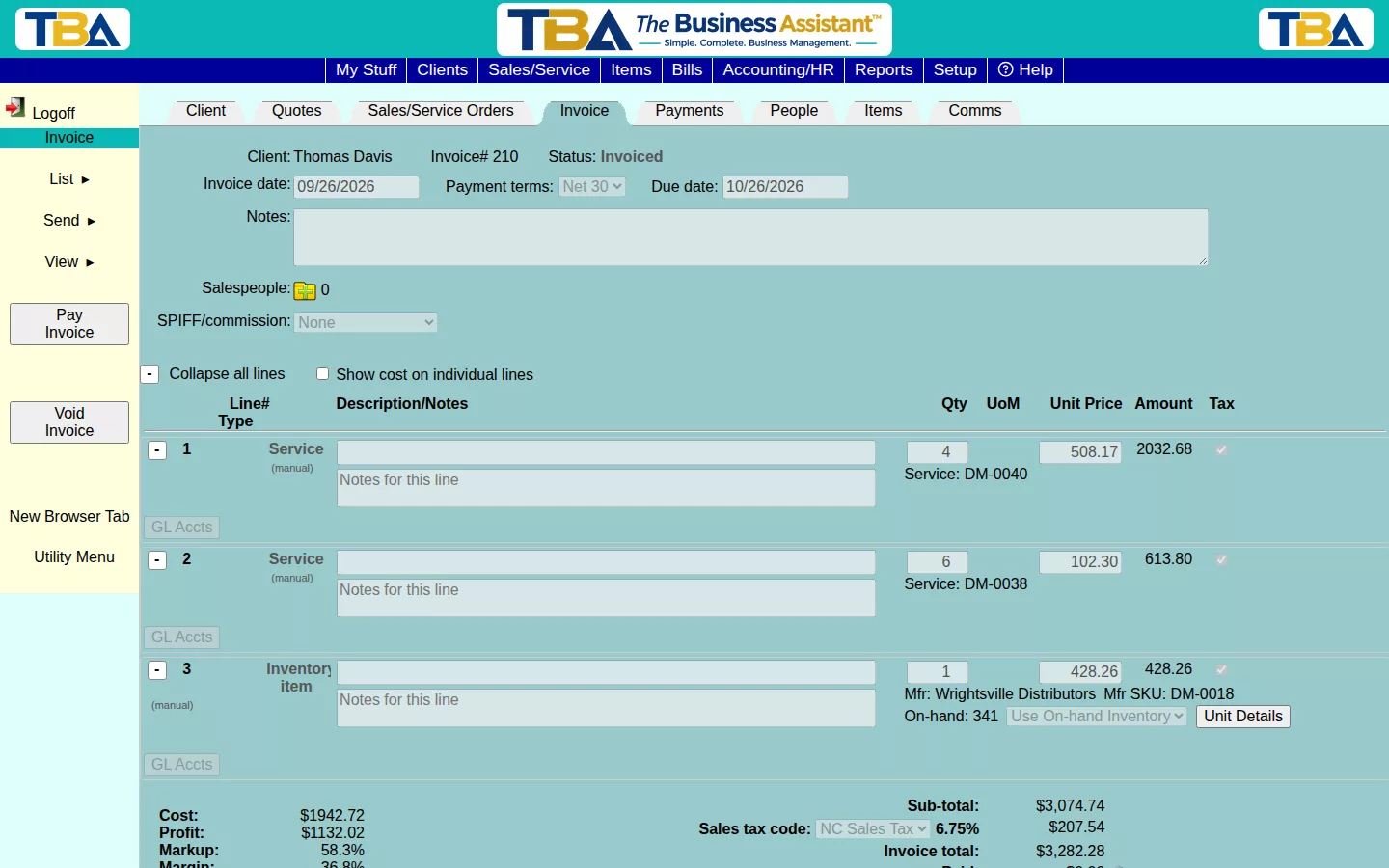
An invoice can be edited only while it is being created. Once saved, it is read-only; to change it, void it and make a corrected copy (see below).
Header Fields #
- Client and Invoice# — the number is assigned when you save (see Next Numbers to Assign).
- Status — Invoiced, Partial payment, Paid, or Voided; updated automatically as payments are applied.
- Credit Memo banner — appears if the invoice total is negative. A credit memo is a “negative invoice”; see Credit Memos.
- Site — shown only if you have two or more sites.
- Invoice date — defaults to today.
- Payment terms — from the client; choices come from Payment Terms Setup.
- Due date — calculated from the invoice date and the terms.
- Notes — printed on the invoice.
- Orders — the Sales/Service Orders being billed. Attach Sales/Service Order adds another of this client’s open orders to the same invoice.
- Salespeople — who gets credit for the sale and their split percentages (used by Sales by Salesperson). Click to add or remove personnel or vendors (for example an outside rep) and set each one’s percent. Changing salespeople requires the sales-manager permission.
- SPIFF/commission — choose None, Percent of invoice, or Flat amount, then enter the value.
- Recurring Invoice — tick Make this a recurring invoice to have TBA repeat it daily, weekly, monthly, or yearly. Set the start date, optional end date, optional total number of invoices, and whether to just email each invoice or also auto-charge a saved card. An invoice with an Inventory line cannot be recurring. Full details are in Recurring Invoices; Manage Recurring on a saved invoice adjusts or stops the schedule.
Line Items #
Lines work like those on quotes and orders: Find an item, adjust Qty, UoM, Unit Price, Tax, and use the arrows, delete, and collapse buttons. Specific to invoices:
- Collapse all lines — shrinks every line to one row. Display only.
- Show cost on individual lines — for users who may see cost, reveals each line’s cost.
- Unit Details — on a new invoice, picking an in-stock inventory item opens Unit Details so you can choose which unit is being sold. Its serial# is recorded for the client and prints on the invoice. An invoice made from an order uses the units chosen on that order. Units another open order has set aside are skipped automatically; if that leaves a line short, you must open Unit Details on the line, choose a unit, and confirm taking it. The override is logged in the Audit Event Log.
- Rate type on time-billed Service lines, as on orders (see Service Rate Rules).
Totals #
- Cost, Profit, Markup, Margin — shown only to users allowed to view invoice cost.
- Sub-total, Sales tax code and rate, Invoice total. See Sales Tax.
- Paid and Due — payments and credits applied so far, and what is still owed.
Sidebar Actions #
- Send → Print/Download — makes the PDF. Users who can view cost choose between the client invoice and a cost-analysis version.
- Send → Email Invoice — choose recipients (client emails, contacts, or your own addresses), then edit the From, subject, and body before sending. The wording starts from your template in General Options. Recorded in the Email Log.
- View → Status Changes, Communications, Attachments — history, logged contact (Client Communications), and files (Attachments and Pictures).
- Payments — lists every payment applied to this invoice, with date, type, and amount.
- Apply Credit Memo — on a credit memo, applies it to the invoices it pays so both show as settled. Applications can be removed again from the invoice.
- Apply Overpayment — appears when an invoice has been paid more than it was for. Releases the excess so it can be applied to other open invoices or kept as the client’s unapplied credit.
- Manage Recurring — see above.
- Change Status — for users with permission, manually sets Invoiced, Partial payment, or Paid. Intended for cases such as an imported invoice that was settled outside TBA. Voiding is done only through Void Invoice.
- Pay Invoice — records payment. If the client has unapplied payments or credits, you choose whether to use one; otherwise a new Client Payment opens.
- Void Invoice — reverses the invoice’s accounting entry and returns any attached orders to un-invoiced. Tick Also create a new invoice, copying this one to fix a mistake in one step. This cannot be undone; use it instead of deleting so numbering stays intact.
Related #
Overdue invoices appear on AR Aging, and future recurring billing on the Recurring Invoices Report.
On a Phone #
The Invoice List shows each invoice as a card with its number, client, status, dates, and amount. On the invoice itself, the header fields stack, each line is a card, and the totals (including the tax row and, for users who can see cost, the cost block) follow. The Recurring Invoice section and its Manage Recurring button stay on the page; Pay Invoice, Void Invoice, and the other actions are behind the actions button (three dots, top right). In the Items to Invoice dialog each item is a card (client and total on top, the order or bill and reason below, then the item, quantity, and price), with larger checkboxes and larger +/− boxes on the client summary rows. See Using TBA on Your Phone.
Applying a Client’s Credit to an Invoice (Pay Invoice) #
When a client has credit — a payment that is larger than what was applied to invoices, or money left after a refund — click Pay Invoice in the sidebar. If the client has no credit, TBA takes you straight to a new payment for this invoice. Otherwise the Unapplied Payments window opens.
The window shows the balance due on this invoice and one row for each payment that still has credit: its date, type, and how much is available. Beside each row is an Apply to this invoice box — this is how much of that payment’s credit goes to this invoice. The boxes start out filled in, oldest credit first, up to the balance due; change any of them.
- A line below the table shows Applying $X of the $Y due. A red message appears if an amount is more than the payment has available, or the total is more than the balance due.
- Fill up to balance due puts the automatic amounts back. Clear empties every box. Record a New Payment opens a new payment for this invoice instead.
- Click Apply to apply all the amounts together. If any one of them cannot be applied, none are.
Applying credit does not change your accounting entries — the money was already recorded when the payment was received; only which invoice it pays changes. The invoice’s status follows what is paid: Partial payment when part of the balance is covered, Paid when all of it is.


