
Service Rate Rules automatically adjust pricing on service line items based on when the work happens — weekends, after-hours, or Service Holidays.
Setting Up a Rule #
Click Add new and give the rule a day type (e.g. Weekend, Holiday), an hour range, and a price Multiplier (e.g. 1.5× for time-and-a-half). Priority controls which rule wins when more than one could apply to the same line.
The Rule List and Fields #
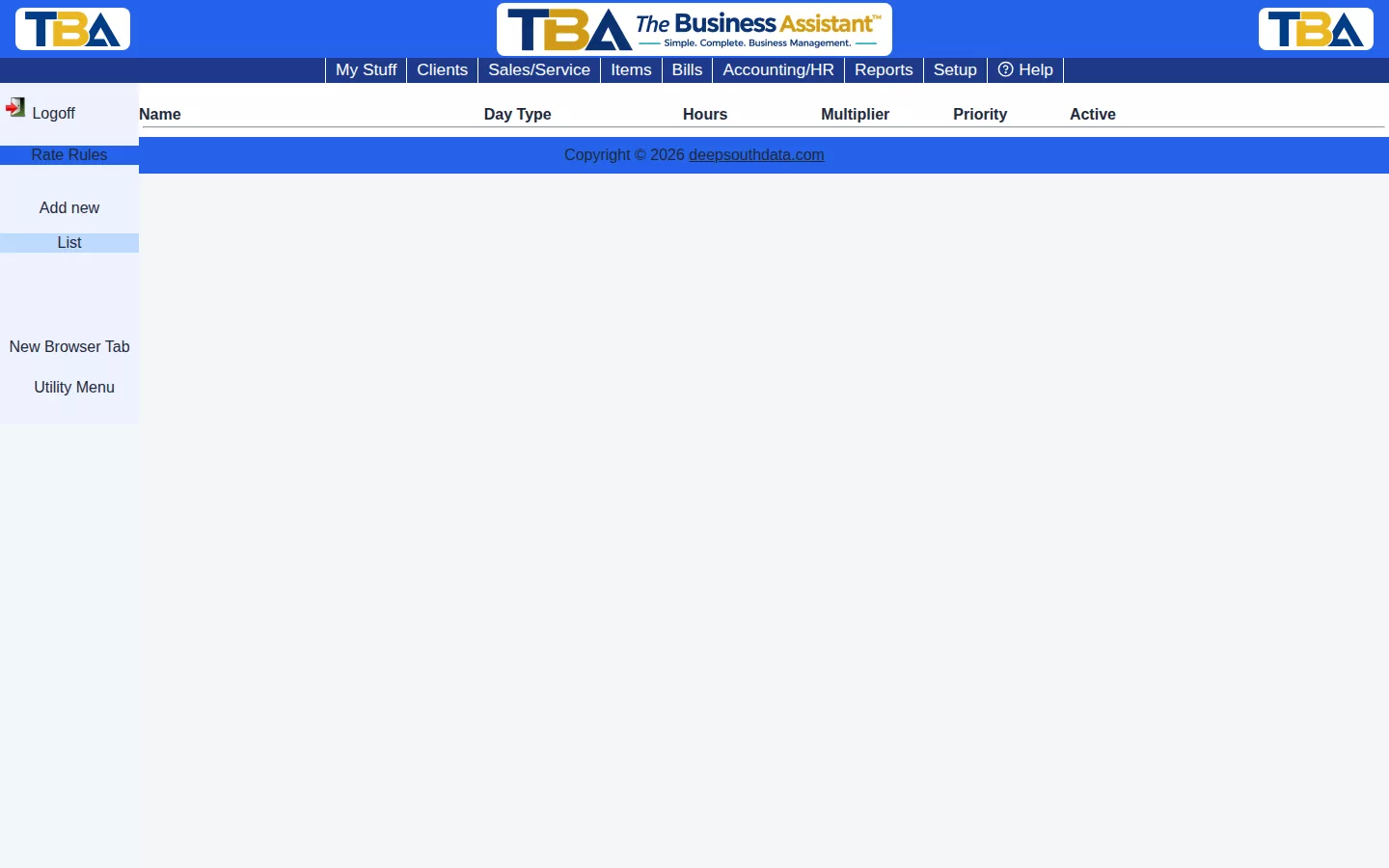
Columns: Name, Day Type, Hours, Multiplier, Priority, and Active. Click a rule to edit it, or Add new.
- Rule name.
- Applies to — All days, Weekdays only (Mon–Fri), Weekends only (Sat–Sun), or Holidays only (the dates on Service Holidays).
- Time from and Time to — an optional daily window in 24-hour format (for example 17:00 for 5 PM). Set both or leave both blank for an all-day rule.
- Rate multiplier — applied to the base price. 1.5 is time-and-a-half; 2 is double time.
- Priority — when more than one rule matches, the higher number wins.
- Active — set to No to turn a rule off without deleting it.
Where Rules Apply #
On orders and invoices, a Service line billed by the hour or day has a Rate type. When its Started and Ended times fall under a rule, the price is multiplied. If the work spans more than one rule (for example from a weekday evening into a weekend), TBA asks you to confirm how to price each period when you save. A quote line has a Rate type you choose yourself.


