
Payment Processing connects your company’s Stripe account so TBA can charge your clients’ saved cards directly — for one-off Client Payments or automatic billing through Recurring Invoices.
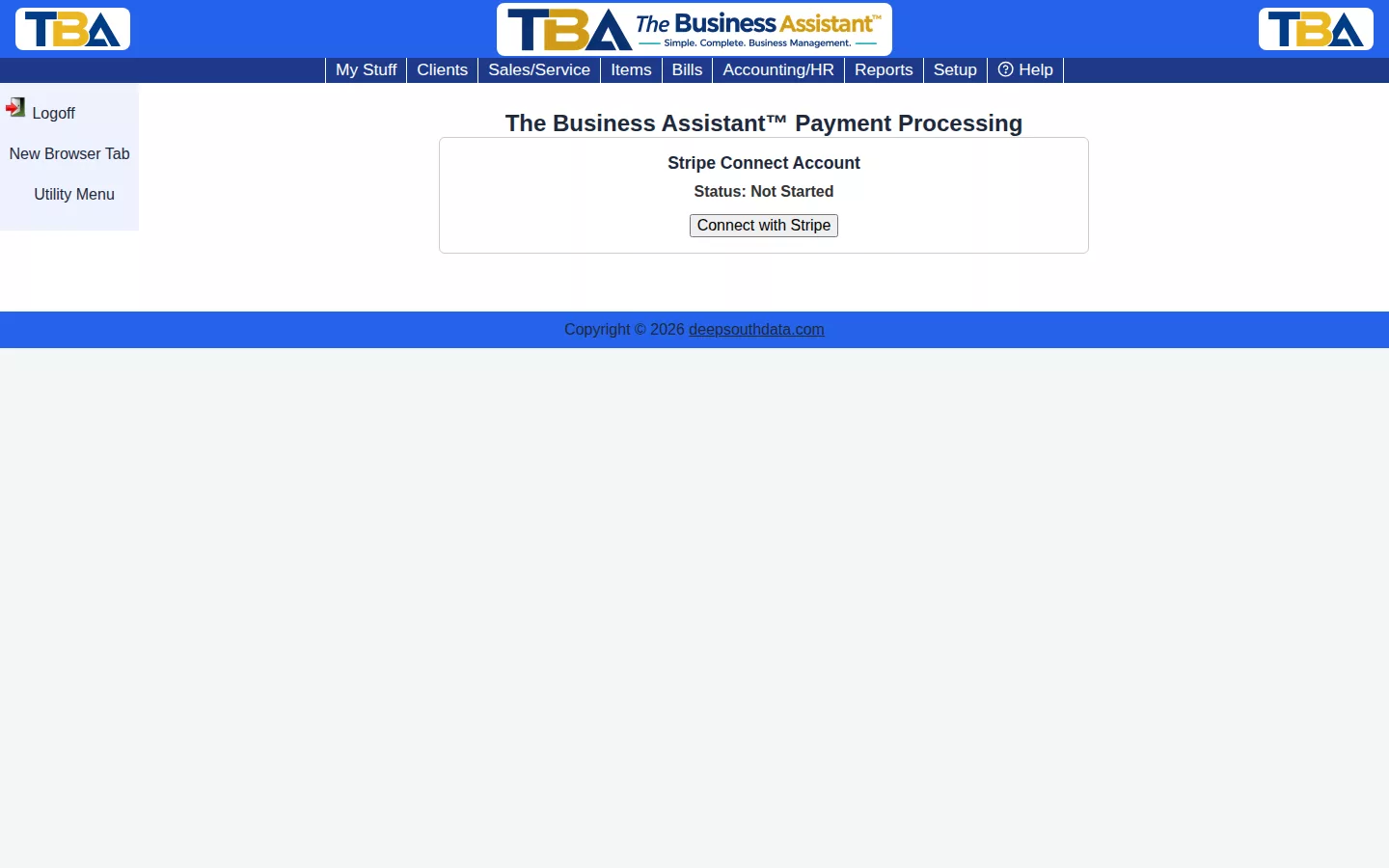
Connecting Your Stripe Account #
To accept card payments from your clients inside TBA, connect a Stripe account on Payment Processing (under Setup). Card payments go straight into your Stripe account and are paid out to your own bank by Stripe; TBA never sees your clients’ card numbers. You need the Setup permission to change these settings.
This is separate from TBA Subscription’s payment method, which is for what you pay TBA, not what your clients pay you.
Two ways to connect #
When nothing is connected yet, you see two buttons:
- Create a new Stripe account. TBA starts a new account for your company and takes you to Stripe’s own form, where you enter your business details, identity and bank account. If you leave before finishing, come back and click Finish Connecting to pick up where you left off.
- Connect my existing Stripe account. If your business already has a Stripe account, use this instead of creating another. You go to Stripe, sign in to your own account, choose the account to connect, and click to allow TBA. You come back to TBA connected. If your account is not yet able to take payments, TBA says so; finish any remaining setup in your Stripe Dashboard, then click Refresh Status. Not every Stripe account can be connected: an account that was previously disconnected from a platform, or that another platform controls, cannot be connected this way — use Create a new Stripe account instead.
(If your system administrator has not enabled connecting existing accounts, you will see only one button, Connect with Stripe, which creates a new account.)
What the page shows once connected #
The page shows the status (Onboarding In Progress, Connected, Active, or Access Revoked), whether charges and payouts are enabled, and which Stripe account you are connected to: its name, email and account ID. The name and email are read from Stripe when the page opens. Card payments are available on Client Payments once charges are enabled.
- Refresh Status asks Stripe for the account’s current state; it tells you when it last did.
- Manage on Stripe opens the Stripe Dashboard, where you can see payouts and fees.
- Disconnect removes the connection from TBA, so card charging is no longer offered. For an account you connected with Connect my existing Stripe account, it also ends TBA’s access to your Stripe account (the account itself is not changed or deleted), and you can connect it again later. For an account TBA created, it only removes TBA’s link; connecting again afterwards starts a brand-new Stripe account.
- Access Revoked means the owner removed TBA’s access from inside Stripe. Card charging stops. Disconnect, then connect again if you want to keep using that account.
Anything TBA creates in a connected account (customers, payments) appears in that account’s Stripe Dashboard.
What It Enables #
- On a Client Payment, choosing Credit/Debit Card shows Authorize Card Payment, which charges a saved card or a new one. Card payments made this way can later be refunded to the card from Refund Payment.
- On a recurring invoice, the Also auto-charge a saved card option becomes available.
- Clients can update their own saved card from a secure link in the email you send them.
Card fees are set by Stripe; when the money is paid out to your bank, record any fee on the Deposit.


