
Payroll GL Import is for companies whose payroll runs through QuickBooks’ own Payroll feature — QuickBooks doesn’t let TBA pull the underlying paycheck numbers automatically, so this turns your payroll totals into a proper General Ledger entry, one per pay period.
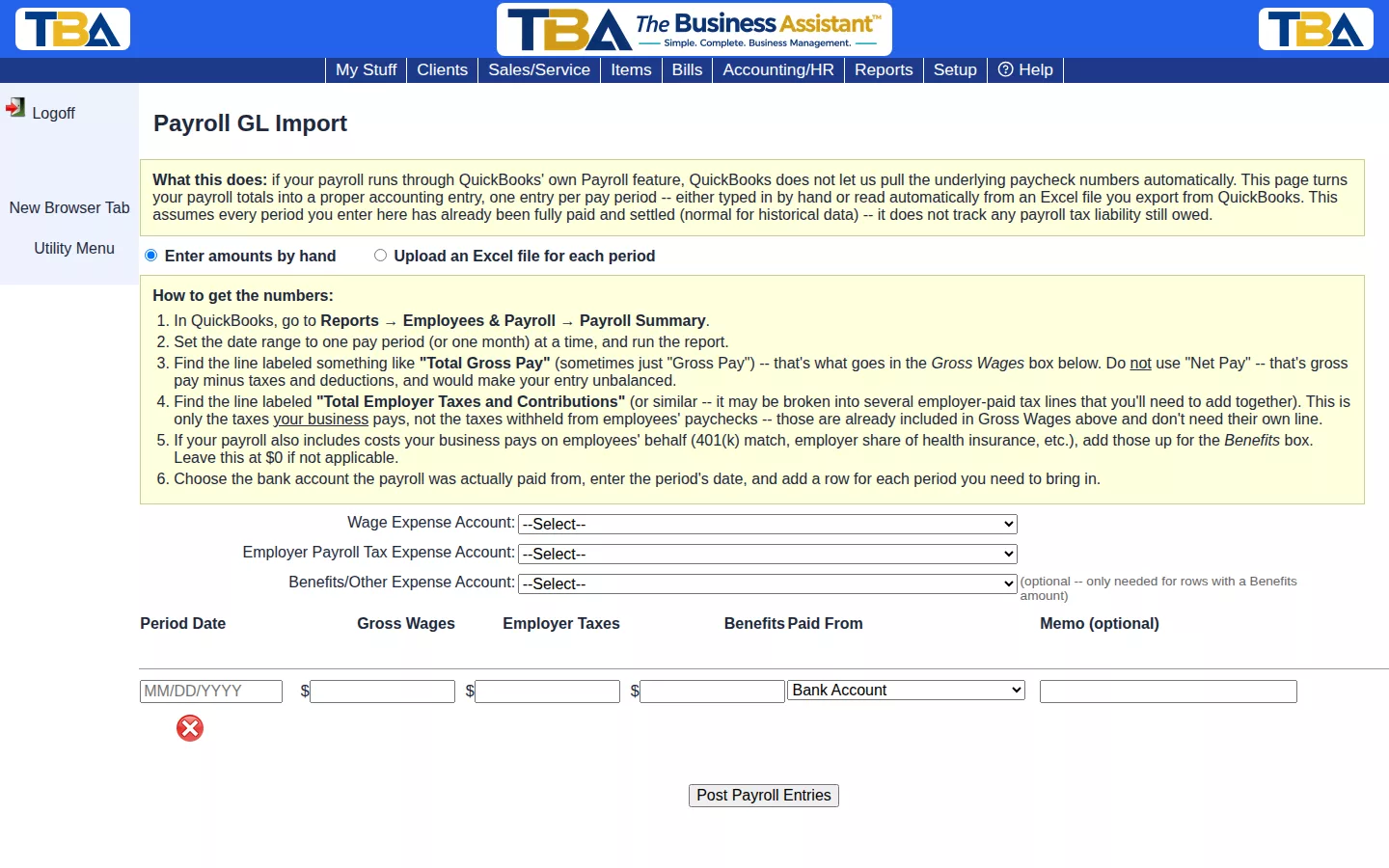
This assumes every period you enter has already been fully paid and settled (normal for historical data) — it does not track any payroll tax liability still owed.
Getting the Numbers from QuickBooks #
- In QuickBooks, go to Reports → Employees & Payroll → Payroll Summary.
- Set the date range to one pay period (or one month) at a time, and run the report.
- Find Total Gross Pay (sometimes just “Gross Pay”) — use this for Gross Wages. Do not use Net Pay, which would make the entry unbalanced.
- Find Total Employer Taxes and Contributions — only the taxes your business pays, not what’s withheld from employee paychecks (already included in Gross Wages).
- If your payroll includes costs you pay on employees’ behalf (401(k) match, employer health insurance share, etc.), total those for Benefits. Leave at $0 if not applicable.
Entering the Data #
Choose Enter amounts by hand or Upload an Excel file for each period. Select your Wage Expense, Employer Payroll Tax Expense, and (optionally) Benefits/Other Expense accounts, then add a row per pay period with its date, gross wages, employer taxes, and which bank account it was paid from. Click Post Payroll Entries when ready.


