
Sites let you split reporting by location, business, or department — each site can have its own time zone, and you can run reports per-site or combined.
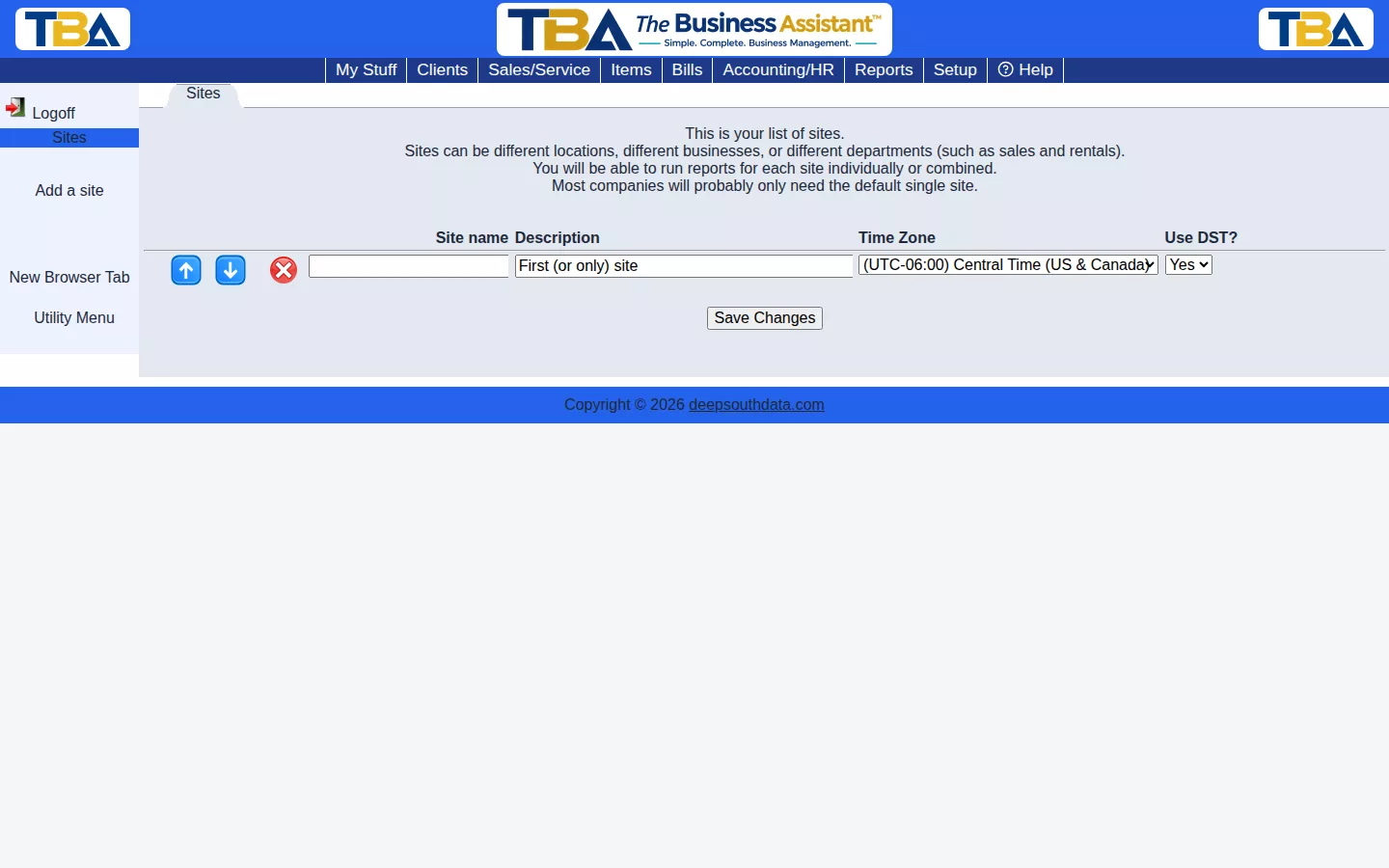
Most companies only need the default single site. Click Add a site to create another, set its name, description, time zone, and whether it observes Daylight Saving Time. Once a company has 2+ sites, site selectors appear throughout TBA (client records, transactions, etc.) that stay hidden for single-site companies.
The Sites List #
The page lists each site with its Site name, Description, and Time Zone. Edit a row in place, then click Save Changes; use the arrows to reorder the sites. Add a site adds a new row (it defaults to using Daylight Saving Time). Every company starts with one default site.
- Site name — what the site is called wherever it is selected.
- Description — optional notes.
- Time Zone — the site’s time zone, shown with its offset from UTC. Times that TBA records, such as a clock-in or a status change, are shown to each user in their own site’s time zone.
- Use Daylight Saving Time? — a separate Yes/No for each site. Choose No for a place that does not change its clocks.
What Sites Affect #
- Clients, vendors, items, and most documents belong to a site, and a user’s permission profile can limit them to one site.
- Prices can be set for a particular site on an item, and inventory is counted per site.
- Reports can be run for one site or all sites together.
- The Site fields only appear once you have two or more sites, and you can hide them with Show Site Fields in General Options.


