
The Clients section is where you organize all of your information and activities with your clients (or customers).
Navigation Bar #
At the top of the page is the navigation bar. This is the main way that you will reach all of the sections of The Business Assistant™ (TBA). When you click on the Clients tab, you see the Client List.

Client List #
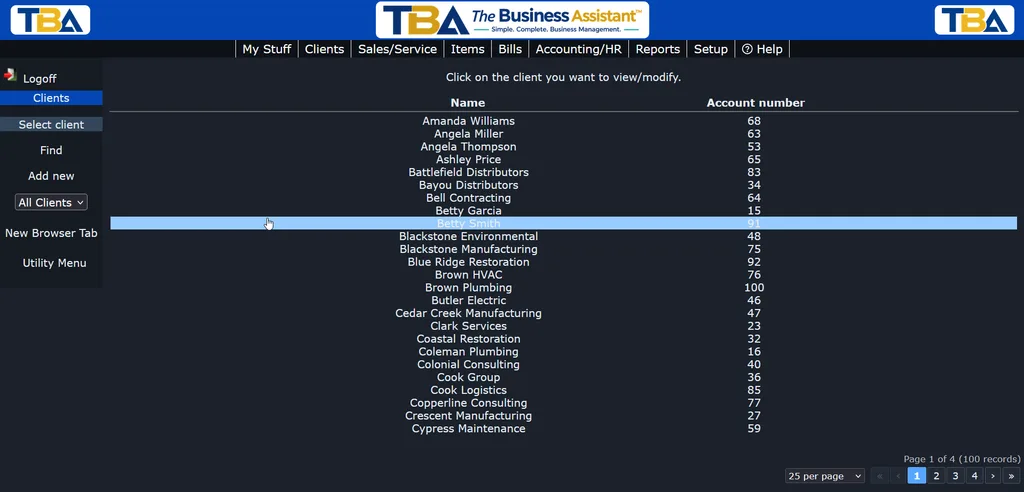
Here, you will see a list of all of your clients. If you have many clients, you can see them in a number of “pages” that you can access on the bottom right of the window.

Click here to learn more about using the paging buttons.
Select a Client #
As you move your cursor (mouse) up and down the page, you will notice that different lines or items are highlighted (colors change). If you highlight a client and click, you will be brought to that client’s information.
Finding a Client #
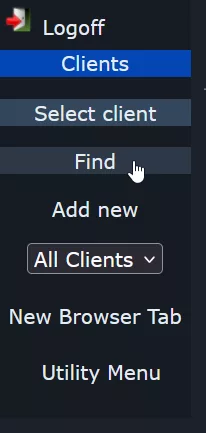
To quickly find a particular client, click the Find link on the left sidebar. Click here to read more about the sidebar.
Client Find #
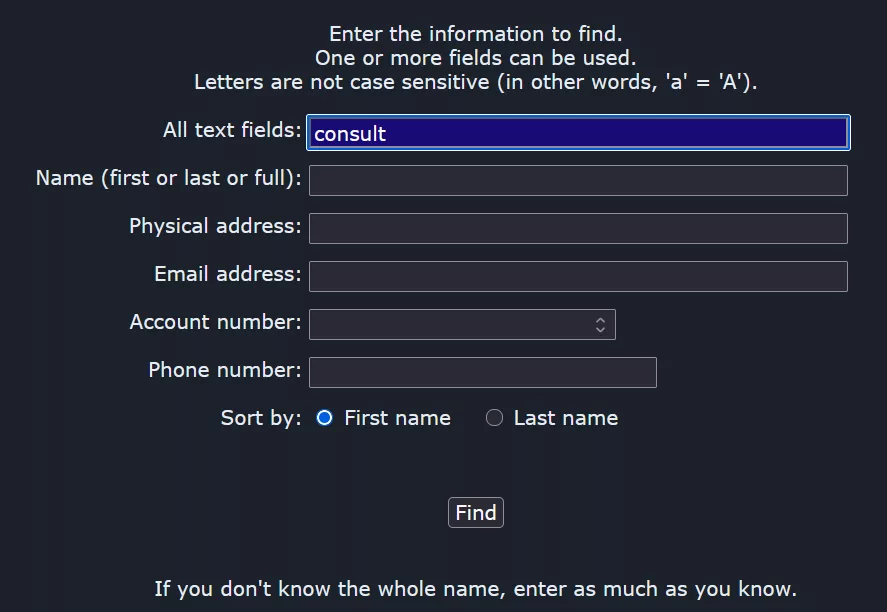
You can enter data in one or more fields, then click the Find button at the bottom (you can also just hit <Enter> here). If you enter data in more than one field, records that match everything you entered will be retrieved. The “All text fields” option searches every “text” field in every client record.
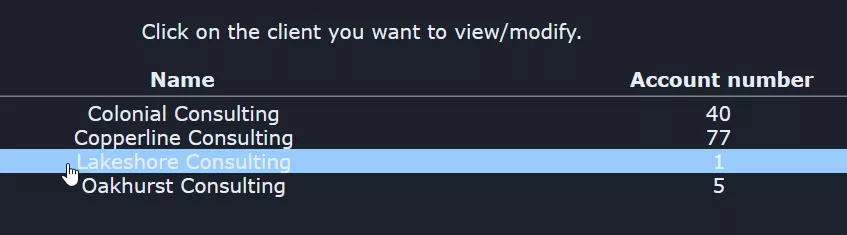
If more than one record was found, you will see a list of matching records. Click on the one you want.
Client View #
Once you select a client, you’re in Client View — the tabbed workspace where you’ll do all your day-to-day work with that client, from quotes and orders to invoices, payments, contacts, and communications.
Searching Across Everything #
To find a client from a phone number, email address, address, contact name, or something written in a communication log, use Global Find on the My Stuff tab. It also finds the client who bought a particular serial number.
Filtering and Sorting the Client List #
The sidebar of the Client List has two dropdowns:
- Status — All Clients, Active, or Inactive. A client is set to Inactive on its Client Details page, which keeps old clients out of the way without losing their history.
- Sort — by First Name or Last Name.
The list columns are Site (only if you have two or more sites), Name, and Account number.
Find Fields #
On the Find page you can search by All text fields, Name (first, last, or full), Physical address, Email address, Account number, and Phone number, and choose to sort the results by first or last name. You don’t have to know the whole name — enter as much as you know. To search across everything at once (clients, invoices, items, and more), use Global Find.
Adding a Client #
Click Add new in the sidebar; see Adding a New Client.


