
The General Ledger (GL Journal) lists every journal entry TBA has recorded — almost always created automatically from a real transaction (an invoice, a client payment, a bill, a bill payment) rather than typed in directly. It is the single source every financial report, such as the Trial Balance and Balance Sheet, is built from.
The Journal List #
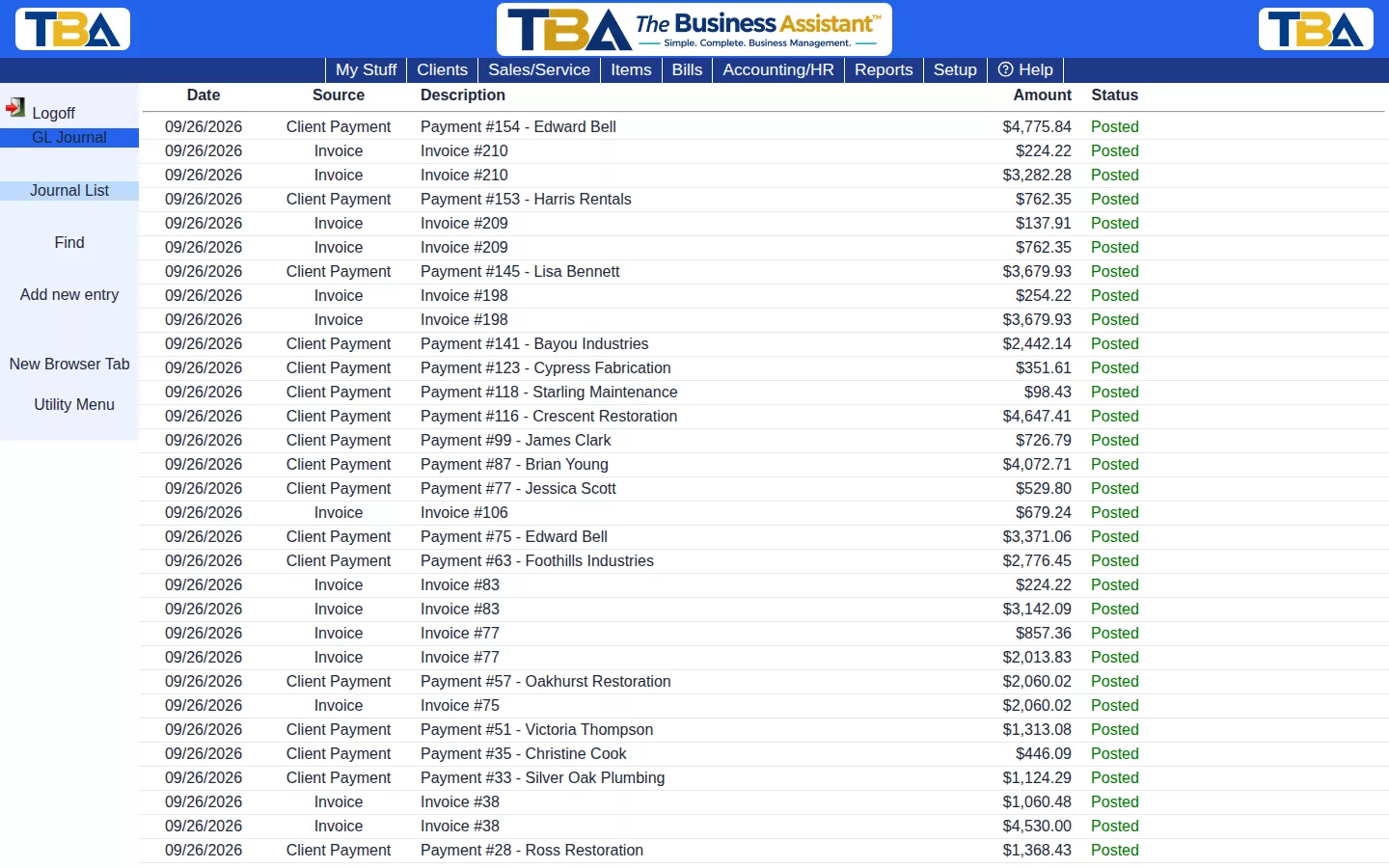
Columns: Date, Source (what created the entry), Description, Amount, and Status. Click an entry to open it. The sidebar has Add new entry, Find, and New Browser Tab.
Finding an Entry #
All fields are optional; leave a field blank to match everything.
- All text fields and Description.
- Date from / to.
- Source — All, Manual Entry, Invoice, Payment, Purchase Order, and so on.
- Status — All, Posted, Voided, or Draft.
- Amount from / to — matches either the entry’s total or any single line’s amount.
List Previous Find on an entry returns you to your last search results.
Journal Entry Detail #
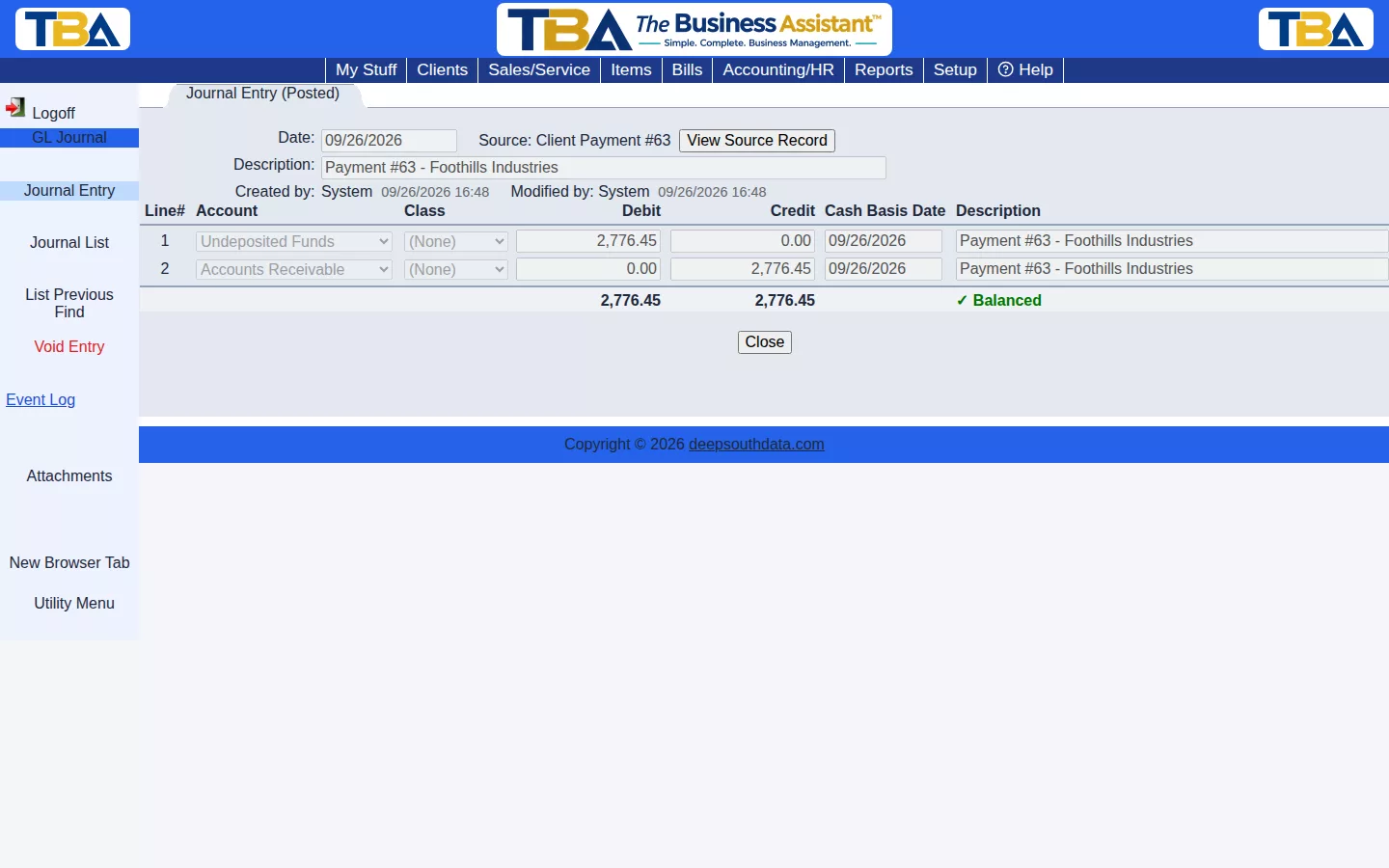
Every entry is real double-entry bookkeeping — it must balance (total debits = total credits) before it can post.
- Date — the date the entry is recorded for. It must fall in a fiscal period. If none covers the date, TBA offers to create one for you; see Fiscal Year and Year-End Closing.
- Source — what created the entry. View Source Record opens the invoice, payment, bill, or deposit behind it in a read-only window.
- Description, Created by, and Modified by.
- A VOIDED banner appears on voided entries.
- Lines — each has Line#, Account (see G/L Accounts), Site (if you have more than one), Class (optional; see G/L Classes), a Description, and either a Debit or a Credit.
- Cash Basis Date — optional, per line. If a line is an accrual whose cash actually moves on a different date, enter that date so Cash Basis reports recognize it then instead of on the entry date. If you fill one line, fill all of them.
Manual Entries #
Click Add new entry to make a journal entry directly — useful for adjustments that don’t come from another TBA transaction. Enter the date, a description, and at least two lines whose debits and credits are equal.
- Save keeps it as a Draft, which does not affect your reports and can still be edited or deleted.
- Post Transaction saves and posts it. A posted entry cannot be modified.
Voiding and Deleting #
- Void Entry reverses a posted entry rather than editing it, so the audit trail stays intact.
- Delete Entry permanently removes a draft entry. It cannot be undone.
- Event Log shows who did what to this entry; see the Audit Event Log.
- Attachments lets you attach supporting documents; see Attachments and Pictures.
Entries created from invoices, payments, and the like should be changed by voiding or correcting the original document, not by editing the journal.


