
General Options holds your company’s identifying info and a handful of company-wide feature toggles.
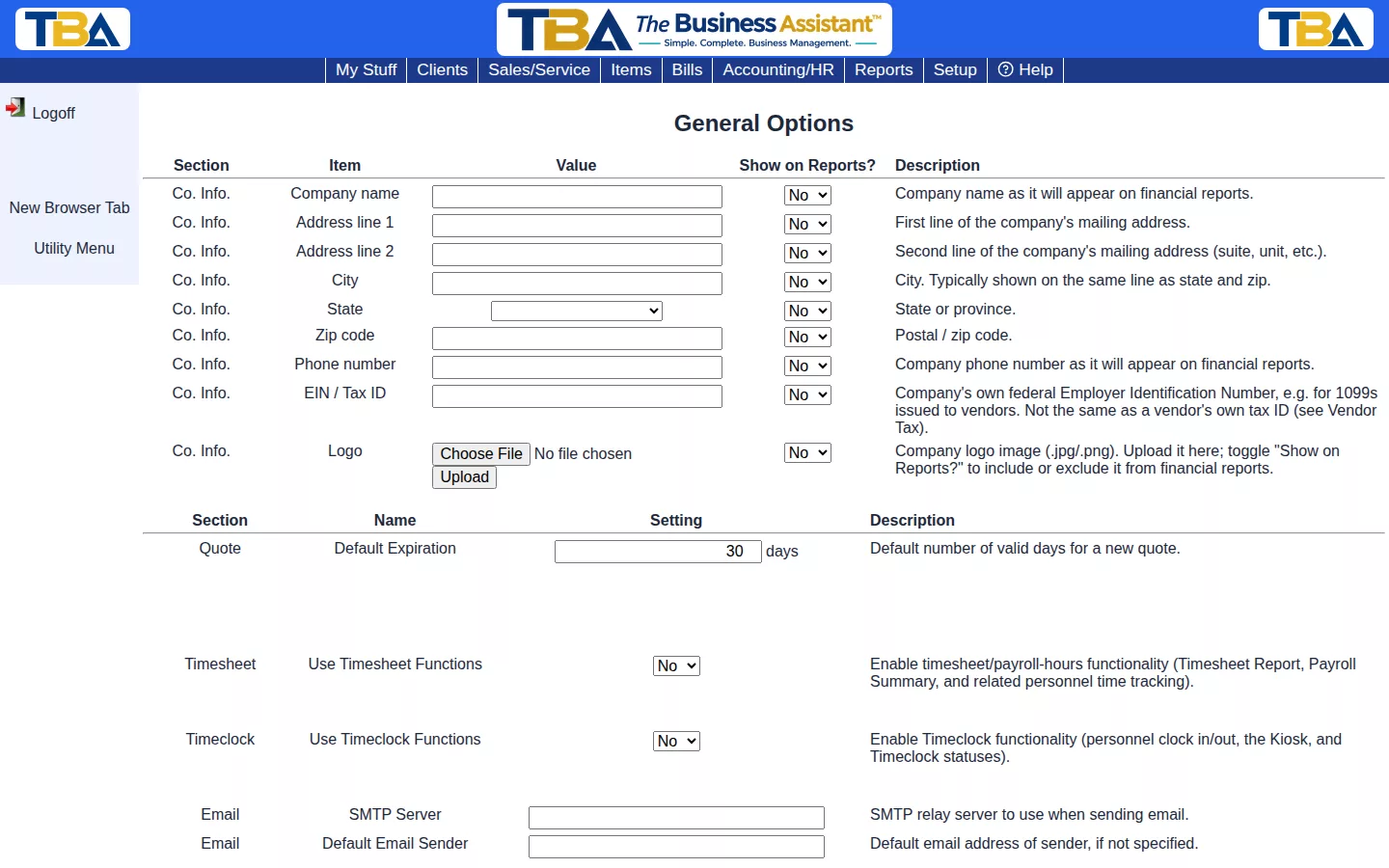
Company Info #
Company name, address, phone, and EIN/Tax ID (used on 1099s issued to vendors — not the same as a vendor’s own tax ID, see Vendor Tax/1099). Upload your Logo here (.jpg/.png) and toggle Show on Reports? per field to control what appears on financial reports.
Feature Toggles #
- Quote Default Expiration — how many days a new quote stays valid.
- Use Timesheet Functions — enables the Timesheet Report, Payroll Summary, and related time tracking.
- Use Timeclock Functions — enables clock in/out, the Kiosk, and Timeclock Statuses.
- Email — SMTP relay server and default sender address for outgoing email.
Timesheet #
Choose whether to use the time tracking features in TBA.
Timeclock #
In addition to tracking timesheet data, you can have a timeclock dialog automatically present whenever a user logs in.
You can also set up a timeclock “kiosk” where users can clock in and out, using badges that you can print from The Business Assistant™.
SMTP Server #
To have TBA email your quotes, invoices, POs, etc., you will need to enter an SMTP relay server for it to use. If you are not familiar with this term, ask your IT people. If you only plan on emailing a small number of items, you can do an Internet search for free SMTP relay servers. You can sign up with one of them, then enter that address here.
Default Email Sender #
This is the email “sender” that will show up when TBA sends an email for you, unless you specify otherwise in one of the following templates or as you send the email.
Email Templates #
You can configure specific subject lines and email bodies for when you have TBA send quotes, sales/service orders, invoices, recurring invoices, purchase orders, and timeclock badges.
Every Setting on the Page #
General Options is a table with a Section, Item (or Name), Value (or Setting), and a Description for each row. In the Company Info section there is also a Show on Reports? column. Change what you need and click Save Changes at the bottom.
Co. Info. #
Company name, address line 1 and 2, city, state, zip code, phone number, EIN / Tax ID, and Logo. Each has a Show on Reports? Yes/No, so you can print, for example, the name and logo on reports but not your EIN. Use Upload beside Logo to add your image; it appears on printed documents and reports where logos are used.
Quote #
Default Expiration — the number of days a new quote stays valid. The quote’s Expiration date is set to its date plus this many days.
Sites #
Show Site Fields — Yes or No. When Yes, the Site selector appears wherever it normally does. It has no effect unless you have two or more sites; with only one, the field is always hidden and that site is used automatically.
Timesheet and Timeclock #
Use Timesheet Functions and Use Timeclock Functions — Yes or No, as described above. They control whether the related menus, reports, and the clock-in dialog appear. See Timeclock and Kiosk, Time Tracking Calendar, and Timesheet Report.
Email Server and Sender #
SMTP Server and Default Email Sender, as described above.
Email Templates #
Each kind of email TBA can send has its own optional Subject, Body (HTML), and Sender. Leave a field blank to use TBA’s built-in wording. Subjects are plain text; bodies can be formatted with the toolbar (bold, italic, underline, lists, alignment, links, color, clear formatting, and a </> button to edit the HTML directly). Placeholders in double curly braces are replaced with real data when the email is composed. The templates and their placeholders are:
- Quote —
{{QuoteNumber}},{{QuoteTotal}},{{QuoteDate}},{{ClientPO}},{{QuoteContactName}},{{DeliveryContactName}},{{UserName}}. Used by Quotes. Default subject: “Quote #123”. - Sales/Service Order —
{{OrderNumber}},{{OrderTotal}},{{OrderDate}},{{OrderStatus}},{{ClientPO}},{{DeliveryContactName}},{{UserName}}. Used by Sales/Service Orders. - Invoice —
{{InvoiceNumber}},{{InvoiceTotal}},{{InvoiceDate}},{{DueDate}},{{InvoiceStatus}},{{UserName}}. Used by Invoices. - Recurring Invoice — four templates: a Paid subject and body (sent when a recurring invoice is generated and the card charge succeeds; the paid invoice PDF is attached) and an Unpaid subject and body (when it is generated but declined or there is no payment method; no attachment). Placeholders:
{{InvoiceNumber}},{{InvoiceTotal}},{{InvoiceDate}},{{CompanyName}}, and{{Reason}}(only meaningful in the Unpaid templates, for example “declined: card expired”). See Recurring Invoices. - Client Statement —
{{ClientName}},{{StatementDate}},{{PeriodStart}},{{PeriodEnd}},{{StatementBalance}},{{CompanyName}},{{UserName}}. Used by Client Statements. For an as-of statement, PeriodStart and PeriodEnd are blank. - Purchase Order —
{{PoNumber}},{{PoQty}},{{PoTotal}},{{PoTerms}},{{PoNeedByDate}},{{PoShipMethod}},{{UserName}}. Used by Purchase Orders. - Timeclock Badge —
{{EmployeeName}},{{CompanyName}}. Used when you email an employee their QR-code badge from Personnel. - TBA Subscription Billing — Billing Success and Billing Failed subjects and bodies, for the monthly charge for your TBA subscription. Success uses
{{InvoiceNumber}},{{InvoiceTotal}},{{InvoiceDate}},{{CompanyCode}}. Failed uses{{Amount}},{{DeclineReason}},{{DaysRemaining}},{{GraceDeadlineDate}},{{CompanyCode}}. See TBA Subscription.
Every email TBA sends is recorded in the Email Log.


