
Personnel is where every employee or contractor record lives — their contact info, HR details, payroll setup, and In/Out board access.
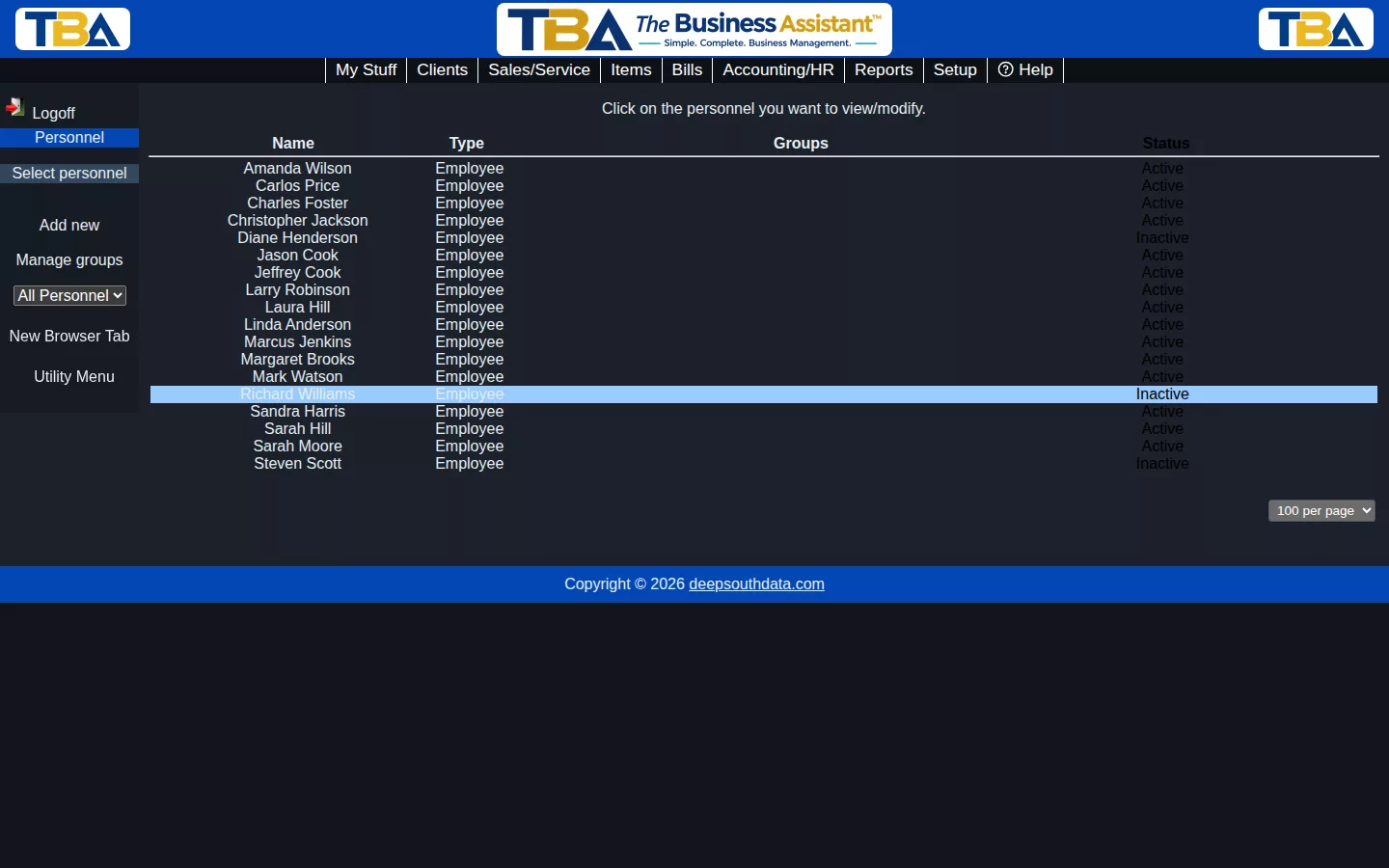
Filter by All Personnel / Active / Inactive / Terminated in the sidebar, or use Manage groups to edit Personnel Groups.
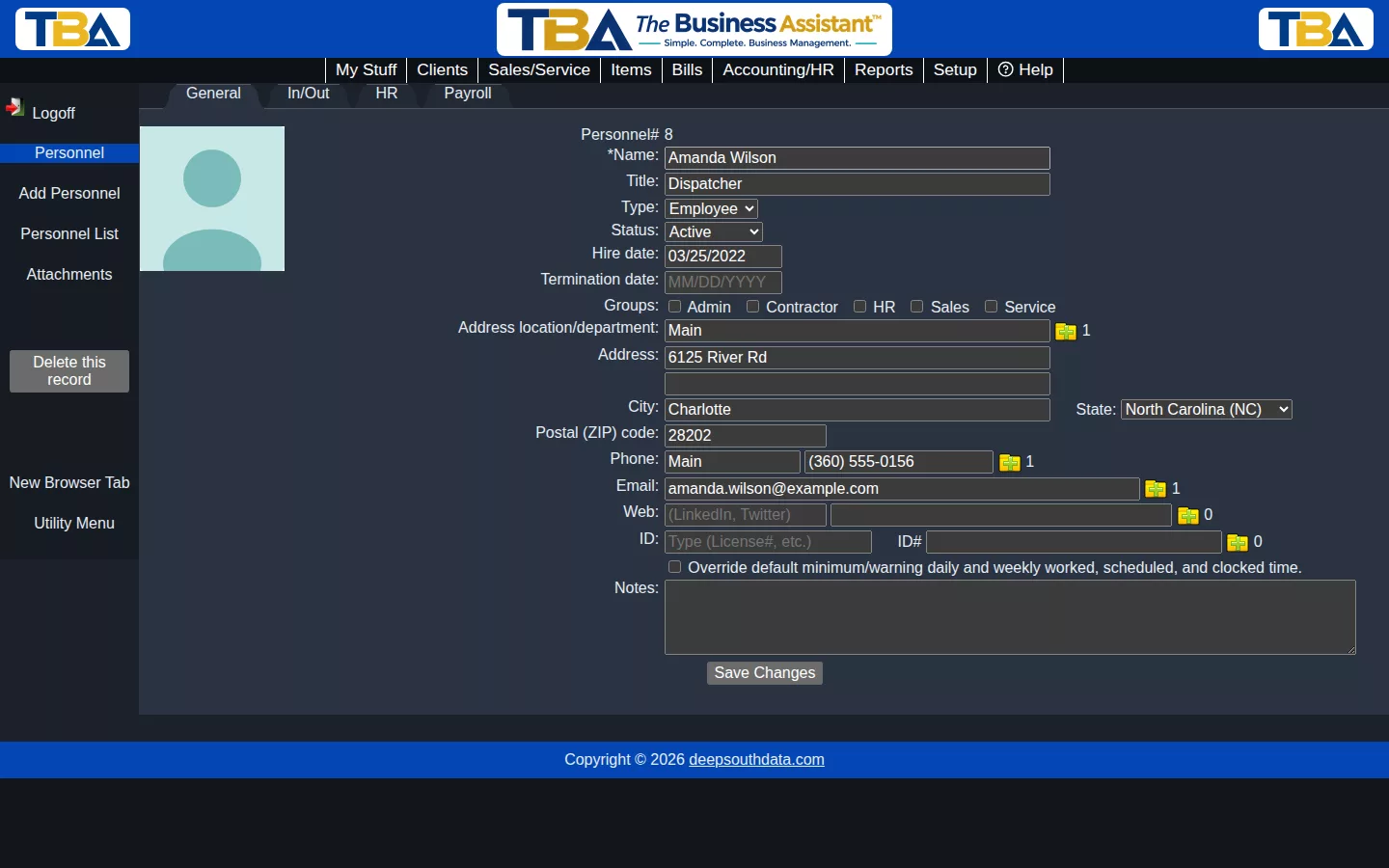
General Tab #
Name, title, type (Employee/Contractor), status, hire/termination dates, groups, and contact information.
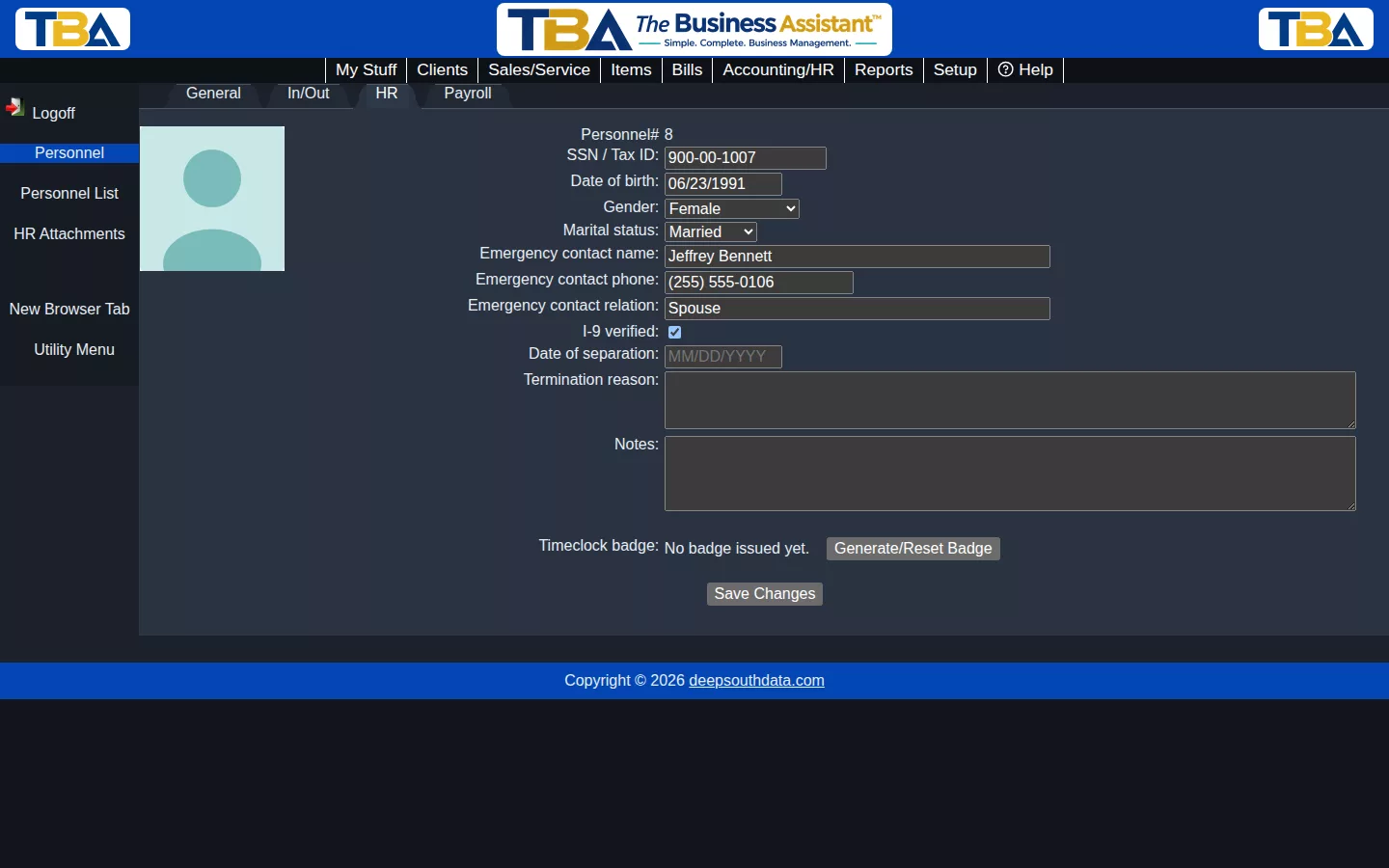
HR Tab #
SSN/Tax ID, date of birth, gender, marital status, emergency contact, I-9 verification, and timeclock badge.
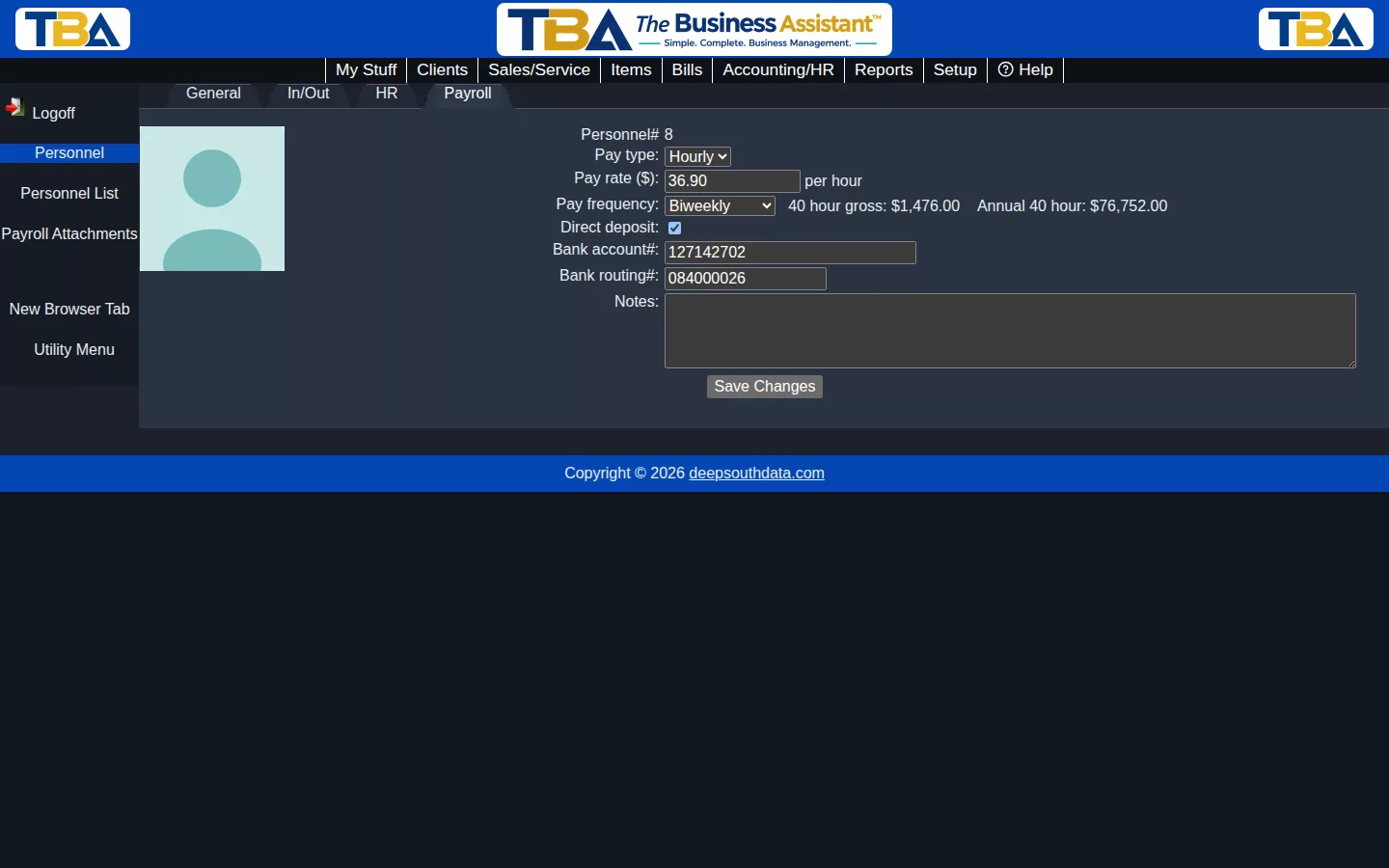
Payroll Tab #
Pay type (Hourly/Salary), pay rate, pay frequency, and direct deposit bank details.
In/Out Tab #
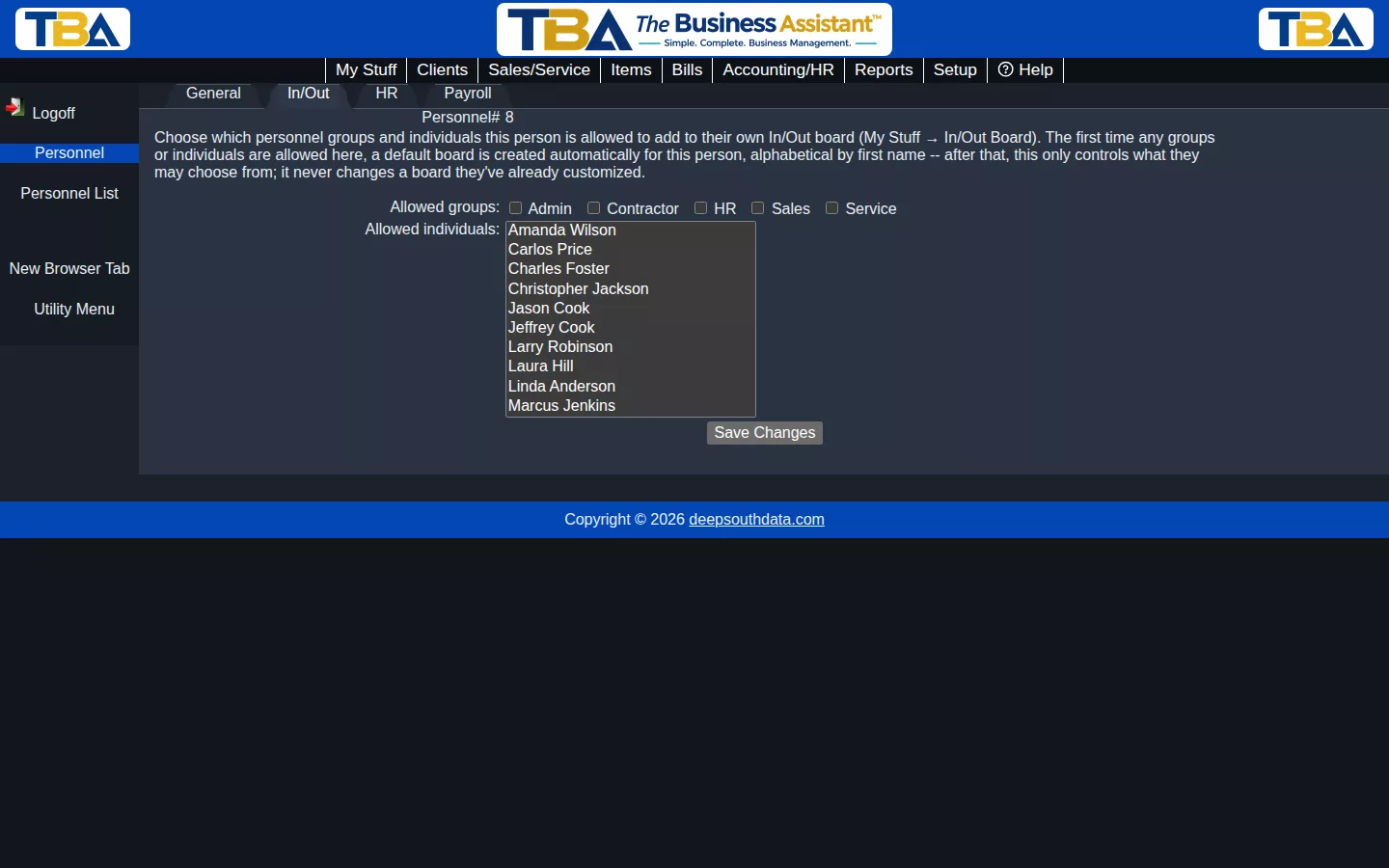
Controls which groups or individuals this person is allowed to add to their own In/Out board (reached from My Stuff → In/Out Board).
The Personnel List #
Columns: Name, Type, Groups, and Status. Click a person to open them. Add new in the sidebar creates a record, and the filter dropdown shows All Personnel, Active, Inactive, or Terminated.
Every Field, Tab by Tab #
General #
- Personnel# — assigned by TBA (see Next Numbers to Assign).
- Name (required) and Title.
- Type — Employee or Contractor.
- Status — Active, Inactive, or Terminated. Only Active people can be picked for new assignments.
- Hire date and Termination date. The termination date is shared with the Date of separation on the HR tab.
- Vendor (for 1099 contractor pay-to) — for a contractor, the vendor record you pay and issue a 1099 to (see Vendor Tax / 1099).
- Groups — tick every group that applies.
- Address, Phone, Email, Web — contact information. Like clients and vendors, a person can have more than one of each; use the folder-plus icons.
- ID / ID# — other identifiers, such as a driver’s license.
- Override default minimum/warning daily and weekly … time — tick this to give this person their own hour thresholds for worked, scheduled, and clocked time, instead of the company-wide ones in Personnel Time Options.
- Notes. The sidebar also has Attachments (see Attachments and Pictures) and delete, which removes the person along with their HR and payroll data.
HR #
SSN / Tax ID, Date of birth, Gender, Marital status, Emergency contact name, phone, and relation, I-9 verified, Date of separation, Termination reason, Notes, and the Timeclock badge. From here you can generate or reset the badge, print it, or choose Email Badge: pick the person or type any email address, edit the From, subject, and message (the wording starts from the Timeclock Badge template in General Options), and send. HR has its own HR Attachments so private documents stay separate.
Payroll #
Pay type, Pay rate ($), Pay frequency, Direct deposit, with Bank account# and Bank routing#, Notes, and Payroll Attachments. TBA tracks pay information and hours; it does not file payroll taxes. See the Payroll Summary and Timesheet Report.
In/Out #
Choose which Allowed groups and Allowed individuals this person can add to their own In/Out board (My Stuff → In/Out Board). The first time anything is allowed, a default board is created for them automatically, alphabetical by first name. After that this only controls what they may choose from; it never changes a board they have already customized.
These tabs are only visible to users with the matching HR and payroll permissions; see Users and Permissions.


