
Personnel Time Options sets the daily and weekly hour thresholds behind the color-coding on the Time Tracking Calendar — when a day or week’s Worked, Scheduled, or Clocked time turns yellow (warning) or red (below minimum / overtime alert).
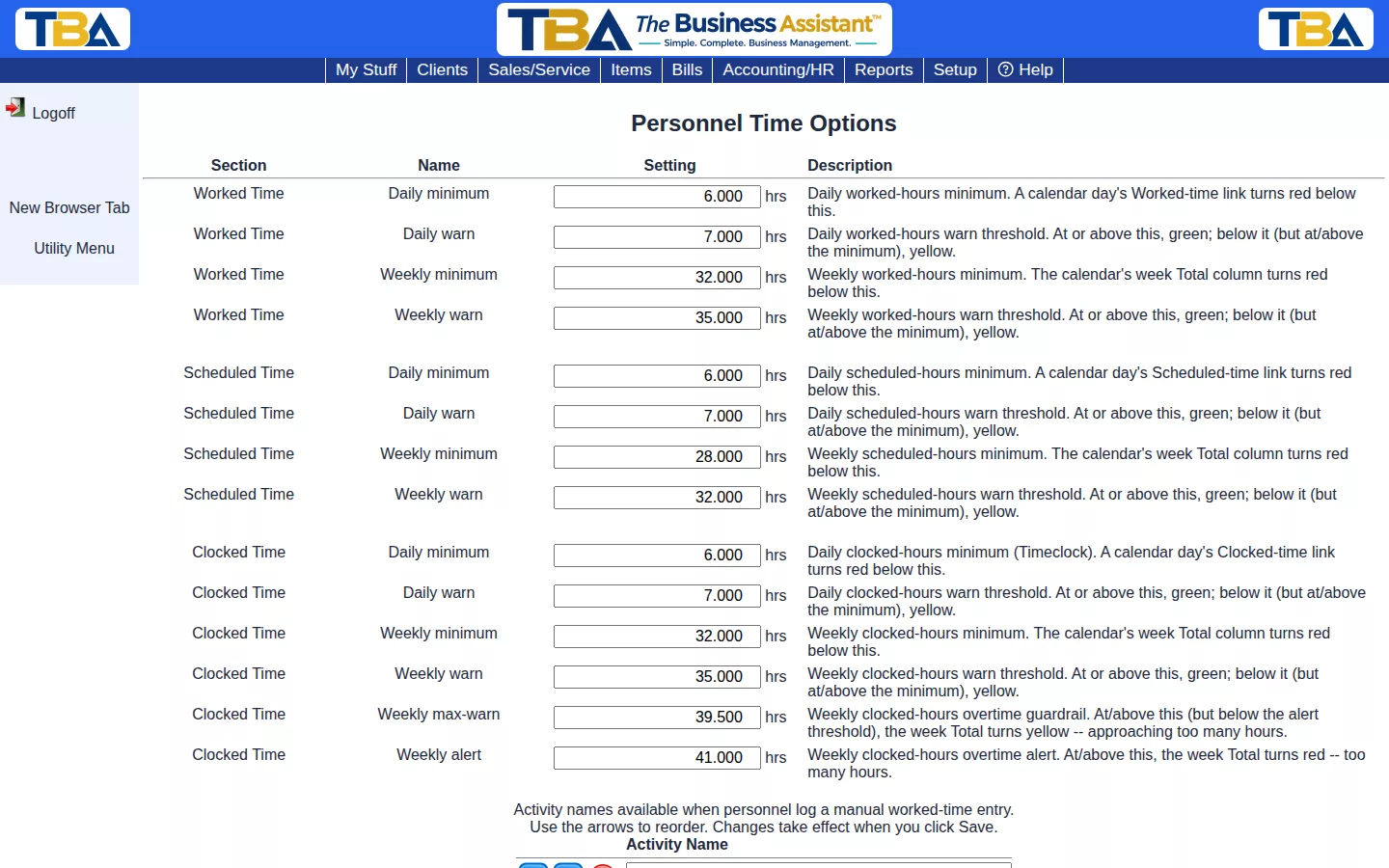
Sections #
- Worked Time — daily/weekly minimum and warn thresholds for total worked hours.
- Scheduled Time — same, for planned/scheduled hours.
- Clocked Time — same, for actual Timeclock time, plus a weekly max-warn and alert threshold for catching overtime before it happens.
Activity Names #
Below the thresholds, configure the activity names available when personnel log a manual worked-time entry (e.g. Regular, Overtime, Sick, Vacation).
Individual employees can override these company-wide defaults on their own Personnel record.
How the Colors Work #
For each kind of time there are four numbers, all in hours. On the Time Tracking Calendar:
- Daily / Weekly minimum — below this the day’s link, or the week’s Total column, turns red.
- Daily / Weekly warn — at or above this it is green; between the minimum and the warn level it is yellow.
Clocked Time also has two overtime guardrails: Weekly max-warn turns the week’s Total yellow as someone approaches too many hours, and Weekly alert turns it red when they exceed it.
Set the numbers, then click Save Changes. The Activity Name list at the bottom holds the choices offered when someone adds a manual worked-time entry; reorder with the arrows. Time tracking must be turned on in General Options (Use Timesheet Functions, and Use Timeclock Functions for the clocked-time numbers).


