
In many places, such as clients, vendors, invoices, bills, and purchase orders, you will see a link in the left sidebar to add attachments to this record.
When you click that link, the Attachments dialog opens.
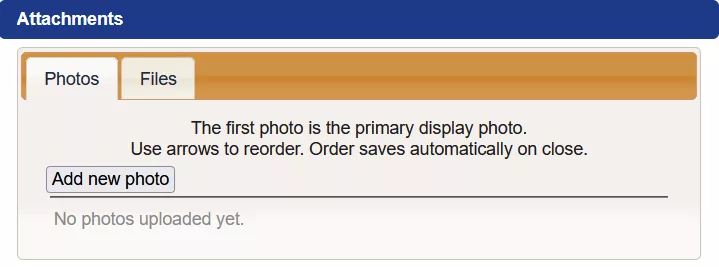
Photos #
To add a photo, click the “Add new photo” button.
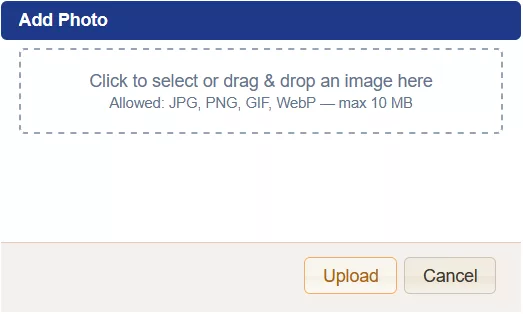
You can drag and drop an image file in the box, or you can click in the box to bring up a file selection dialog. After you select the photo, make sure you click the “Upload” button.
If this is for a client, vendor, item info, etc., the first photo in the list will be the one displayed on the main page.
Files #
Files are added the same way. You can add .pdf, .doc, .xlsx, or many other file types to this record, including emails.
Emails #
Some browsers, such as Firefox, support dragging an email directly from your email program (such as Outlook) into The Business Assistant™ directly. With other browsers, such as Chrome, you have to drag the email somewhere else first (such as your desktop), then into TBA.


