
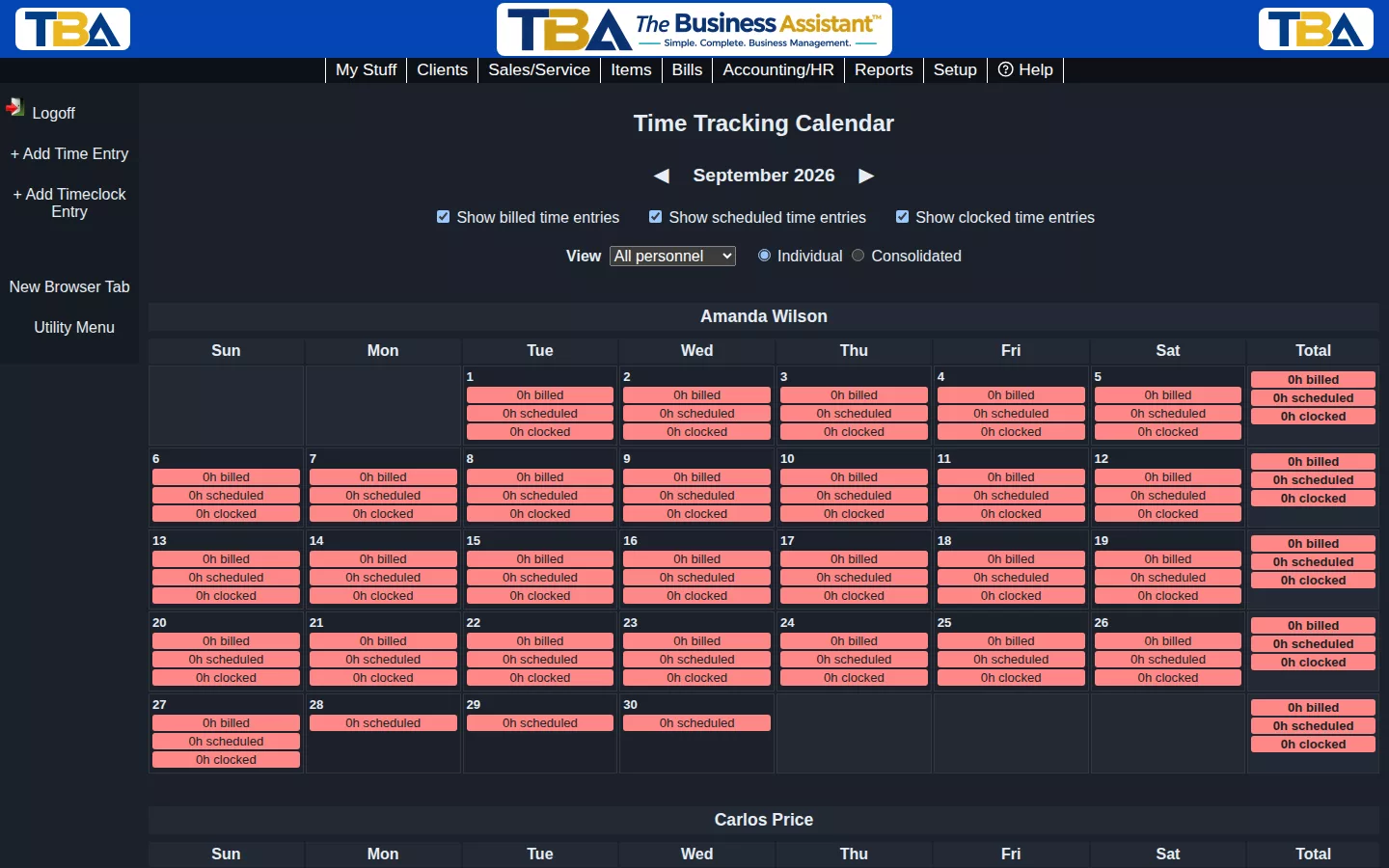
The Time Tracking Calendar is a month-grid view of everyone’s hours — billed, scheduled, and clocked — side by side.
Reading the Grid #
Each day shows three figures: billed (hours billed to a client via a service order), scheduled (planned work), and clocked (actual Timeclock time). Toggle any of the three off with the checkboxes at the top if you only care about one.
Views #
Switch View between Individual (one calendar per person, as shown) and Consolidated (everyone combined). Use the arrows to move between months, or filter View to a single person instead of All personnel.
Adding Entries #
+ Add Time Entry and + Add Timeclock Entry in the sidebar let you add hours manually — useful for correcting a missed clock-in or logging time that didn’t go through the kiosk.
Choosing Whose Time to See #
The View dropdown offers Me, One person, A group, Specific people, or All personnel. Pick one, choose the person or group if asked, and the calendar updates. Combine it with Individual (one calendar per person) or Consolidated (everyone added together). Use the arrows to change months.
The Colors #
Day links and the week Total column turn yellow, green, or red against the thresholds in Personnel Time Options (or an individual’s own override on their Personnel record). Click a day’s figure to see the entries behind it. Scheduled time counts here only for orders that are Open or In Progress; see Sales/Service Orders.
Adding an Entry #
- + Add Time Entry — log worked time: Personnel, Start and End, Activity (the names come from Personnel Time Options), and Notes.
- + Add Timeclock Entry — correct or add a clock event: Personnel, Date, the In and Out times, and a required Reason, which is kept for the record.
The reports built from this data are the Timesheet Report and Payroll Summary.
On a Phone #
On a phone, each week is a list of day rows. Each day shows tappable hour chips for worked, scheduled, and clocked time, and each week ends with a total row. Tap a chip to see the entries behind it, and use the sidebar actions button for Add Time Entry and Add Timeclock Entry. See Using TBA on Your Phone.


