
Client Payments records money a client pays you, and applies it against their open Invoices (or, as a prepayment, against an order that hasn’t been invoiced yet). Saving a payment posts it to your books automatically.
Where to Find Payments #
Open a client in Client View and click Payments for that client’s payments, or choose Payments from Sales/Service to see every client. Global Find searches payments too.
The Payment List #
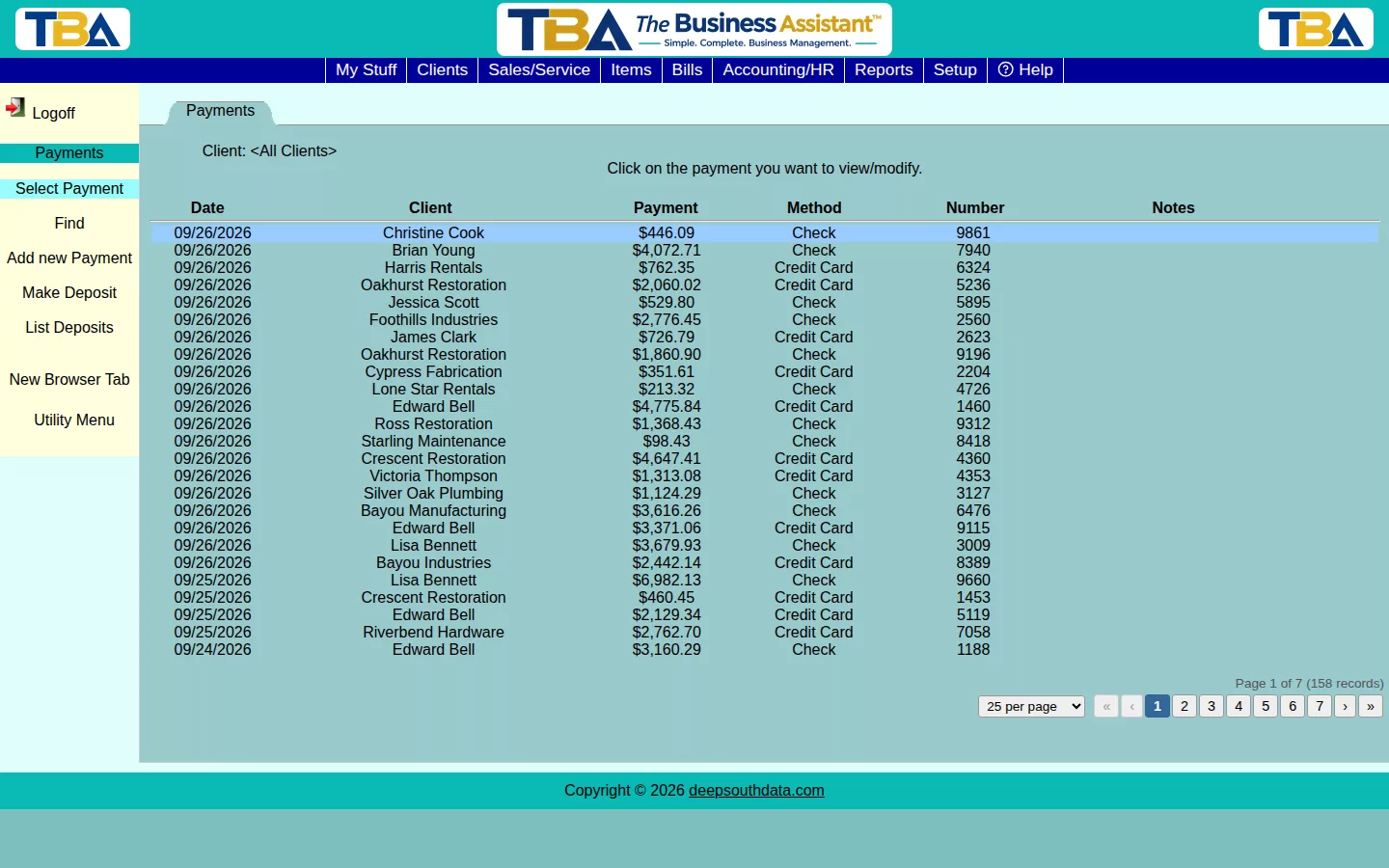
Columns: Date, Client, Payment amount, Method, Number (check number or reference), and Notes. Click a row to open the payment. The sidebar has Add new Payment, Find, Make Deposit, List Deposits, and New Browser Tab.
Finding a Payment #
Fill in any of: All text fields, Payment date from / to, Reference number, Amount, Invoice # (payments applied to that invoice), and Client. List → List Previous Find on a payment returns to your last results.
Recording a Payment #
Click Add new Payment (or Pay Invoice on an invoice, which fills in the client for you). Then:
- Choose the Client if it isn’t already set. If the client already has unapplied credit on file, TBA tells you right away, and you can use that credit instead of entering new money.
- Set the Payment date and Payment total.
- Choose the Payment type. The fields below change to match:
- Check — enter the Check#.
- Cash — no reference needed.
- Credit/Debit Card — Card#, authorization number, expiration, CVV, and billing address (filled in from the client’s address book when possible). If your company has Payment Processing connected, click Authorize Card Payment to charge a saved card or enter a new one (tick Save this card for future charges to keep it). The payment records the real charge.
- ACH / bank transfer — the bank routing# and account#.
- Other — type a name for the payment type, and up to two reference numbers.
- Add any Notes.
- Apply the money in the list of open invoices. Each row shows Invoice date, Due date, Invoice#, Original amount, Amount due, the Payment you are applying, and the resulting Balance. Tick a row to apply the full amount due, or type a partial amount. Also applied to lists other items this payment is covering.
At the bottom, TBA shows Total applied to invoices, Remaining amount to apply, and Client balance after payment.
Click Save Changes, or Save and New to save and immediately start another. You can’t apply more than the payment total. If part of the payment is left over, TBA asks what to do: Apply to Oldest Invoices, Leave as Unapplied Credit (kept on the client’s account for later), or cancel and adjust.
Using Existing Unapplied Credit #
When a client has unapplied credit, you can apply it to open invoices instead of recording a new payment. The payment type and references are locked, the total is the available credit, and no new payment is created.
Prepaying an Order #
Prepay a Sales/Service Order (sidebar) lists the client’s orders that aren’t yet invoiced, paid, or voided. Click one to add a prepayment line for it. The prepaid amount appears on the order and is applied automatically when the order is invoiced.
Changing or Undoing a Payment #
- Change Pmt Applications — for a payment that is already in a bank deposit (and so is locked), fix which invoices it is applied to without touching the payment itself. Enter each invoice’s new amount from this payment (0 removes it); whatever isn’t applied becomes unapplied credit.
- Void Payment — reverses the payment’s accounting entry and un-applies it from every invoice. A payment that has been included in a bank deposit can’t be voided until that deposit is voided. Cannot be undone.
- Mark as NSF — for a check that bounced. Voids the payment and marks it NSF, and lets you record your bank’s NSF fee (the expense account and the bank account it was charged to). Tick Charge this fee back to the client and enter the client fee and the revenue account to bill the client for it. Cannot be undone.
- View → Communications / Attachments — log contact about the payment (Client Communications) and attach files (Attachments and Pictures).
Deposits #
Once you’ve recorded client payments, use Make Deposit in the sidebar to group them into a bank deposit, or List Deposits to see deposits already made. This keeps your undeposited funds accurate until money actually hits the bank. You can also reach deposits from Accounting/HR → Banking → Deposits.
Credit Card Merchant Fees #
When you make the deposit, you will see a place for “Fee amount.”

This merchant services fee is what your credit card processor charges you for this deposit. What goes into your bank account will be the total amount of the payments that you select, minus this total fee amount.
Related #
Give a client credit instead of taking payment with a Credit Memo. To see who owes you money, use AR Aging. After deposits, match them to your bank with Reconciliation.
On a Phone #
You can record a payment from your phone: the header fields stack, and the list of open invoices appears as cards where you tick the ones to pay or type an amount. Totals for applied and remaining amounts follow the cards. The Payment List also shows as cards. Dropdowns such as Payment type open as a list from the bottom of the screen. See Using TBA on Your Phone.
Refunding a Payment #
When you need to give a client money back, open the payment and click Refund Payment in the left sidebar. The button appears on a saved payment that has not been voided, and only for users who are allowed to void payments.
The Refund Payment window shows the payment (amount, client, payment type) and, if any of it has already been paid back out or is sitting as unapplied credit, says so. You choose how the money goes back, how much, and TBA does the bookkeeping.
The three ways to refund #
- Return the money to the card (through Stripe). Available only for a payment that was charged to a card through TBA’s Stripe payment processing, while your company’s Stripe account is connected. The refund goes back to the same card. Stripe processes it right away; the client’s bank may take several business days to show it. If the payment is part of a bank deposit, TBA asks you to void the deposit first. If part of the payment was already refunded another way (see below), this option is turned off. A payment that includes order prepayments can only be refunded to the card in full.
- Credit to the client’s account (no money moves). The amount comes off the invoices the payment was applied to and stays on the client’s account as unapplied credit, ready to apply to another invoice. Because no money moves, this also works on a payment that is already in a bank deposit.
- Pay it back out of our own account. You choose Paid by (Check, Cash, ACH / bank transfer, Credit card not through Stripe, or Other, where you type what kind), Paid from (the bank or credit card account the money comes out of — the same list Quick Payment uses), an optional check number or reference, and the date. TBA creates a payment to the client in Quick Payment, booked against Accounts Receivable. This also works on a payment that is already in a bank deposit. For a check, leave Print the check now ticked: the check number is filled in from the account’s next check number, and after you confirm, TBA opens the Quick Payment and offers to open the check for printing.
How much, and where it comes from #
Type the amount, or click the full amount. TBA splits it for you:
- First from any unapplied credit on the payment (an overpayment, or credit already sitting there). No invoice is affected by that part.
- Then from the invoices the payment was applied to, newest first. Those invoices are reduced and reopen, because the money that paid them is going back.
The table lists each invoice and how much of this payment was applied to it; you can change the amount taken off each one. A line under the table summarizes what comes from credit and what comes off invoices. When you click Refund, TBA asks you to confirm. If you are refunding because the sale itself was cancelled, remember to void the invoice or issue a credit memo as well — refunding a payment does not do that for you.
What happens to the payment #
- Full refund to the card: the payment is voided and marked as a refund, its accounting entry is reversed, and the invoices it paid reopen.
- Partial refund to the card: the payment’s amount is reduced by the refund, and so are the invoice amounts you chose.
- Credit to the account: the payment keeps its amount; only the invoice applications change.
- Paid out (check, cash, ACH, other): the payment keeps its amount and its place in any bank deposit. The payment page becomes read-only, and Void Payment and Mark as NSF are hidden (void the refund first). You can still refund more, and Change Pmt Applications is available.
A line describing the refund is added to the payment’s Notes, an entry is written to the event log, and the Refund Payment window lists every earlier refund of the payment.
Voiding a refund that was paid out #
If a refund check is lost or a refund was made by mistake, open the payment, click Refund Payment, and click Void refund beside it in the list. TBA voids the payment that was made to the client (reversing its accounting entry) and gives the amount back to the payment as unapplied credit. The invoices that were reopened stay reopened — use Change Pmt Applications to apply the credit to them again. (You cannot void the refund from Quick Payment itself; Quick Payment tells you to do it here.)
Good to know #
- Refunds should be made from TBA. A refund made directly in the Stripe Dashboard is not reported to TBA, so the payment would still look paid.
- A payment in a closed fiscal period or on a reconciled bank statement cannot be refunded to the card (the same rule as voiding it). Reopen the period or the reconciliation first.
- If you use the payment page’s amount boxes, the Balance beside each invoice and the totals at the bottom now update as you type, not only when you leave the box.


