
Timeclock Statuses defines the presence statuses an employee can choose when clocking in or out via the Timeclock Kiosk — e.g. “In”, “In a meeting” (In-type), or “Gone for the day”, “Lunch”, “Break” (Out-type).
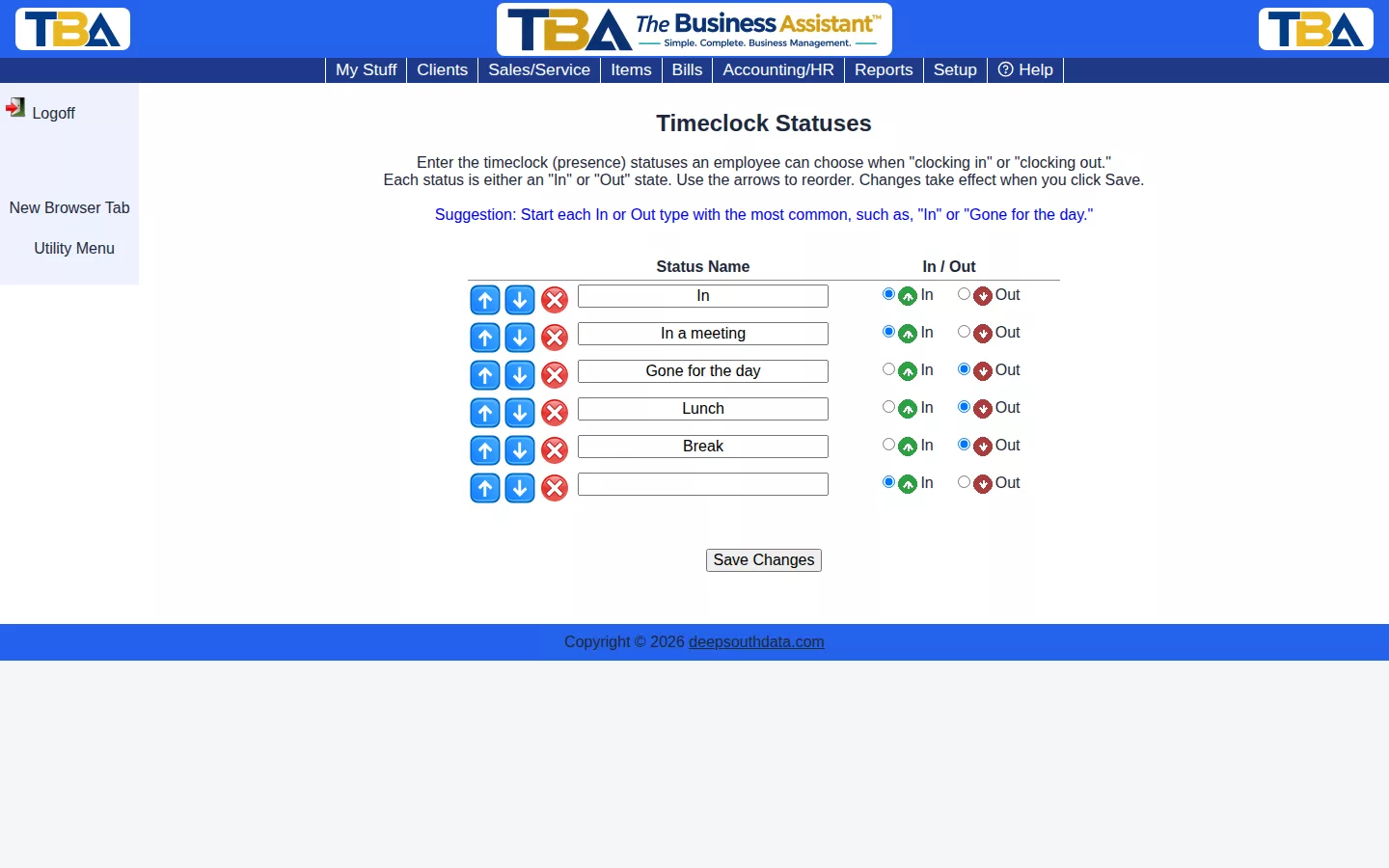
Every company starts with five defaults. Add a status by typing a name into a blank row and marking it In or Out, reorder with the arrows, and click Save Changes. As the on-page tip suggests, put your most common status of each type first.
The Status List #
Each row has a Status Name and an In / Out choice. In statuses mean the person is present and working (for example “In”, “In a meeting”); Out statuses mean they are not (“Lunch”, “Break”, “Gone for the day”). The In/Out type is what decides whether time counts as clocked. Reorder with the arrows, remove with the red X, and click Save Changes. Reaching it needs Timeclock turned on in General Options.
Where They Are Used #
The Kiosk, the Timeclock section of the Utility Menu, the dialog that can appear at login and logout, and the In/Out Board.


