
Recurring Invoices automatically regenerate an Invoice on a schedule — monthly service plans, subscriptions, or any charge you bill a client repeatedly. Each night TBA checks for series that are due, creates the new invoice, emails it to the client, and (if you chose) charges their saved card.
Setting One Up #
You make an invoice recurring while you create it. On a new Invoice, find the Recurring Invoice section near the top and tick Make this a recurring invoice. Then fill in:
- Frequency — Daily, Weekly, Monthly, or Yearly.
- Start date — when the schedule begins.
- End date — optional; leave blank for no scheduled end.
- Total invoices — optional; the series stops after this many invoices. Blank or 0 means unlimited.
- Payment — choose one:
- Generate and email the invoice only — the client pays by their usual method.
- Also auto-charge a saved card — TBA charges the client’s saved card each time. This option is unavailable if the client has no saved card, or if Payment Processing isn’t set up for your company.
Save the invoice as usual. An invoice that contains an Inventory item line can’t be made recurring, because the stock would be sold every cycle.
What Happens Each Cycle #
- A new invoice is generated with the same client and lines. Prices are looked up again at that time, so a price change since the last cycle is reflected.
- The invoice is emailed to the client.
- If auto-charge is on, TBA charges the saved card and applies the payment. If the card is declined, the invoice is still generated and left unpaid, the reason is recorded on the series, and TBA does not keep retrying; the schedule simply moves on to the next cycle.
- When the end date or total-invoices limit is reached, the series completes by itself.
The Recurring Invoices List #
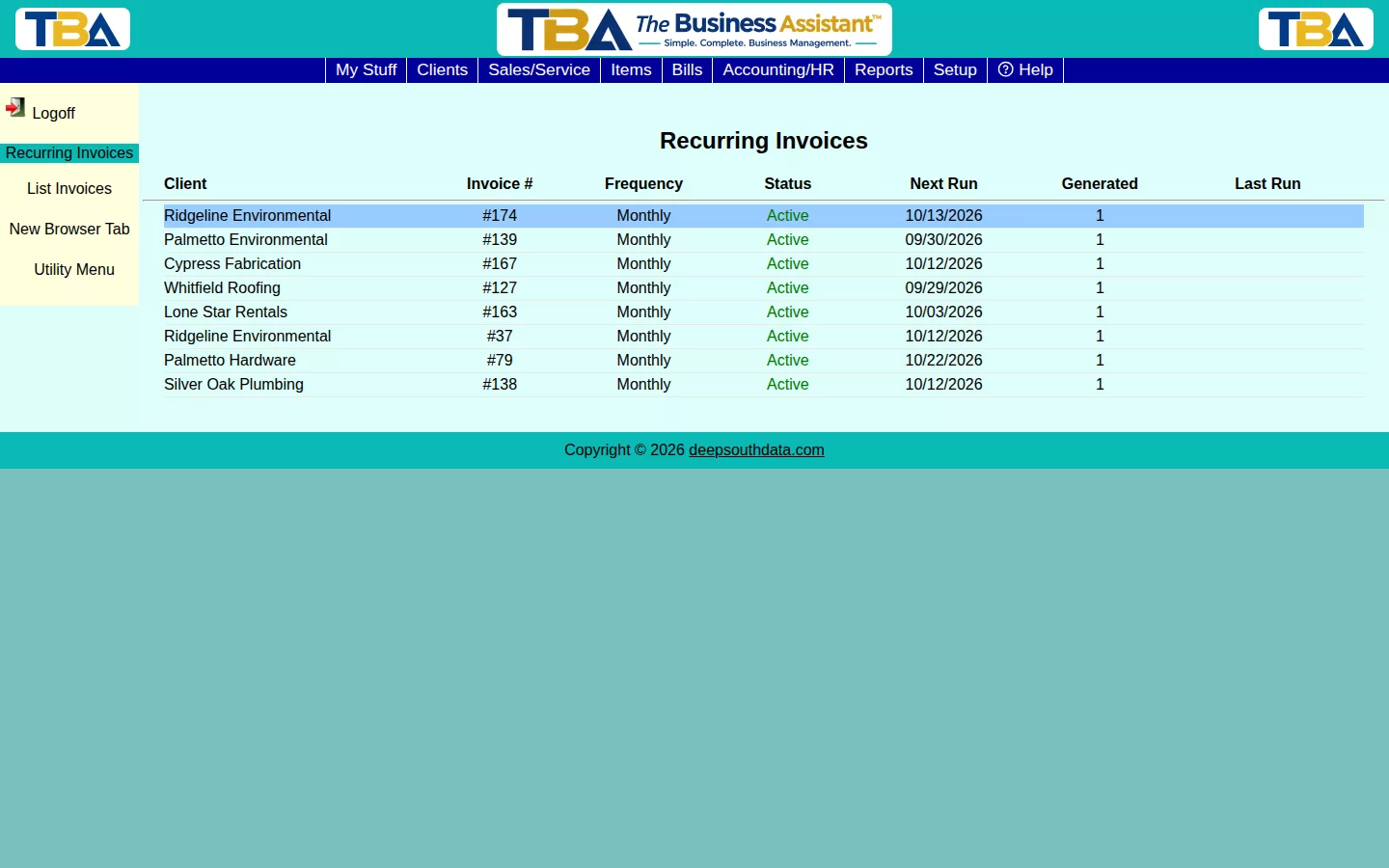
Reach it from the Invoice list’s sidebar (List Recurring Invoices). Opened from a client, it shows only that client’s series. Columns: Client (hidden when scoped to one client), Invoice # (the original invoice), Frequency, Status, Next Run, Generated (how many invoices so far), and Last Run. Click a row to open the original invoice. List Invoices returns you to the ordinary invoice list.
Managing a Series #
Open the original invoice and click Manage Recurring (in the Recurring Invoice section, and in the sidebar). The dialog shows the frequency, start and end dates, invoice limit, progress (how many generated, of how many), and the current State — for example “Active — next invoice 11/01/2026”, “Paused/Cancelled”, or “Completed”. From it you can:
- Pause / Cancel the series, or Resume a paused one. No more invoices are generated while it is paused.
- Change the card used for auto-charge. Choose a different saved card under Change to and save. It takes effect from the next cycle.
- Email Card Update Link — sends the client a secure link where they can enter a new card themselves.
- Adjust Future Sales Tax — pick a different sales tax code. This applies to every future invoice in the series and updates the client’s own default code. Invoices already generated are not changed. See Sales Tax.
- See the result of the Last run, including the reason if a charge was declined.
Reports #
To see what has been billed and what is coming, use the Recurring Invoices Report. Recurring revenue also feeds the Cash Flow Forecast.


