
A quote is a proposal — pricing and line items you send a client before any work is done or an order is placed. Nothing on a quote affects your books until it is converted into an order. This article covers the Quote list, Find, and the Quote page itself, piece by piece.
Where to Find Quotes #
Quotes live inside Client View: open a client and click the Quotes tab, or use Sales/Service in the main menu. You can also locate any quote from any client with Global Find.
The Quote List #
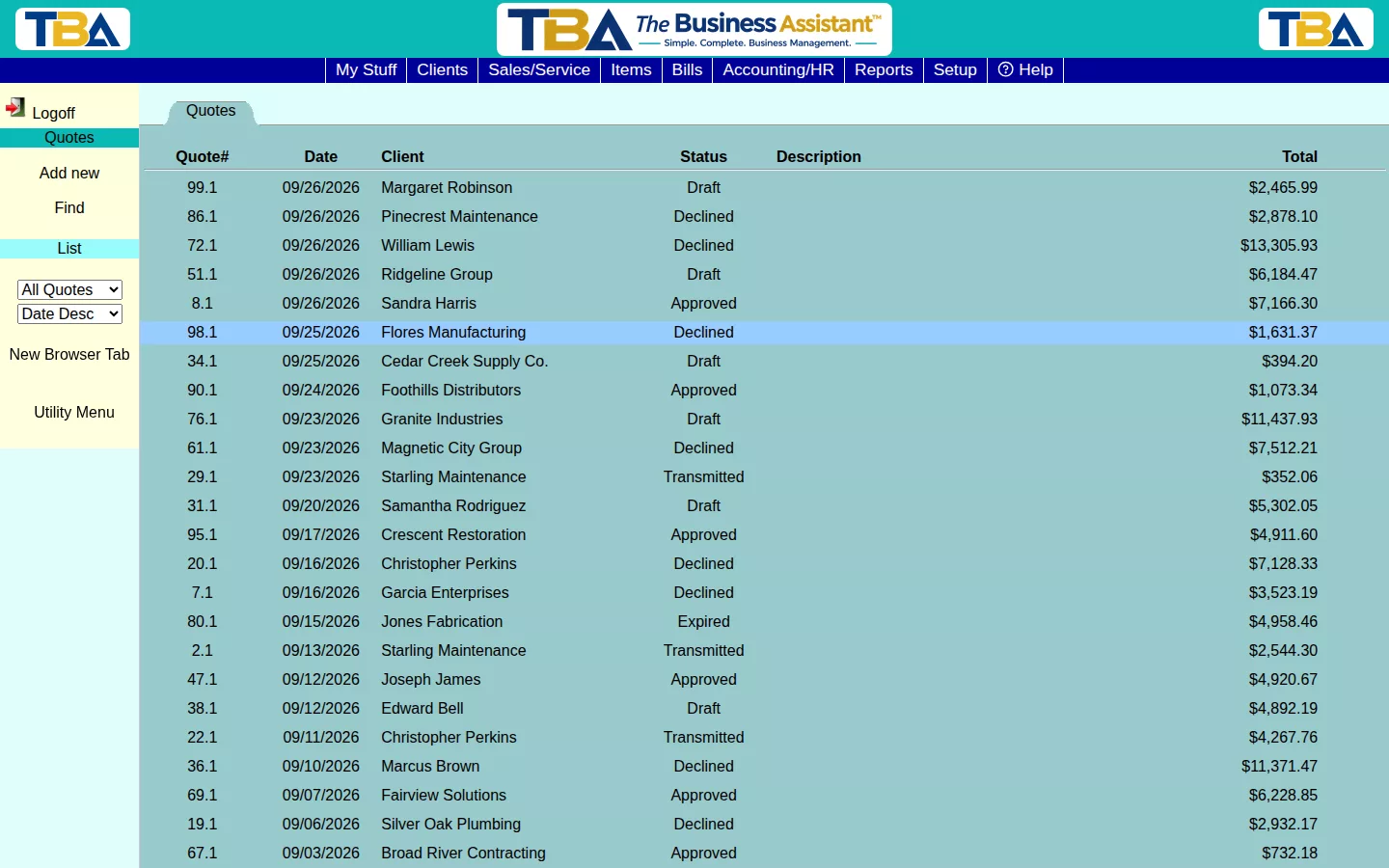
Each row shows the Quote#, Date, Client, Status, Description, and Total. Click a row to open that quote. If the list is longer than one page, page controls appear at the bottom.
The left sidebar has:
- Add new — start a new quote. If you came from a client, the quote is for that client. If you came from the main menu, you are first asked to pick the client.
- Find — search for quotes (see below).
- Status filter — All Quotes, Draft, Transmitted, Approved, Declined, Expired, Converted, or Superseded.
- Sort — Date Descending, Date Ascending, Status Descending, or Status Ascending.
- New Browser Tab — opens TBA in a second tab so you can look something up without leaving the quote you are working on.
Finding a Quote #
Click Find and fill in any one or more of these; leave the rest blank:
- All text fields — searches descriptions, notes, and other text at once.
- Quote number
- Client
- Quote date from / to — a date range.
- Status — any of the seven statuses, or <Any>.
- ID search — look up quotes by an item ID or unit ID that appears on a line.
Results appear in the list. From the quote page, List → List Previous Find takes you back to your last search results.
The Quote Page #
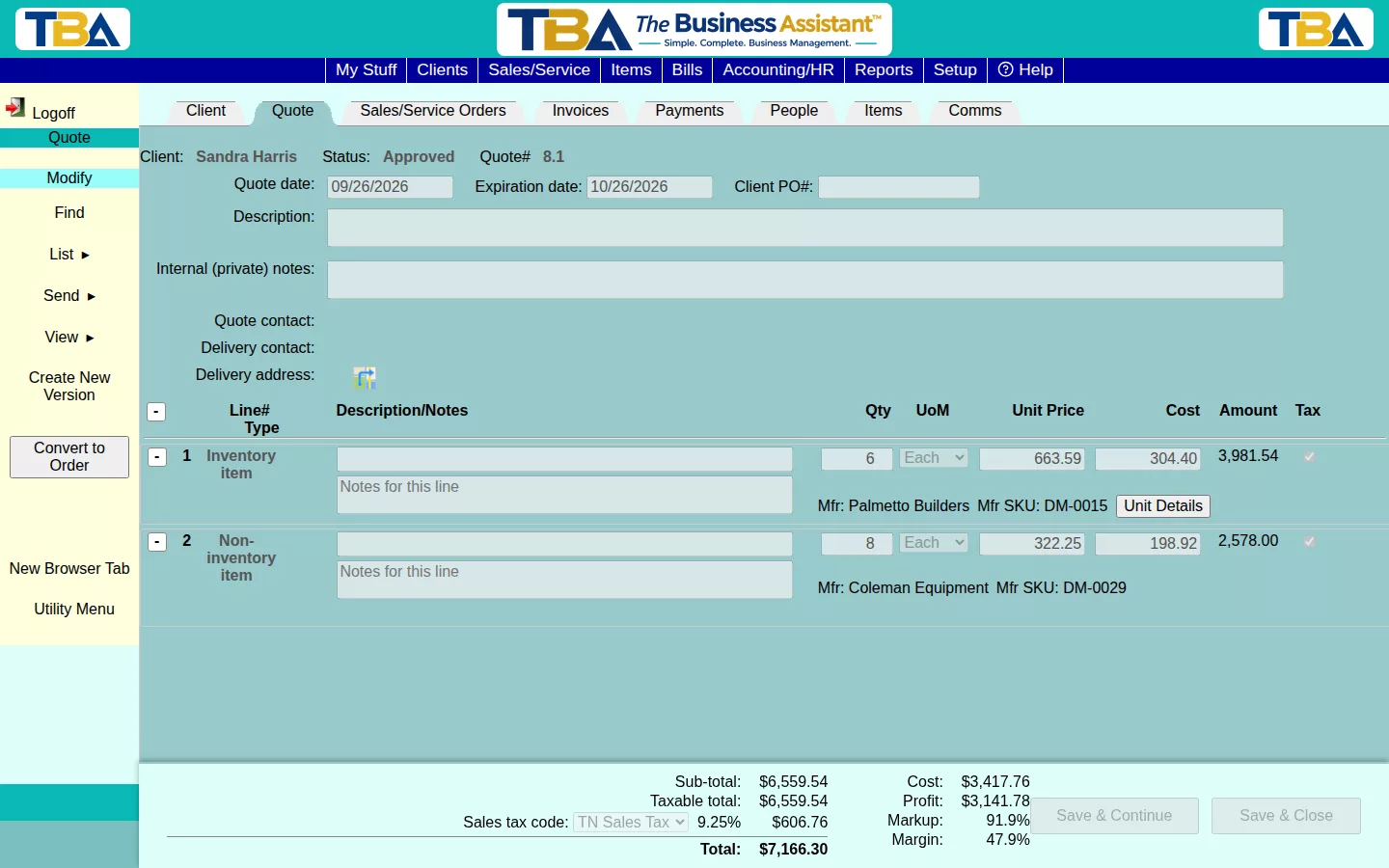
Header Fields #
- Client — the client this quote is for. Shown for reference; it cannot be changed on an existing quote.
- Status — where the quote is in its life (see Quote Statuses below). A new quote is always Draft.
- Site — which of your sites the quote belongs to. This field only appears if your company has two or more sites.
- Quote# — assigned automatically when you save. A new quote shows <New>. The next number comes from Next Numbers to Assign.
- Quote date — defaults to today.
- Expiration date — defaults to the quote date plus the number of days set in General Options (30 if not changed). It prints on the quote as the date the offer is good through. TBA does not change the status when the date passes; click the Expired button yourself when you decide the offer has lapsed.
- Client PO# — the client’s own purchase order number, if they gave you one. It is copied onto the order when you convert.
- Description — a short summary of the job. It is shown on the quote list and printed on the quote. Up to 300 characters.
- Internal (private) notes — notes for your team only. These never print on the client’s copy.
- Quote contact — the person at the client you are dealing with. Click the folder icon to choose someone from the client’s People, or add a new person on the spot.
- Delivery contact — who will receive the goods or meet your crew. Picked the same way.
- Delivery address — where the work or delivery happens. Click the folder icon to pick one of the client’s saved addresses or add a new one (location name, address, city, state, ZIP). The directions icon next to it opens a map to that address.
Line Items #
Lines are what you are actually quoting. A blank line is always waiting at the bottom; start typing in it and another blank line appears.
- Line# and Find — click Find to search your Items (by text, item number, type, manufacturer, vendor, SKU, department, or description) and click one to fill the line in. Once an item is chosen, TBA fills in its description, unit of measure, taxable setting, and the client’s price (and your cost, if you may see it). The price is picked by the most specific match, so a client- or site-specific price beats the standard one.
- Recent items — a quick-pick dropdown of items recently quoted to this client and recently used by you.
- Type — set automatically from the item: Inventory item, Non-inventory item, Service, or Other.
- Description / Notes — what the client sees for this line (up to 300 characters), plus an optional longer note for the line.
- Qty and UoM — quantity and unit of measure (each, hour, case, and so on; set up in Units of Measure).
- Unit Price — the price per unit. You can overwrite what TBA filled in.
- Cost — your cost per unit. Only visible to users with permission to view cost.
- Amount — Qty × Unit Price, calculated for you.
- Tax — check this if the line is taxable. It starts from the item’s setting.
- Rate type — appears only on Service lines priced by the hour or day. It applies a Service Rate Rule (for example 1.5X overtime or holiday pricing) to the price. See also Service Holidays.
- Unit Details — appears on Inventory lines. Opens a picker where you choose exactly which in-stock lots/units you are quoting. See Inventory.
- Up / Down arrows — move the line up or down the list.
- Delete (X) — remove the line.
- Collapse (−/+) — each line has a button to shrink it to a single row (showing only the item name) so a long quote is easier to scan. The button in the column heading collapses or expands every line at once. This changes only what you see, never the quote.
Totals #
The totals box at the bottom stays visible as you scroll:
- Sub-total — all line amounts added up.
- Taxable total — the sum of lines with Tax checked.
- Sales tax code and rate — pick the code that applies to this quote (it defaults from the client). See Sales Tax. The tax is the taxable total times the rate.
- Total — sub-total plus tax.
- Cost, Profit, Markup, Margin — shown to the left, only to users who can view cost.
Use Save & Continue to save and stay on the quote, or Save & Close to save and return to the list.
Quote Statuses #
- Draft — still being worked on. Fully editable. Only a Draft can be deleted.
- Transmitted — sent to the client. The quote is now locked, including the sales tax rate.
- Approved — the client said yes.
- Declined — the client said no.
- Expired — the offer lapsed without an answer.
- Converted — turned into a Sales/Service Order. Locked for good.
- Superseded — replaced by a newer version of the same quote. Locked.
Sidebar Actions #
- Send → Print PDF — makes a PDF of the quote. If you are allowed to view cost, you are asked whether you want the client PDF or the Cost Analysis PDF (which shows cost and profit and is for internal use only). The client PDF never shows cost.
- Send → Email Quote — choose recipients from the client’s email addresses, the client’s contacts, or type your own (separated by semicolons). Then choose Send System Email (TBA sends the PDF for you, and you can edit the From, subject, and message first — the wording starts from the template in General Options) or Send It Yourself (opens the PDF and your own email program). Every email TBA sends is recorded in the Email Log.
- View → Status Changes — a history of each status the quote has been in, with date, time, and who changed it.
- View → Communications — calls, emails, and meetings about this quote; see Client Communications. They are shared by every version of the quote.
- View → Attachments — files and photos attached to the quote; see Attachments and Pictures.
- View → Assigned personnel / Scheduled personnel — who is assigned to the job (name, role, status, percent) and when they are scheduled (start and end date and time, with a total). Roles come from Personnel Roles.
- Create New Version — use this when a client wants changes to a quote that has already been sent. Pick which version to copy; TBA makes a new Draft and marks the previous one Superseded.
- Mark as Transmitted — confirms the quote was sent and locks it. Print or email the PDF first. TBA then offers to log the communication for you.
- Approved / Declined / Expired — record the client’s answer on a Transmitted quote.
- Convert to SO — on an Approved quote, creates a new Open Sales/Service Order with the header and all the lines copied. Inventory lines are checked against what you have on hand: anything not in stock becomes a Special Order line, and if only part is in stock the line is split in two. All versions of the quote are locked as Converted, and this cannot be undone.
- Delete Draft — permanently removes a Draft version and its lines.
Who Can Do What #
What each user sees and can change is controlled in Users and Permissions. The most common differences are whether a user can edit quotes, delete drafts, and view cost and profit.
Next Steps #
After conversion, the order is tracked on Sales/Service Orders and billed on Invoices.
On a Phone #
The quote has a phone layout: the header fields stack with labels above the fields, each line item is a card (with Find, Unit Details, Rate type, and the collapse button on it), the totals follow the lines, and Save comes last. The Send, View, Create New Version, and status buttons are in the sidebar behind the actions button (three dots, top right). The Quote List shows each quote as a card, and every dropdown, including Recent items, opens as a list sliding up from the bottom. See Using TBA on Your Phone.


