
For inventory-type items, TBA tracks every individual lot on hand rather than just a single quantity — each lot has its own received date, quantity, site, and cost. A lot is what lets TBA know which specific unit (and which serial number) a client bought.
The Inventory List #
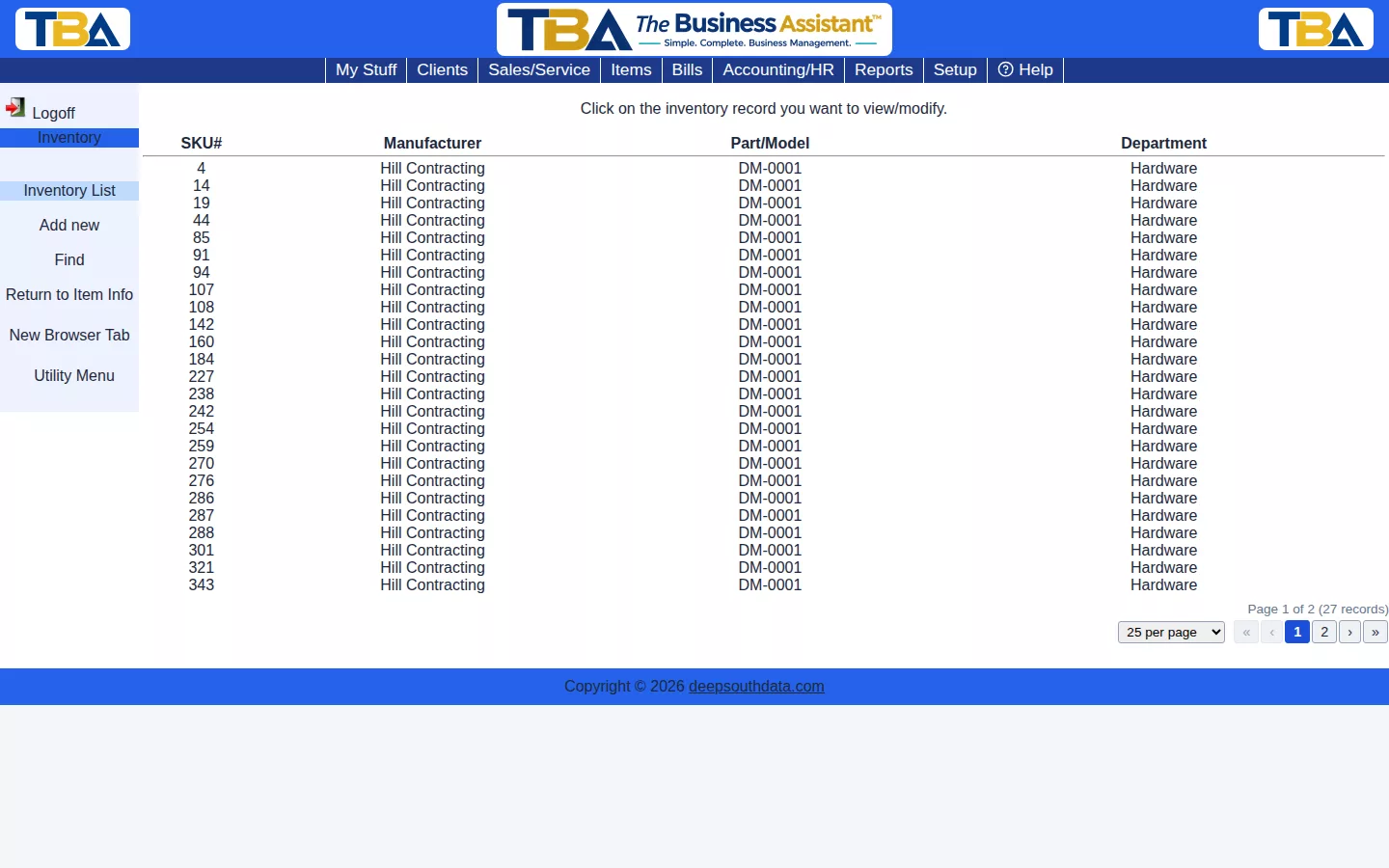
From Item Info, click List Inventory to see every lot on hand for that item, or reach the full Inventory list from the Items tile menu (see Items Overview). Columns: SKU# (your own number for the lot), Manufacturer, Part/Model, Department, and Set aside (see below). The sidebar has:
- Add new — add a lot by hand. First choose which item it is (a Find dialog), because the lot inherits the item’s details.
- Find — search lots (see below).
- Return to Item Info — back to the item.
Finding Inventory #
Fill in any of: All text fields, SKU#, Manufacturer, Manufacturer part/model/SKU, Vendor, Vendor part/model/SKU, Department, Color, Size, Site, an Other info category with its Other data, and a received-date range (After date and Before date). To find a unit by its serial number, also try the ID search on Find, or Global Find.
Lot Detail #
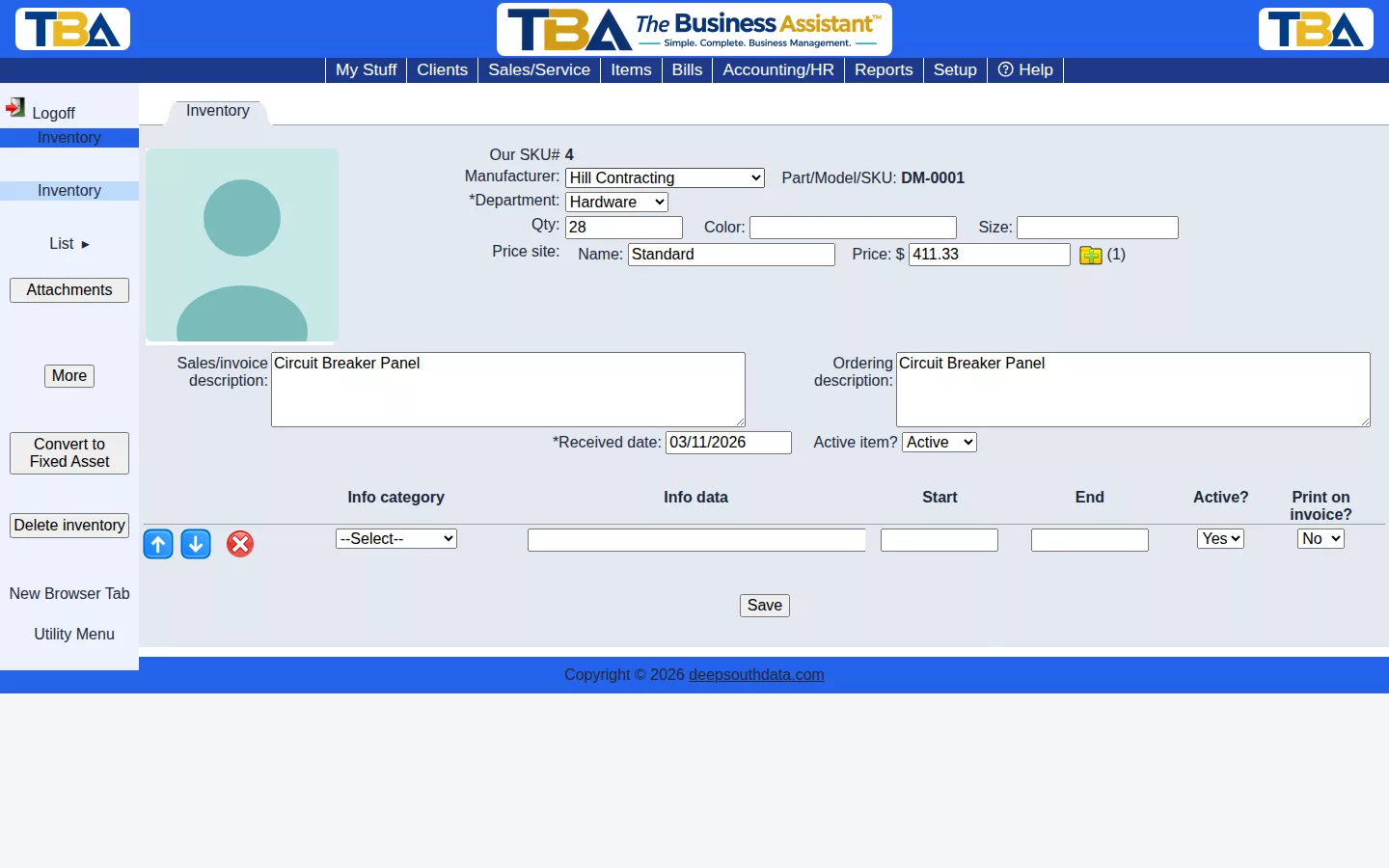
- Our SKU# — the lot’s own number, assigned when it is created.
- Manufacturer and Part/Model/SKU — from the item.
- Department and Site — where the lot is categorized and stored (Departments, Sites).
- Qty — how many are in this lot.
- Color and Size — for items that come in variants.
- Set aside — which open orders are holding the lot (see below).
- Price (with name and price site) — the selling price for this lot, with the same price list as an item (site-, client-, quantity-, and date-specific prices; see Item Info).
- Sales/invoice description and Ordering description — copied from the item.
- Received date — when the lot came in.
- Active item? — set Inactive to hide the lot.
- Info category / Info data / Start / End / Active? / Print on invoice? — extra data for the lot. This is where serial numbers and warranty details are recorded; tick Print on invoice? to have a row print on the invoice line when this unit is sold. See Item Info Categories.
- More — additional data: Taxable?, Cost (what you paid), Present value (defaults to cost), Internal notes, price tag quantity, form, and comment, and, for lots received on a bill, the Bill# with a View Source Bill button. Users with accounting permission can also show the G/L accounts (COGS, sold revenue, rented revenue, inventory asset, and order layaway asset).
Sidebar Actions #
- Attachments — photos or documents for the lot; see Attachments and Pictures.
- Split Qty — breaks a lot of N units (N greater than 1) into N separate one-unit lots, so each can carry its own serial number. Attachments are copied to each new lot.
- Convert to Fixed Asset — if you are keeping some of a lot for internal use rather than selling it, convert up to its quantity into a Fixed Asset.
- Delete inventory — removes the lot. It is archived rather than destroyed, so documents that referred to it still display correctly.
Where Inventory Comes From #
Inventory lots are created automatically when you receive items on a Bill entered against a Purchase Order, or can be added manually from the Inventory list’s Add new. Adding, changing, or deleting a lot by hand also posts an inventory adjustment to your books. Selling a lot on an invoice reduces it; a lot that is completely sold is archived.
Set Aside for Sales/Service Orders #
When an inventory unit is chosen on a Sales/Service Order that has not been invoiced yet, that quantity is set aside for the order’s client. It is still in your inventory, because it has not been invoiced, but it is spoken for.
- On the Inventory list, the Set aside column shows how much of each lot is on an open SO (for example, “1 on SO”).
- On a lot’s detail page, the Set aside row lists each SO holding it, with the client and quantity (for example, “SO# 12 for Acme Co (1)”).
When you invoice, TBA sells from the units set aside for that order first. It will not take units set aside for a different SO unless you choose them yourself in Unit Details and confirm.
Finding a Unit by Serial Number #
To find a unit by its serial number or other ID from anywhere in TBA, use Global Find on the My Stuff tab. A unit still in stock shows as its inventory lot. Once it has been sold, the search shows the client who bought it.
Units Returned to a Vendor #
When received units turn out to be dead or defective, you can send them back from the Bill they came in on (View → Return to Vendor). See Vendor Returns for the whole process. What it does to Inventory:
- The units come out of stock at once, even though the return is still waiting on the vendor’s credit. A lot that goes back whole is moved to the inventory archive, with its serial numbers, rather than deleted. A partial return lowers the lot’s quantity. If you return only some units of a multi-unit lot, you pick which serial numbers go; those units are split off into their own archived record and the rest stay in the lot with their own serial numbers.
- If the vendor refuses the return, Cancel Return on the Vendor Returns page puts the units back (a split-off unit returns as its own lot, with its serial numbers).
- A unit that another open order has set aside can’t be returned until it is released, and a unit that has already been sold to a client isn’t on hand to return.


