
Departments group your items for reporting and organization — every item is assigned to exactly one. Departments also let you slice sales on the Sales Summary report and narrow searches on Find pages.
The Department List #
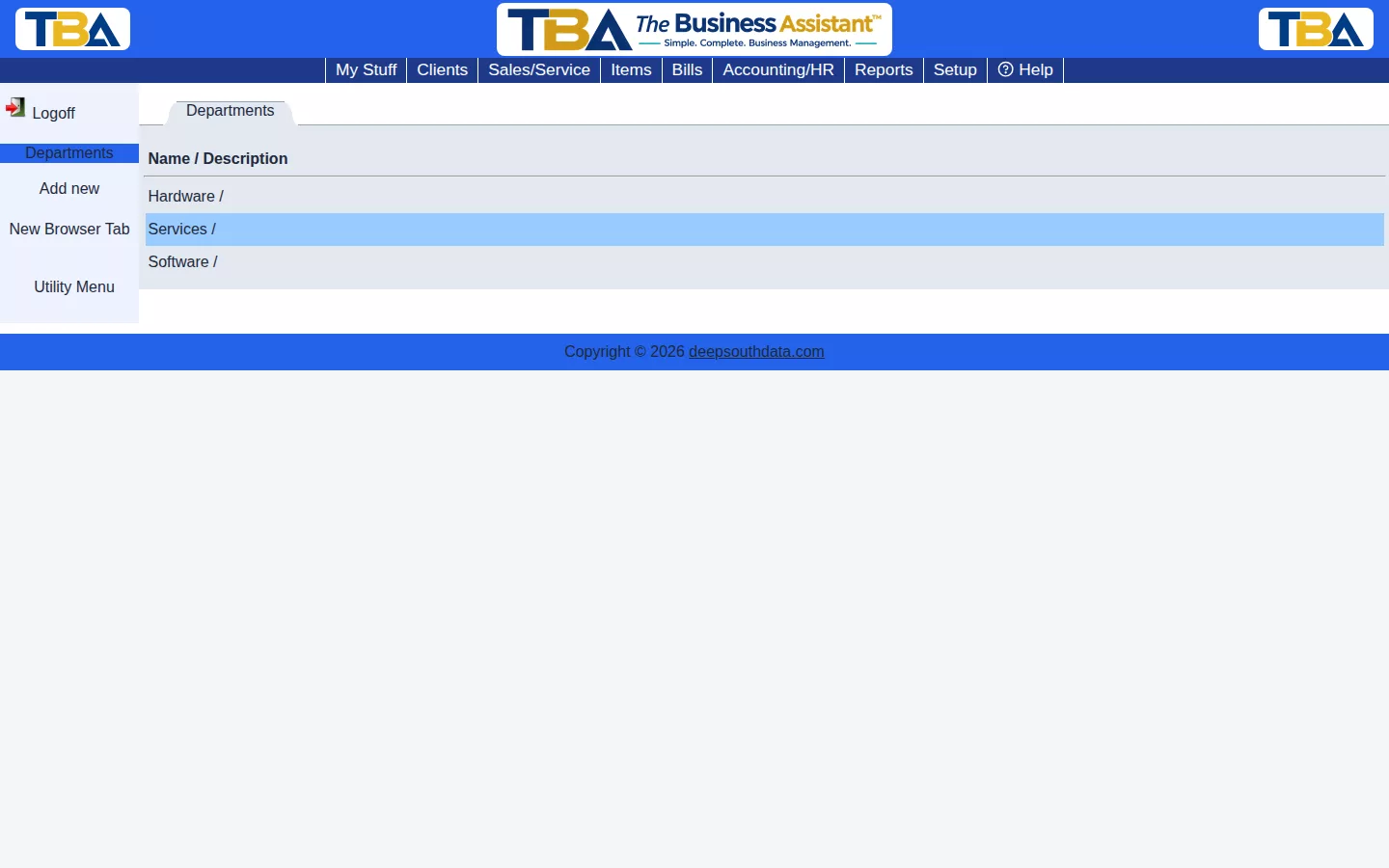
The list shows each department’s Name and Description, with sub-departments shown beneath their parent. Click a department to edit it. Add new in the sidebar creates one.
Every company starts with three defaults — Hardware, Services, and Software — but you can add, rename, or nest departments under a parent department to match how your business is organized.
Adding or Editing a Department #
Add new and clicking a department open the same small dialog:
- Parent dept — choose a parent to make this a sub-department, or <no parent> to make it a top-level department.
- Dept name (required) — what the department is called.
- Description — optional; it is copied into new items’ descriptions as a starting default.
Click Save when you are done.
Deleting a Department #
Use Delete this dept. in the edit dialog. A department that any item or inventory record still uses will not be deleted. If you delete a department that has sub-departments, they move up to become children of the deleted department’s parent.


