
Quick Payment is for a one-off disbursement when there’s no bill on file to pay against — a QuickBooks-style fast check or ACH payment, written straight to the G/L instead of through the full Bills workflow.
The Quick Payment List #
Columns: Date, Payee, Payment, Method, Number, and Notes. Click a row to open it. The sidebar has Add new Quick Payment, Find, and List All.
Find accepts any of: All text fields, Payment date from / to, Payee (part of the name is fine), Payment amount from / to, Method, and Number.
Recording a Payment #
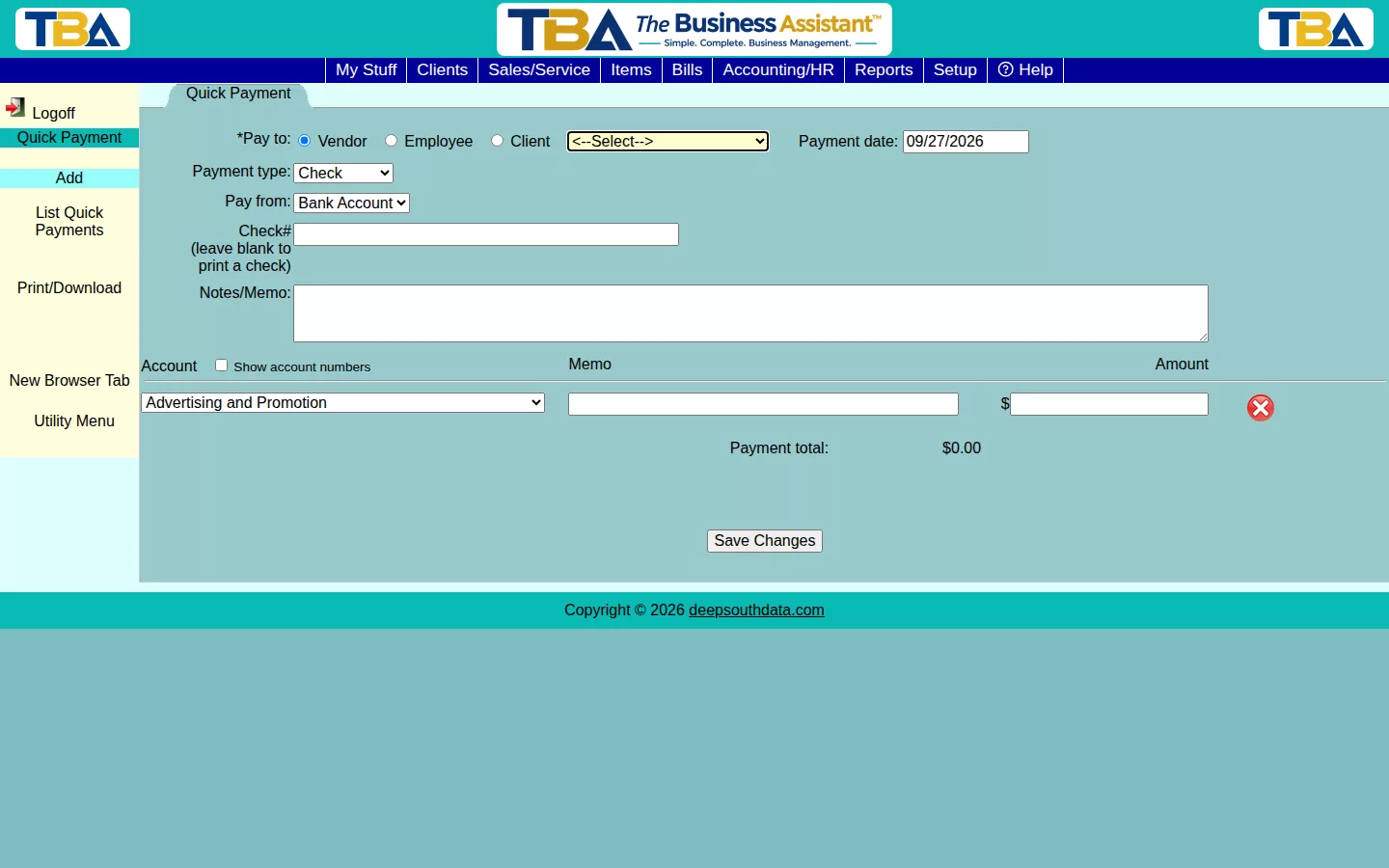
- Pay to (required) — first choose the kind of payee, then the specific one. Vendor for suppliers (you can add a new vendor on the spot), Employee for reimbursements to personnel, or Client for refunds.
- Payment date.
- Payment type — Check, ACH, and so on, or Other (type a name for it).
- Pay from — the bank account the money comes out of.
- Check# — leave it blank to print the check from TBA; when you save, TBA asks Print this check now? and lets you confirm the check number. If you wrote the check by hand, enter its number.
- Account# — for ACH or other payments that need a reference.
- Notes/Memo.
- Account / Memo / Amount lines — where the money is going. Choose a G/L account for each line (for example an expense account), a memo, and an amount; add as many lines as you need. Tick Show account numbers to show account numbers in the dropdowns. The Payment total adds up as you go.
Click Save Changes. Saving posts the payment to your books immediately.
Print and Void #
- Print/Download — prints the check or a PDF of the payment.
- Void Payment — reverses the payment’s accounting entry. Cannot be undone.
From a Bank Import #
When a bank transaction in Bank Import has nothing in your books to match, you can create a Quick Payment from it. The date, bank account, method, check number, amount, and notes are filled in from the bank’s data; you choose the payee and the expense account.
When to Use This Instead of a Bill #
Use Quick Payment for things you’d never enter a full bill for — reimbursing an employee, refunding a client, or a payment you need to record after the fact with no vendor bill to attach it to. When there is a vendor bill, pay it through Bill Payments so that AP Aging stays accurate.
Refund Payments to Clients #
When you refund a client by check, cash, ACH, a card outside Stripe, or another method from the Refund Payment window on a client payment (see Client Payments), TBA creates a Quick Payment for it. The client is the payee, and the payment is booked as a debit to Accounts Receivable and a credit to the bank, cash or credit card account you chose, so the client’s balance comes out right.
- When you refund by check and leave Print the check now ticked, the check already has its number and counts as printed. After you confirm the refund, TBA opens the Quick Payment and offers to open the check as a PDF for printing. If you untick it, the Quick Payment is created without a check number; Print/Download prints it, and you would write the number on the check yourself.
- Like every saved Quick Payment, a refund payment is read-only.
- A refund payment cannot be voided or edited here. To void it, open the client payment it refunded, click Refund Payment, and use Void refund — that also returns the amount to the payment as credit. Quick Payment tells you this if you try.


