
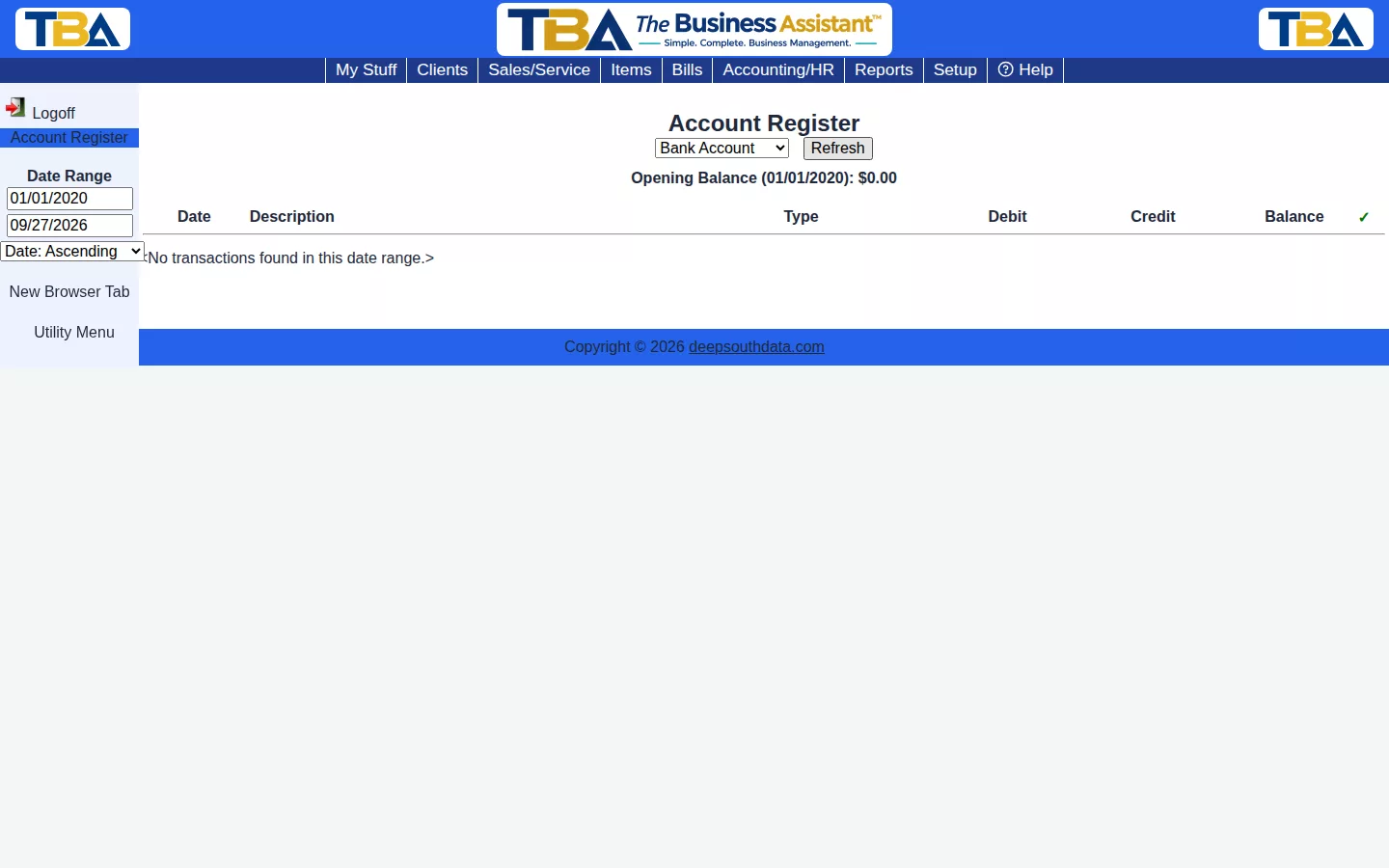
The Account Register shows a running, checkbook-style register for any bank or credit card account — every transaction, its type, debit/credit, and running balance. Reach it from Accounting/HR → Banking (see Banking Overview).
Using It #
- Pick the account from the dropdown. Bank and credit card accounts are listed; see G/L Accounts.
- Set a Date Range.
- Choose to sort Date: Ascending (oldest first, like a checkbook) or Date: Descending (newest first).
- Click Refresh.
An opening balance line shows what the account held at the start of the range.
The Columns #
- Date and Description — when it happened and what it was.
- Type — where it came from, for example a payment, a deposit, a bill payment, or a manual journal entry.
- Debit and Credit — money into and out of the account.
- Balance — the running balance after each line.
- ✓ — shows whether the transaction has been cleared on a bank Reconciliation.
Why a Transaction Might Not Show Yet #
Client payments don’t post to a bank account’s register until they’ve actually been grouped into a bank Deposit — until then they sit in Undeposited Funds, which you’ll see as its own line on the G/L Accounts chart of accounts.
Related #
To compare the register with your bank, use Bank Data Import and Reconciliation.


