
Client payments don’t hit your bank’s Account Register the moment you record them — they sit in Undeposited Funds until you actually group them into a deposit, matching how deposits really work (several checks and card payments often land in the bank as a single lump sum).
Getting There #
Make Deposit and List Deposits are in the sidebar of the Client Payments list, or open them from Accounting/HR → Banking (see Banking Overview).
Making a Deposit #
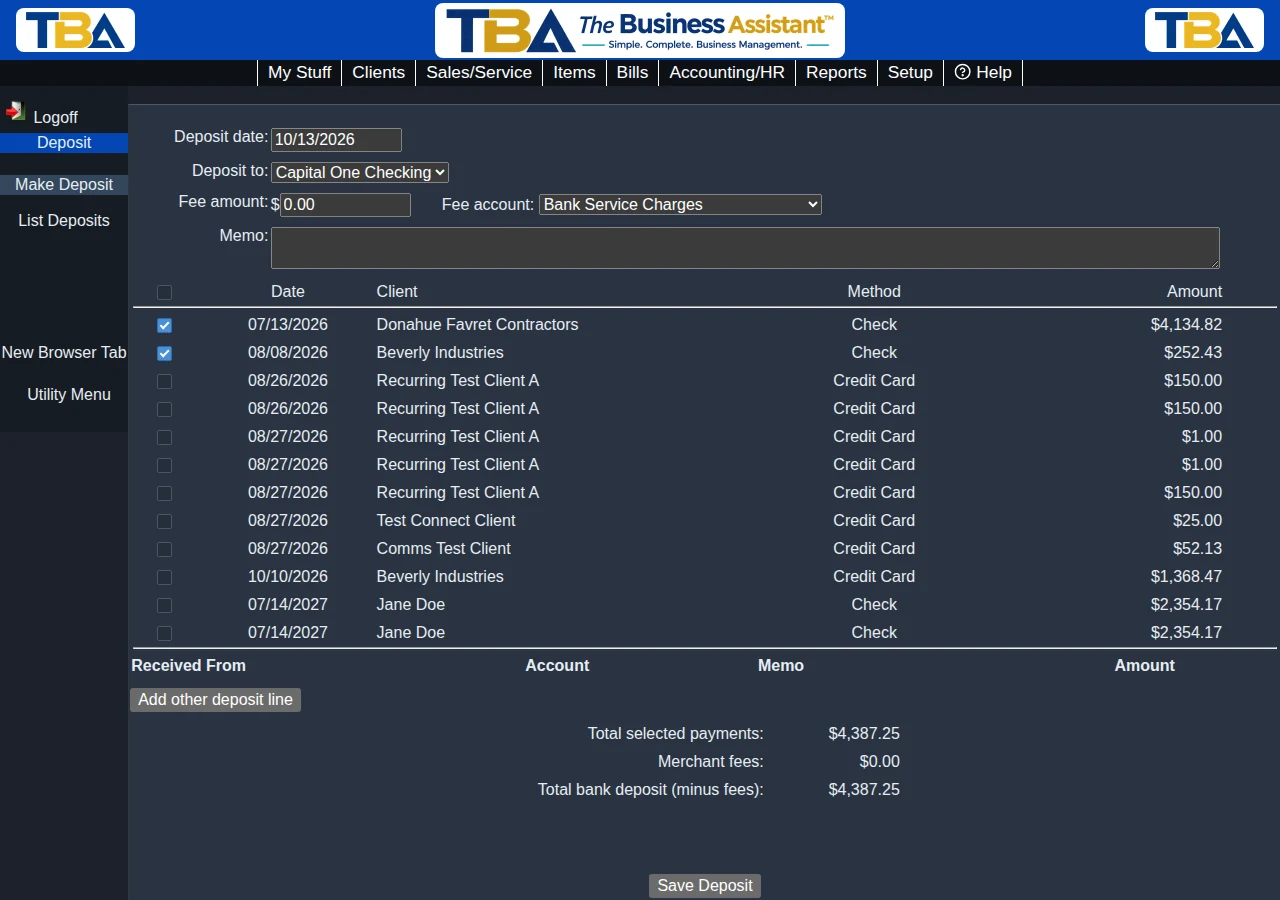
- Deposit date — the date the money went into the bank.
- Deposit to — the bank account receiving it.
- Fee amount and Fee account — optional. If your card processor takes a fee before paying you, enter it here and choose the expense account to record it in. What reaches your bank is the selected payments minus this fee.
- Memo — a note for yourself.
- Payments list — every undeposited payment, with Date, Client, Method, and Amount. Tick each payment that is part of this deposit. The box above the list ticks or clears every payment at once. The boxes use the same blue style as the permission grid (a check mark when ticked); on a phone they are larger so they are easy to tap.
- Add other deposit line — for money that isn’t a client payment, such as a refund from a vendor or interest. Enter who it was Received From, the G/L Account it belongs to, a Memo, and the Amount.
At the bottom, TBA shows Total selected payments, Merchant fees, and Total bank deposit (minus fees), which should match your bank’s deposit slip or statement. Click Save Deposit.
The Deposit List #
Columns: Date, Deposited to, Amount, # of Items, and Status. Click a deposit to view it.
Voiding a Deposit #
Open the deposit and click Void Deposit. This reverses its accounting entry and returns its payments to the undeposited pool so you can deposit them again correctly. Note that a payment that is in a deposit can’t be voided or changed until the deposit is voided (though you can still correct which invoices it applies to; see Client Payments).
Related #
After the money lands in your bank, match it with Bank Import and Reconciliation.


