
Reconciliation checks your books against a real bank or credit card statement, transaction by transaction, until they match. Do it once per statement for each account.
Reconciling an Account #
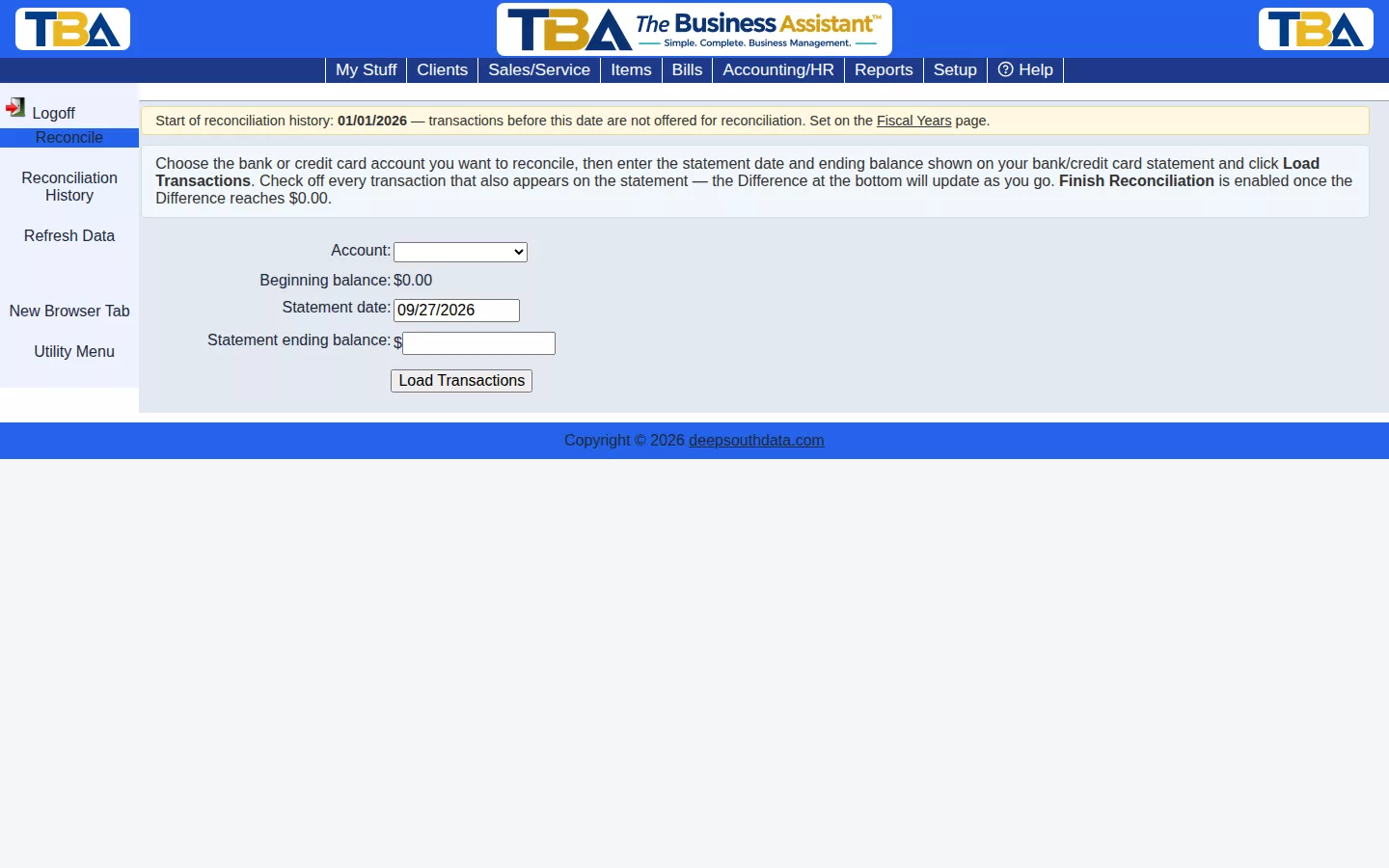
- Choose the Account — a bank or credit card account. TBA fills in the Beginning balance from the previous reconciliation.
- Enter the Statement date and the Statement ending balance exactly as shown on your statement.
- Click Load Transactions. The list shows each unreconciled transaction up to the statement date, with Date, Description, Debit, and Credit.
- Tick every transaction that also appears on the statement. If you have already used Bank Import, transactions the bank has reported are marked and pre-ticked up to the statement date, so most of the work is done.
- Watch the totals at the bottom: Beginning balance, Cleared transactions, Cleared balance, Statement ending balance, and Difference. The goal is a Difference of $0.00.
- Click Finish Reconciliation. It is only enabled when the Difference is $0.00.
Can’t finish today? Click Save & Continue Later to keep your ticks as a draft and return to it any time. If you change the account or statement and load again while you have unsaved ticks, TBA asks whether to keep them or start over. Refresh Data reloads the account list.
If the Difference won’t reach zero, look for a transaction on the statement that isn’t in TBA (add it, or use Quick Payment or Deposits), a mistyped amount, or something ticked that isn’t on the statement. The Account Register is a handy place to compare.
Reconciliation History #
Every finished reconciliation is saved for later review — Account, Statement Date, Beginning Balance, Ending Balance, who reconciled it (Reconciled By), and Status. Click one to see every transaction that was included.
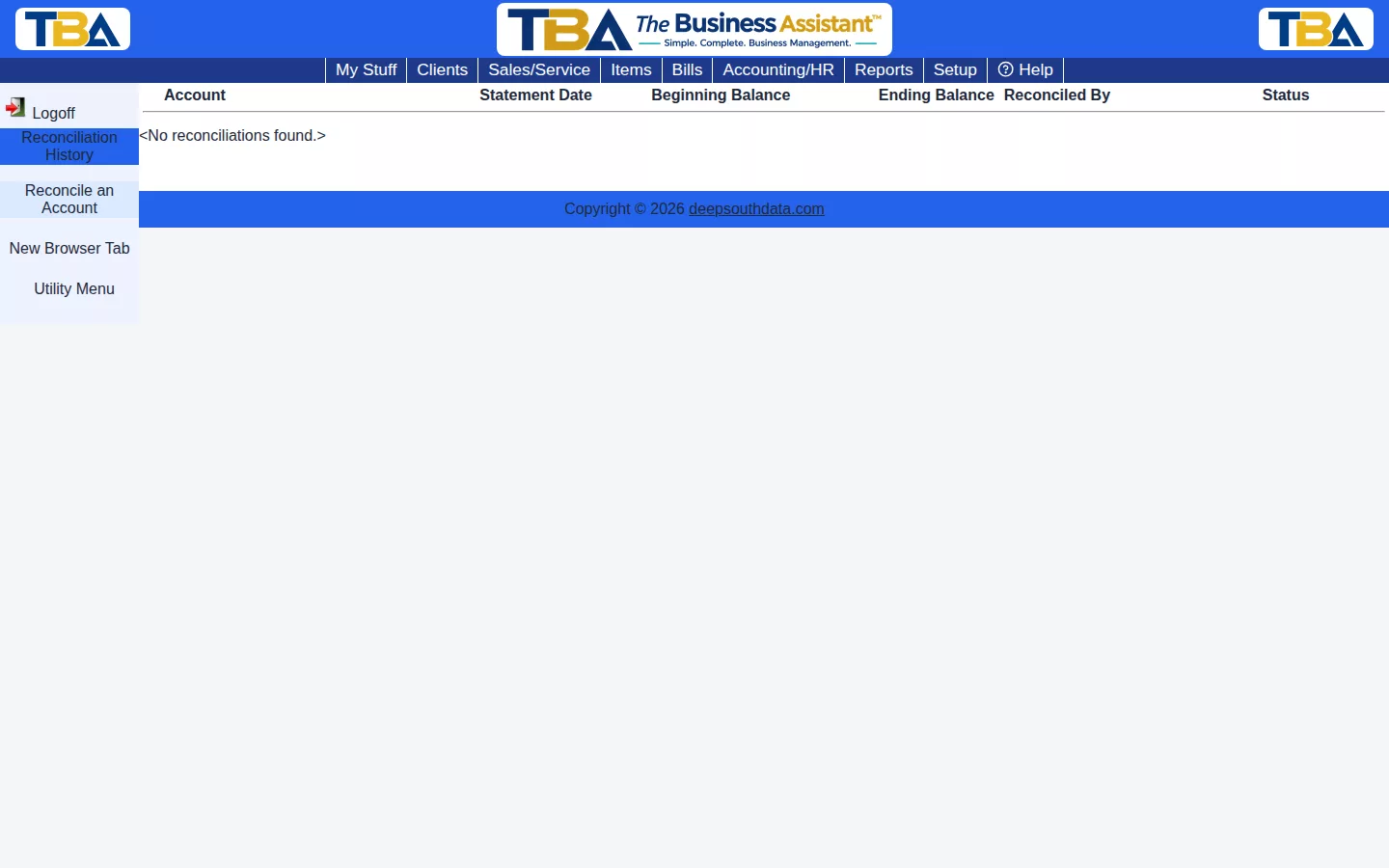
Reopening: if you made a mistake, you can reopen a reconciliation. Every transaction it included becomes unreconciled again. TBA then offers Reconcile Now, with the account, statement date, and ending balance already filled in, so you can redo it.
Start of Reconciliation History #
Transactions dated before your “Start of reconciliation history” date aren’t offered for reconciliation at all — they stay in the books exactly as entered, just no longer expected to be individually cleared against a statement. You set this date on the Fiscal Years page; the Reconcile screen shows the current date and links there.
Computer Recommended #
Reconciliation involves ticking off long lists of transactions against a statement, so it always shows the regular desktop layout, even on a phone. Use a computer or tablet for it. See Using TBA on Your Phone.


