
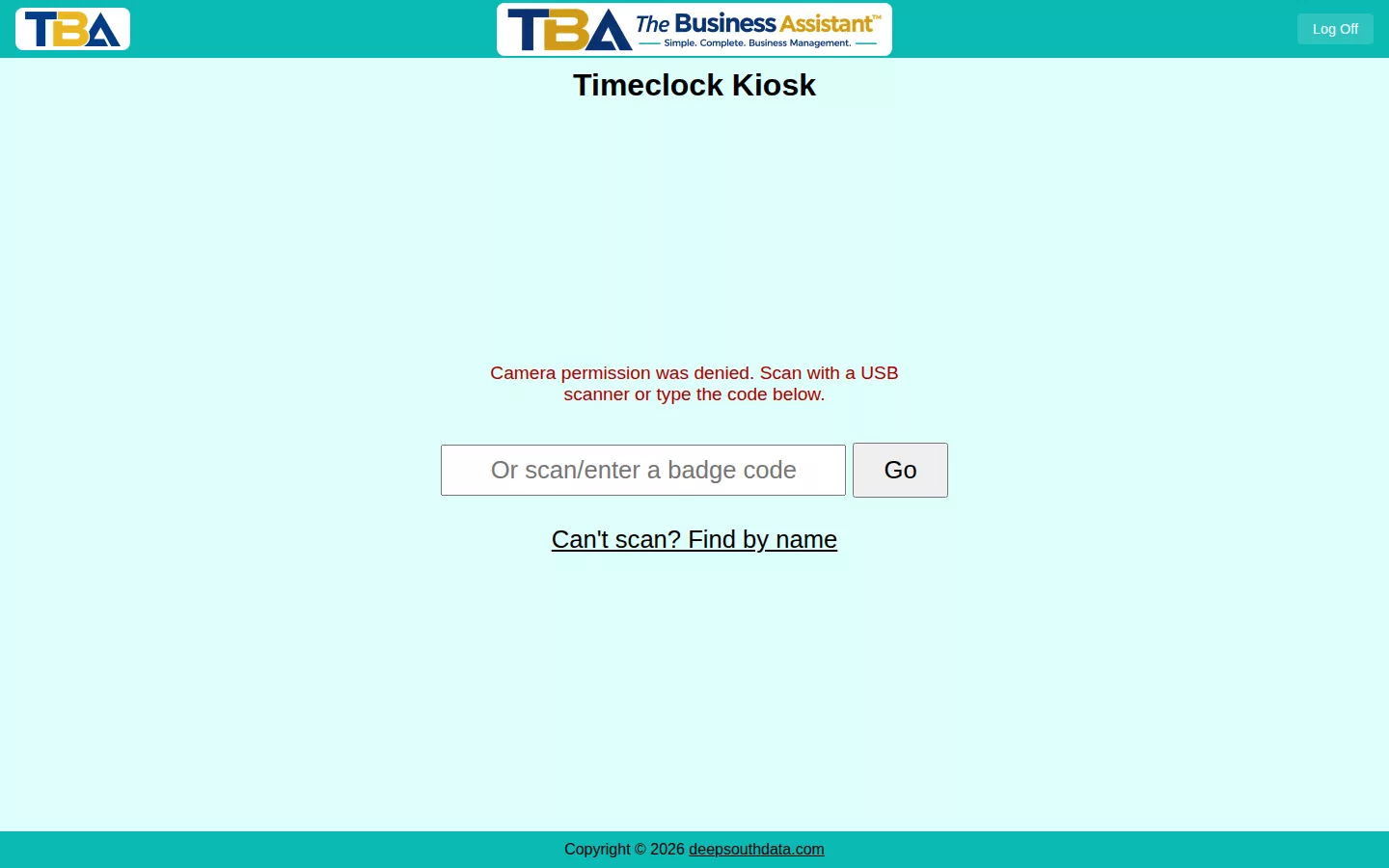
The Timeclock Kiosk is a shared, authenticated screen — usually on a tablet or computer at your shop — where employees clock in and out by scanning their badge.
Badges #
Each employee needs a timeclock badge before they can use the kiosk — generate one from their Personnel record’s HR tab (Generate/Reset Badge). The kiosk can read a badge via camera/QR scan or a USB barcode scanner; if neither is available, type the code in directly or use Can’t scan? Find by name.
Setup #
Turn Timeclock on for your company under Setup → General Options. Timeclock is a distinct feature from Timesheet/payroll-hours tracking — see Time Tracking Calendar for reviewing the hours it (and manual/scheduled entries) produce.
Using the Kiosk #
- Someone with a login signs in on the shared device and chooses the Timeclock Kiosk as their home page (or opens Kiosk). The kiosk is tied to that login, not anonymous. Log Off ends it.
- An employee holds their badge up to the camera or scans it with a USB scanner. The screen shows their name in the Employee line.
- They choose their status — for example In, Lunch, or Gone for the day — and the time is recorded. Statuses come from Timeclock Statuses Setup. Cancel backs out without recording.
- No badge or can’t scan? Use Can’t scan? Find by name, type part of the name in Find employee, and pick the person. Back to scanning returns to the scanner.
Clocking In from a Computer #
With Timeclock on, a status dialog can also appear whenever a user logs in or out of TBA, so staff at their own desks record presence without the kiosk. It only appears if Timesheet functions are on in General Options.
Fixing Mistakes #
Missed a clock event? Add or correct it with + Add Timeclock Entry on the Time Tracking Calendar.
Emailing Badges #
From the HR tab on a Personnel record you can print a badge or email it, with the message wording coming from the Timeclock Badge template in General Options.
On a Phone #
The kiosk screen has its own layout for phones and tablets, so a phone can serve as the clock-in terminal. Employees can also choose their own status from the Utility Menu on their phone, and managers can check hours on the phone-friendly Time Tracking Calendar. See Using TBA on Your Phone.


