
Users are the login accounts people use to access TBA — separate from Personnel records, though a user can be linked to one. What each user can see and do is controlled by their permission profiles. Reach Users from Setup (see Setup Overview).
The User List #
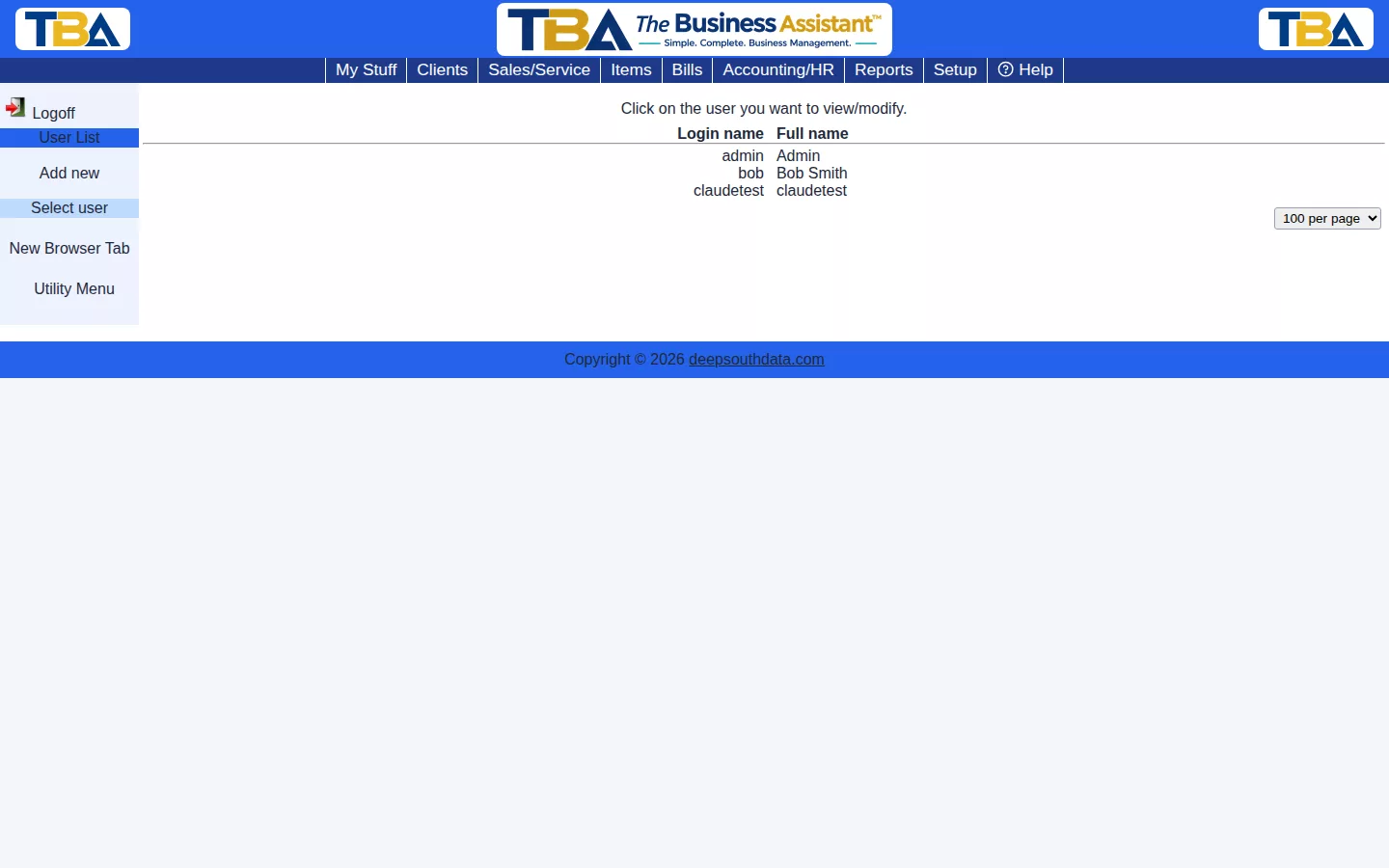
The list shows each user’s Login name and Full name. Click a user to open it, or Add new to create one.
Adding a User #
Fill in the required fields (marked with an asterisk), then click Save Changes:
- Home site — the site the user starts in. If you have only one, it is filled in. See Sites Setup.
- Login name — what the person types to log in.
- Password and Confirm password.
- PIN and Confirm PIN — a short numeric code kept with the user.
- User’s full name and Email address — the email is where verification codes and notices go.
- Home page — where the user lands after login: My Home Page, Clients, Setup Page, or Timeclock Kiosk (for a shared clock-in terminal; see Timeclock and Kiosk).
A new user can’t do anything until you give them a permission profile (below). Your subscription limits how many users can be logged in at the same time; see TBA Subscription.
User Detail #
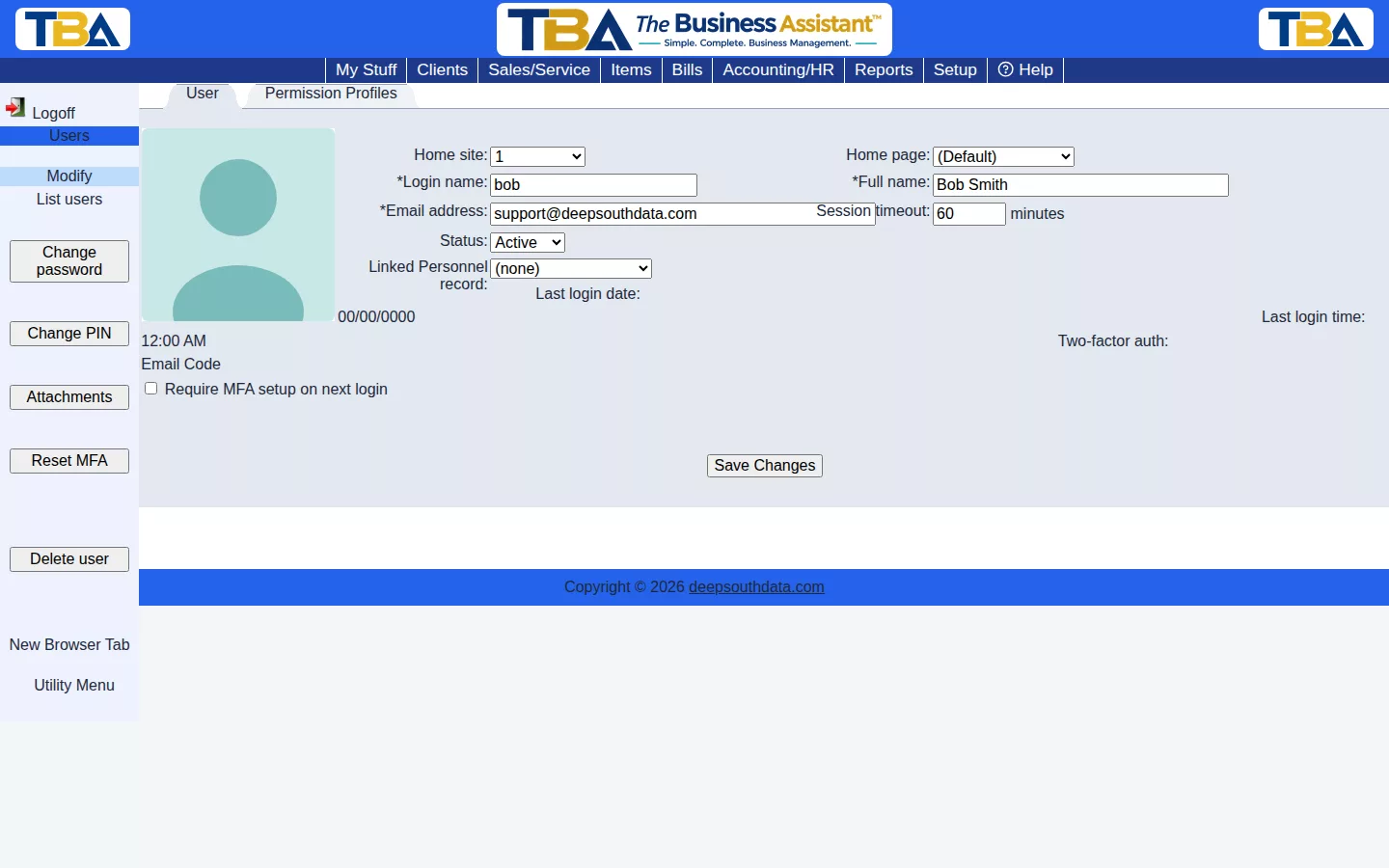
- Home site and Home page — as above. Home page also offers (Default) and Svc/Sales Orders.
- Login name, Full name, Email address.
- Session timeout — how many minutes of inactivity before this user is logged out automatically.
- Status — Active or Inactive. Set a former employee to Inactive to stop them logging in without losing history.
- Linked Personnel record — connects this login to an employee’s Personnel record, so things like time tracking and communications know who the person is.
- Last login date / time — for reference.
- Two-factor auth — tick Require MFA setup on next login to make the user enroll in two-factor authentication (an email code) the next time they sign in.
Sidebar buttons: Change password, Change PIN, Attachments (see Attachments and Pictures), Reset MFA (clears someone’s two-factor setup if they are locked out; they’ll be asked to set it up again), and Delete user.
Permission Profiles #
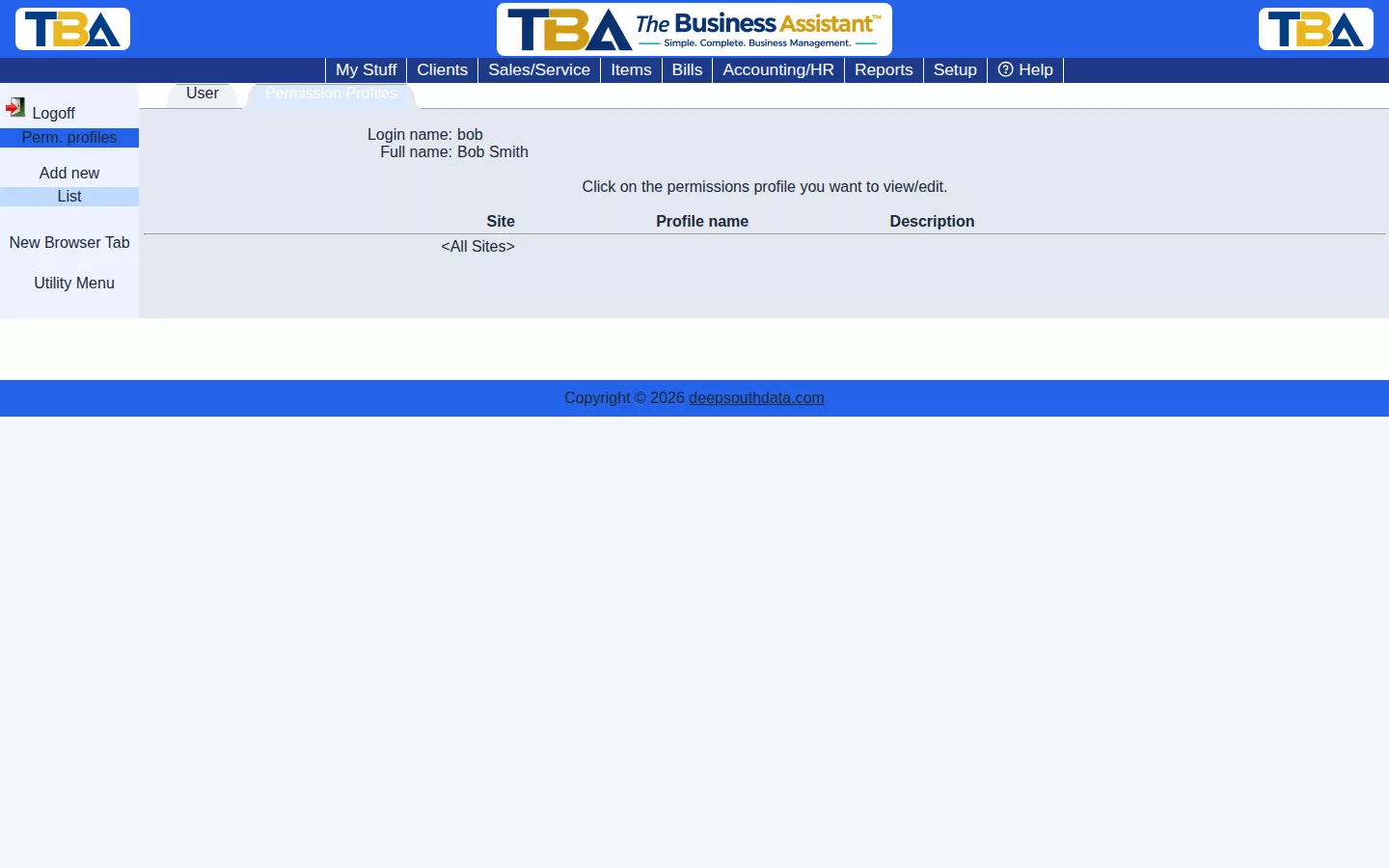
Open the Permission Profiles tab on a user to see their profiles. Each profile has a Site, Profile name, and Description. A user has one profile per site, or one set to <All Sites> that applies everywhere. Click a profile to edit it, or Add new to create another.
Site matters: a profile that is limited to a site only shows clients, invoices, and so on for that site while that profile is in use. If you have only one site, leave it on <All Sites>.
Editing a Profile #
The profile page is a grid. Each row is an area of TBA, and the columns are the things a user can do there: Add, View, Modify, Delete, Reports, Export, and Import. Tick a box to allow it. A ticked box is solid blue with a white check mark, and a group or master box that is only partly ticked shows a diagonal blue/white split. The All and None columns tick or clear a whole row; each group (and the very top) has a master row that does the same for everything beneath it. Expand All and Collapse All open and close the groups.
The rows are grouped like this:
- Users — user accounts and permission profiles.
- Clients — clients, quotes (and Quote Cost View, to see cost and profit), sales/service orders (and GL account editing on order lines), client invoices (and Invoice Cost View, Change Invoice Status, Recurring Invoices, and Sales Manager, which controls changing salespeople and commissions), client payments, client items, client communications.
- Setup — the setup menu, sites, auto numbers, payment terms, sales tax, service rate status, and the report writer.
- Ordering/Receiving — vendors, vendor communications, departments, items, inventory, purchase orders (and Change PO Status), bills (and Change Bill Status), Vendor Returns, bill payments, and quick payment.
- Accounting — deposits, bank reconciliation, the chart of accounts, fiscal years and their creation, closing and locking, the GL journal, GL classes, vendor tax info, financial reports, and fixed assets.
- Human Resources — personnel, HR, and payroll records, time tracking and its admin, and timeclock and its admin.
- Tasks — task administration (viewing and managing everyone’s tasks).
Some rows use the columns in special ways; for example, on the GL Journal row Add means view, View means add or edit a draft, Modify means post, and Delete means void. Hover over a row for its note.
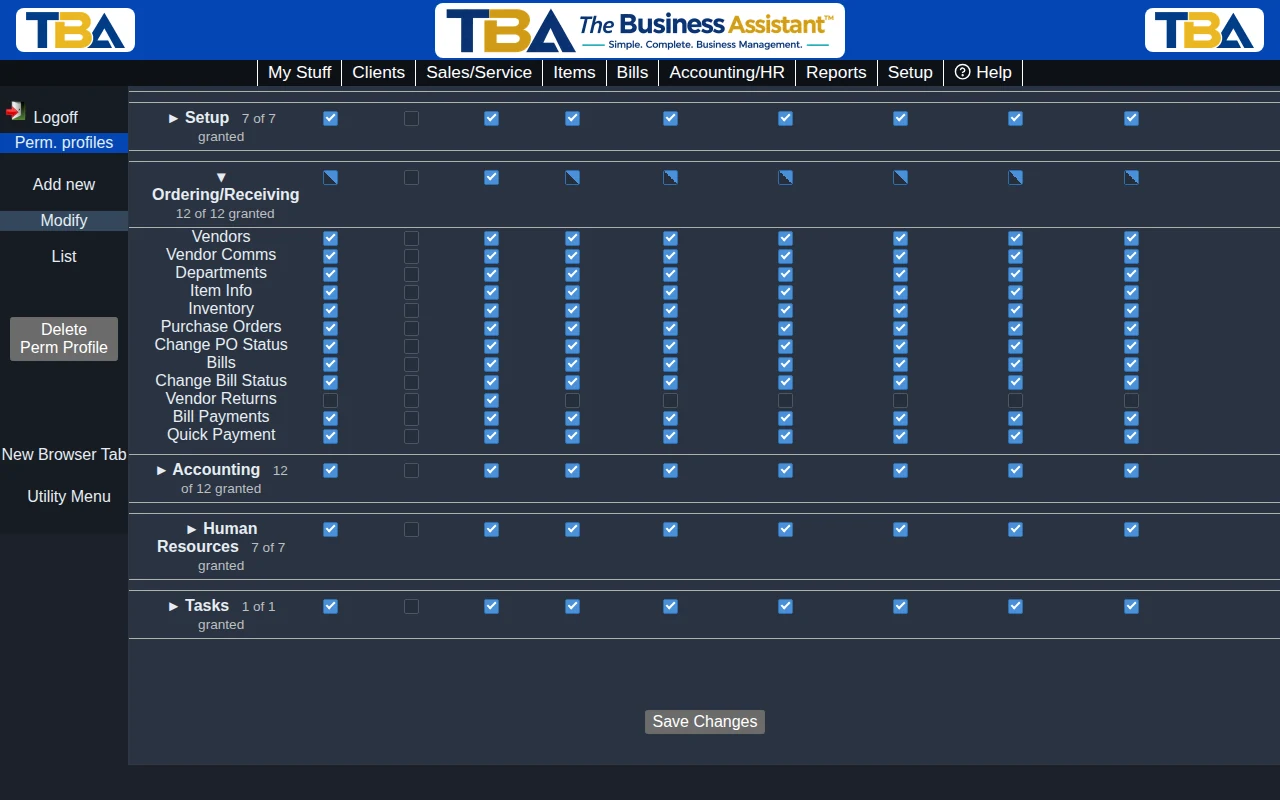
Vendor Returns is a single on/off permission: tick its Add box, as in the picture. It allows starting a return of received goods to a vendor (Return to Vendor on a Bill), showing the Vendor Returns page on the Bills menu, and everything you can do there: editing the RMA number, recording the vendor’s credit memo, marking a return replaced, and cancelling it. It is separate from the ordinary Bill permissions, so you can give it only to the people who handle returns. Anyone who can view bills can still see a bill’s return notices and View Returns list. See Vendor Returns. Profiles that were saved before this permission existed don’t have it ticked until you edit them; a profile set to all permissions has it automatically.
Click Save Changes. Delete Perm Profile removes a profile.
After changing a profile, the affected user needs to log in again, switch sites, or click Reload permissions in the Utility Menu for the change to take effect in their current session (this is also how a new menu item such as Vendor Returns appears).
Related #
Every permission change is recorded in the Audit Event Log.
On a Phone #
The user list and user pages work on a phone. The permission profile grid does not: it has nine checkbox columns for every section, so it always shows the regular desktop layout, even on a phone. Use a computer or tablet to edit permission profiles. See Using TBA on Your Phone.


