
Color Themes lets an admin set the company-wide default theme, and manage the themes available for everyone to pick from on their own My Color Theme page (My Stuff → My Color Theme).
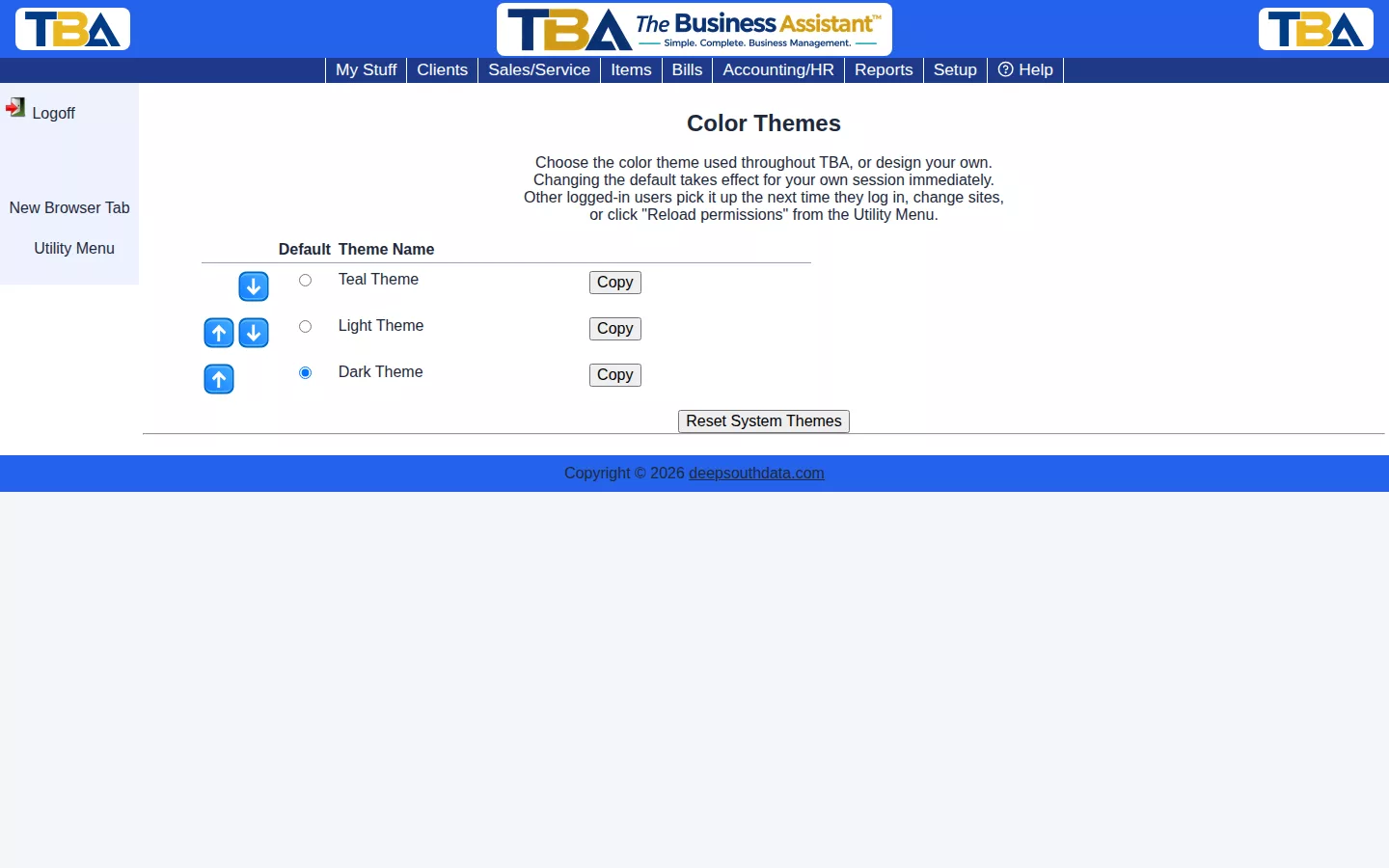
Setting the Default #
Pick the Default radio next to a theme — it takes effect for your own session immediately, and other logged-in users pick it up the next time they log in, change sites, or click Reload permissions from the Utility Menu.
Custom Themes #
Click Copy on any theme to create your own variation, then customize its individual colors. Reset System Themes restores the three built-in themes (Teal, Light, Dark) to their original colors if they’ve been edited.
The Theme List #
Each row is a theme, with its Theme Name, a Default radio button, and buttons to Copy, edit, delete, and move it up or down with the arrows. Moving a theme saves right away; there is no separate Save step for the list.
- Default — the theme everyone uses unless they choose their own on My Color Theme.
- Copy — creates a new theme starting from that row’s colors. This is the only way to make a new theme.
- Edit Theme — opens the editor for a custom theme. Give the theme a Theme Name, then choose a color for each part of the screen (backgrounds, text, buttons, links, and so on). Colors apply live so you can see the result as you pick them. Click Save when you’re done.
- Delete — removes a custom theme. If people were using it, they fall back to the default.
The three built-in themes — Teal, Light, and Dark — can’t be edited or deleted, though one can be the default. Use Reset System Themes if their colors were ever changed. It puts all three back as shipped and leaves your custom themes, their order, and the default alone.
Where Users Choose #
Each person picks their own theme from My Stuff → My Color Theme (see My Color Theme and Preferences). The company default only applies to anyone who has not picked one.


