
Thank you for choosing to partner with us to help streamline all of your business processes. We have spent years creating what we believe to be the best business software for companies of all sizes.
To start the sign-up process, please go to https://tba.theasst.com/Signup.html.
Creating Your Company #
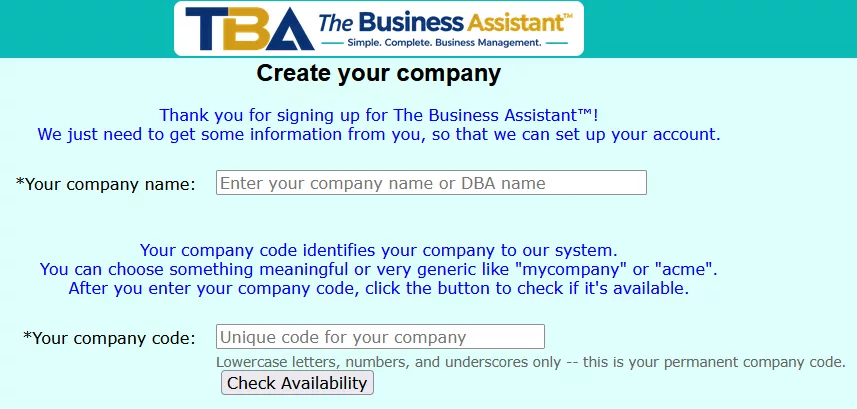
Your company name #
Enter your full, legal, company name. This is what will appear on your financial statements and other reports.
Your company code #
This is the name that you will use when you log into The Business Assistant™ (TBA). It will identify your company in our system. It will be all lowercase letters, numbers, and underscores (_). For example, it could be your_company_code.
After you choose a company code, click the “Check Availability” button. If it is available, you will see a confirmation. If not, try another name.

Address #
We will need your full address and phone number(s) where we can reach you. Your web page would be helpful, as well.
This information will also copy over to the section that can print on your reports.
Email #
Enter your email that you can easily access. We recommend your business email address. This will be the email address where we will send the confirmation of your signup, so it needs to be a valid email.
It will also be used for Multi-factor Authentication (MFA). During this signup process and whenever you log in as admin, you can choose to either use an authentication app or have a code sent to this email address.
Password #
Choose a strong password — typically, one that is long and complex (with uppercase and lowercase letters, numbers, and special characters like punctuation).
Click Continue.
Choose Your Plan #


Standard Plan #
You can choose the standard plan, which is only $75.00 per month. It includes as many named users as you want, and up to 3 people logged in at the same time (concurrent).
Additional concurrent users can be added to your plan for only $15.00 per month.
Multi-site Plan #
If you have a larger company, or one where you need or want to track your data and financials separately, choose the multi-site plan. You can run financial statements for just one site or all sites. You can also allow users specific access to certain sites or all sites.
Additional concurrent users can be added to the multi-site plan for only $20.00 per month.
Introductory Offer #
All companies that sign up at this time will get the first three (3) months for half price. This is our way of thanking you and welcoming you to our family.
Email Confirmation #
We will send you a confirmation email to verify the address.
Credit/Debit Card #
Enter your credit or debit card information in our secure payment system.
Email Confirmation #
Email is confirmed again with your chosen multi-factor authentication (either authenticator app or email).
Color Theme #
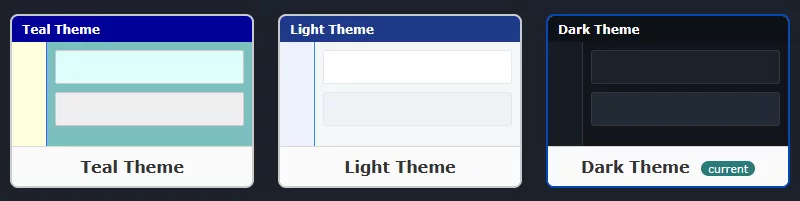
TBA has many ways to personalize it and make it your own. The first is choosing your color theme. There are three system themes you can choose from. You can even create your own later.
First User #
You should save the “admin” user account for administrative-type tasks. It has access to every function and part of TBA. For most users, you will want to restrict some sensitive areas.
That’s why we ask you to create separate users, to which you will assign their individual permissions, depending on what access they each need.
Remember that you can have as many users as you want. You are only limited to the number of people who can log in at the same time. Of course, you can always upgrade your subscription at any time.
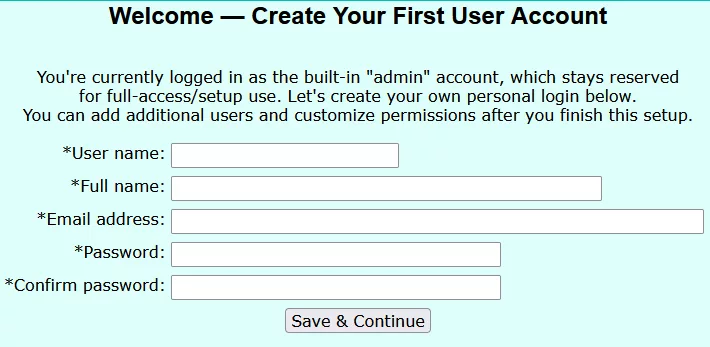
We encourage you to use strong passwords and multi-factor authentication (MFA) for all of your users.
Email Confirmation #
Once again, this new email is verified.
Getting Started #
Click Next to set up some of the initial configurations.

Default/Imported Data #
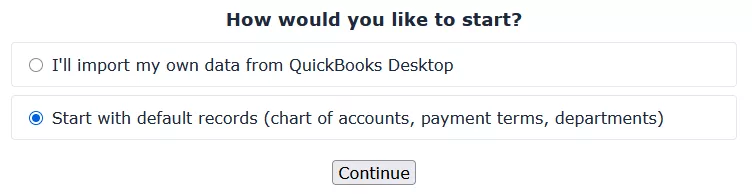
You can choose to import your data from QuickBooks Desktop or start with default records. Of course, you can change or add everything manually at any time.
Default General Ledger Settings #
Accountant #
You will probably want to get your accountant involved with this, because these decisions depend on how your business is set up.
General Ledger Accounts #
General ledger accounts are what you or your accountant use to track the progress of your company. They are also used for tracking and paying taxes.
If you want to see the current chart of accounts, click the button that says, “View All G/L Accounts.” This will open a new browser window that you can put side-by-side with this current window. You can add or modify any or all of the general ledger accounts. As you make changes, click the link in your settings window sidebar that says, “Refresh data.” This will update all of your dropdown menus, so you can select the accounts that you just added or changed.
Miscellaneous Settings #
At the bottom of this page are miscellaneous settings.
Show negative amounts #
For accounts that are usually a debit or a credit, if there is a negative amount, some people prefer to see that amount as a negative number. Other people prefer to see a positive number, but in the opposite column (debit/credit). If you prefer to see negative numbers, answer Yes.
Show/use GL account numbers #
For simplicity, some people prefer to use only account names. Other people prefer to see both account numbers and account names.
General Options #
You don’t have to finish this page right now; you can come back to it at any time.
Co. Info. #
Your company information was copied from the first page you filled out. You can choose how much of this is printed on your financial reports. You can also upload an image file of your company logo. If you have one, this looks very good on your invoices, financial statements, etc.
Details #
For more details on this page, click here.
Getting Started #
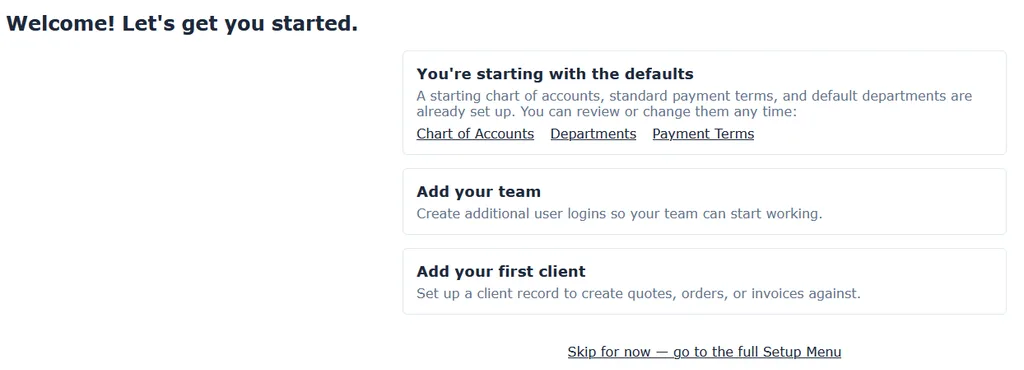
Now, you can start setting up your users, clients, and vendors. You could also set them up as you go — your choice.


