
When equipment arrives dead, defective, or not what you ordered, you usually can’t just stop paying for it. The vendor has to approve the return first, you are expected to pay the full Bill in the meantime, and later the vendor sends a credit memo (or ships a replacement). TBA follows that same process. You start the return from the bill, the units come out of Inventory (or out of your client’s special order) right away, and the return stays Pending on the Vendor Returns page until you record what the vendor gave you.
How a Return Works #
- Start the return from the bill (View → Return to Vendor). Pick the units going back, a reason, and an optional RMA number. The units leave inventory immediately. The bill itself does not change and nothing is posted to your books yet, because you still owe the vendor.
- Wait for the vendor. Enter or change the RMA number whenever the vendor gives you one. The return shows as Pending, and the bill shows a return notice in its header and on each returned line.
- Close it from Bills → Vendor Returns in one of three ways: Record Credit Memo (the vendor credited you), Vendor Replaced It (they shipped a replacement instead), or Cancel Return (they refused, so the units go back).
Some vendors credit you immediately. For those, choose The vendor is crediting this right away when you start the return and both steps happen at once.
Starting a Return from a Bill #
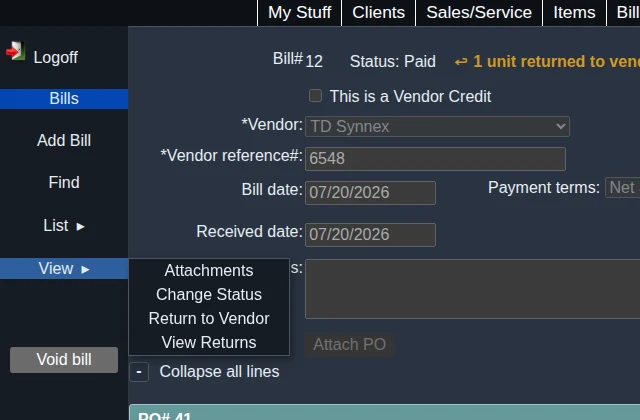
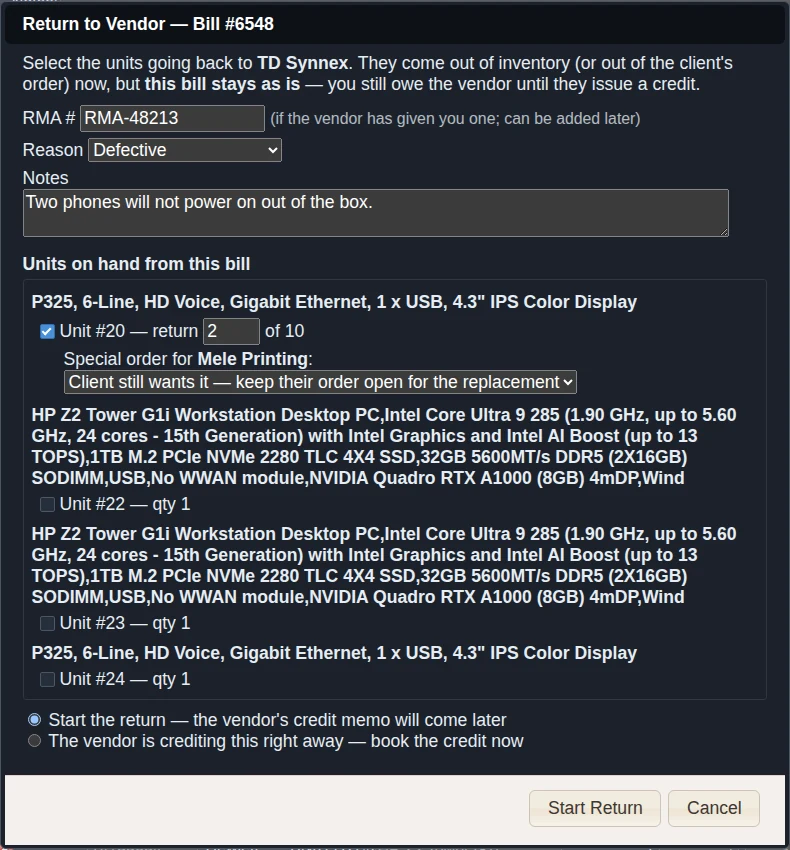
Open a saved bill and choose View → Return to Vendor in the sidebar. The item is offered on any saved bill that is not voided and is not itself a vendor credit. You need the Vendor Returns permission (see Users and Permissions). The Return to Vendor dialog is titled with the bill’s vendor reference number.
Header Fields #
- RMA # — the vendor’s return authorization number, up to 40 characters. Optional; if the vendor hasn’t given you one yet, add it later on the Vendor Returns page.
- Reason — DOA (dead on arrival), Defective, Wrong item, Damaged in shipping, or Other.
- Notes — anything you want to remember about the return, up to 1,000 characters.
Units on Hand from This Bill #
Only received Inventory lines are listed, grouped under each bill line’s description, and only units that are still on hand. If part of a line is gone, the heading says so, for example (1 not on hand — sold or already returned). A unit that has already been sold to a client can’t be returned; void or credit that invoice first. Service and non-inventory lines aren’t returnable, because there is nothing physical to send back (use a vendor credit for those).
- Checkbox and Unit # — tick each unit going back. The unit number is the inventory lot number.
- Quantity — a lot of one unit just shows qty 1. A lot of several units shows return [ ] of N; enter how many are going back (never more than are on hand).
- Serial numbers — a single unit shows its serial#s in italics. For a lot of several units that has serial#s, ticking it reveals Tick the serial#s going back with one checkbox per serial#. Tick the ones that are defective, and the quantity fills in to match. If you return only some of a multi-unit lot that has serial#s, you must tick which ones, so TBA knows exactly which units left. Those units are split off into their own record (keeping their serial#s) and the rest stay in stock with theirs. A lot whose serial# fields were never filled in (like the P325 phones above) has nothing to pick, so only the quantity applies.
- Set aside — a unit another open order is holding (see Sales/Service Orders → Set Aside for This Order) is greyed out and shows Set aside on Order #N for client — remove that pick first. Release it from that order, then return it.
- Special order for a client — if the unit was received for a client’s special order, a question appears when you tick it: Client still wants it — keep their order open for the replacement, or Client cancelled — take it off their order. See below for what each does.
How Do You Want to Process It? #
- Start the return — the vendor’s credit memo will come later (the default). The return is Pending.
- The vendor is crediting this right away — book the credit now. Enter the vendor’s Credit memo # (required) and its Date (today by default). The vendor credit is created immediately, the same as using Record Credit Memo below, and the return is marked Credited.
Click Start Return. TBA tells you the return number and, if you booked the credit, the credit’s bill number.
What Happens to Your Records #
- Inventory. A whole lot going back is moved to the inventory archive (recorded as Vendor return #N), with its serial#s kept. A partial return of a lot lowers its quantity, or splits the chosen serial#s off first as described above. Nothing is deleted, so a cancelled return can put the units back.
- Purchase order. The PO line the units were received against is un-received: its received quantity goes down, the PO status moves back toward Open or Partial, and a linked client order line loses its Received badge, so it shows as waiting on the vendor again. When the replacement arrives, enter it on a bill against the same PO as usual.
- Client’s special order. If you chose Client still wants it, their order stays open and waits for the replacement. If you chose Client cancelled, the PO line’s ordered quantity is also reduced by the returned units, so nothing is expected to arrive. TBA doesn’t remove the client’s order line for you; edit or remove it on the Sales/Service Order.
- Accounting. Nothing is posted while a return is Pending. The original bill’s entry stands. The reversal (inventory or Order Layaway out, payables down) is posted only when the vendor credit is booked, dated with the credit memo date.
- Audit trail. Starting, crediting, replacing, and cancelling a return are each recorded against the bill in the Audit Event Log.
The Bill After a Return #
Once a bill has returns, the Bill page shows:
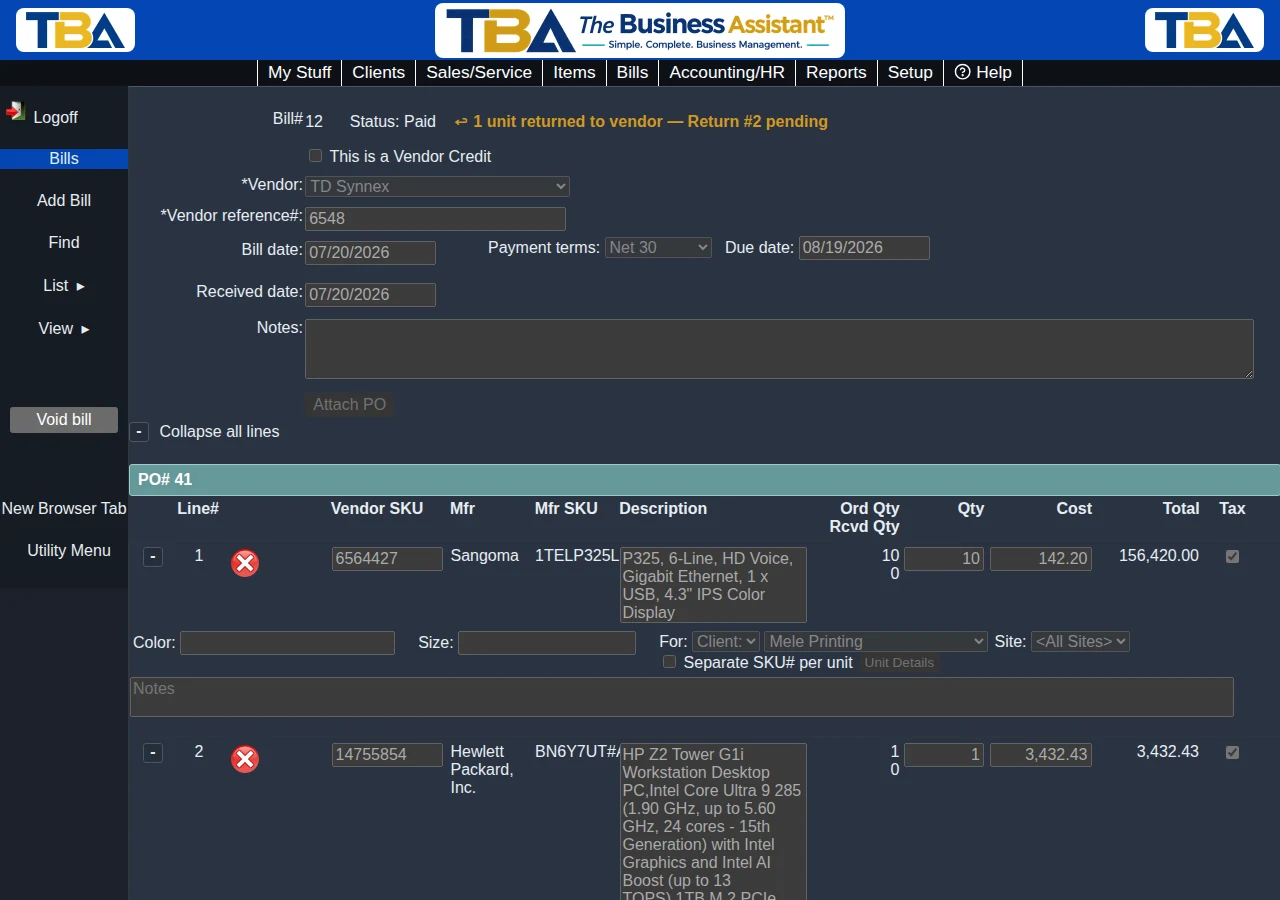
- A notice next to Status in the header, such as ↩ 1 unit returned to vendor — Return #2 pending. It turns green with a check mark when the return is completed (credited or completed (replaced)). Cancelled returns aren’t counted. Click it to open View Returns.
- A note under each returned line, such as ↩ 1 returned to vendor — Return #2 pending.
- Rcvd Qty on a PO-attached line shows what had been received before this bill, so it already accounts for returned units.
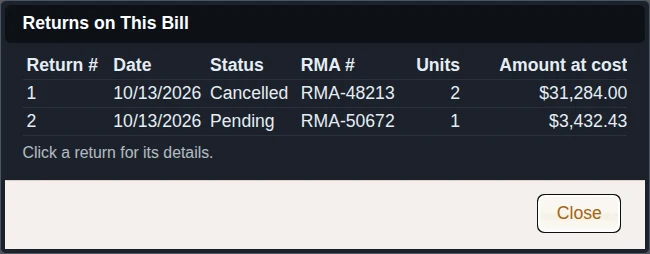
- View → View Returns in the sidebar (shown only when the bill has had at least one return). It lists every return on the bill, including cancelled ones: Return #, Date, Status, RMA #, Units, and Amount at cost. Click a return to see its detail: vendor, who started it and when, status and date, RMA #, reason, notes, each unit with its serial#s, and any client note. If a vendor credit was booked, its bill number is a link that opens that credit.
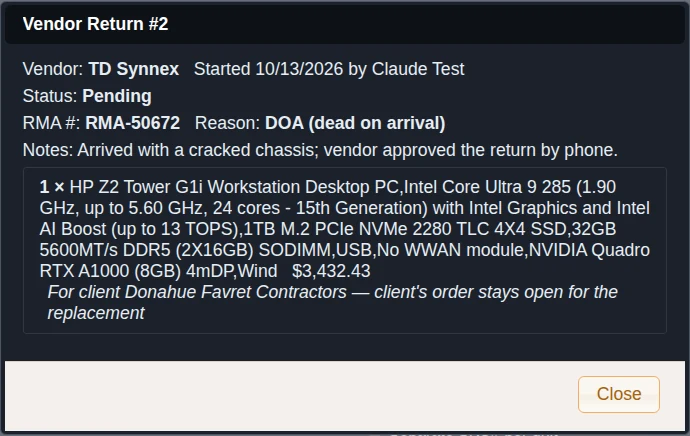
Anyone who can view bills can see these notices and use View Returns. Managing the return needs the Vendor Returns permission.
While a return exists on a bill (anything but Cancelled), the bill can’t be voided; TBA asks you to cancel the return, or void its vendor credit, first.
The Vendor Returns Page #
Choose Vendor Returns from the Bills menu (see Bills Overview). If you can’t see it, you need the Vendor Returns permission, and an already logged-in user must log in again or use Reload permissions in the Utility Menu.
The List #

The sidebar has a filter — Open Returns (Pending only, the default), Closed Returns, or All Returns — plus links to the Bill List and a New Browser Tab. Columns: Return #, Date (when it was started), Vendor, Bill #, RMA #, Status, Units, and Amount (at your cost). The newest 500 are shown. Click a return to open it.
The Return Detail #
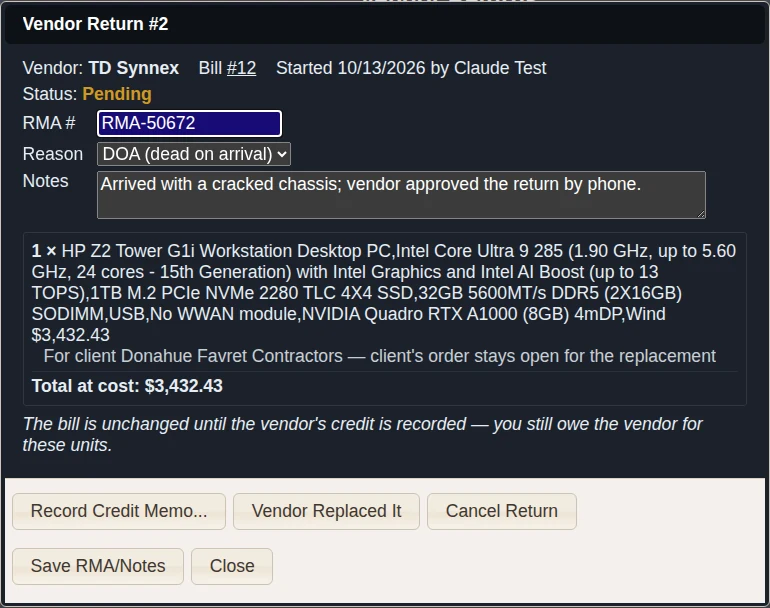
- Vendor, the original Bill (click to view it), and when it was started and by whom.
- Status, with the date it was closed, and the vendor credit bill if one was booked.
- RMA #, Reason, and Notes — editable at any time; click Save RMA/Notes.
- Each returned unit: quantity × description, its cost, its serial#s, and, for a special-order unit, the client and whether their order stays open or was cancelled.
- Total at cost for the whole return.
Closing a Pending Return #
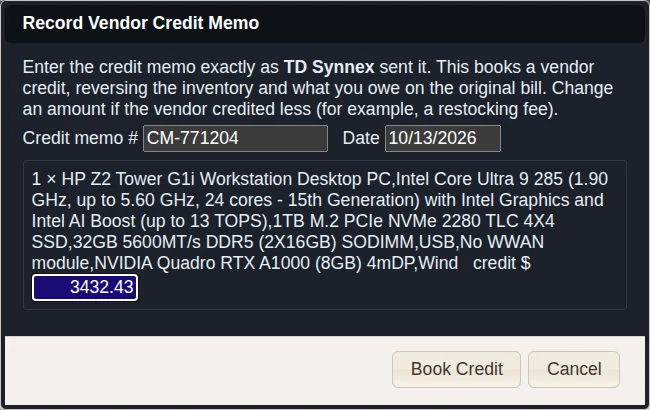
- Record Credit Memo… — opens a dialog. Enter the vendor’s Credit memo # (required) and Date (today by default). Each unit has a credit amount that starts at its cost; lower it if the vendor kept a restocking fee, or enter 0 if they didn’t credit that unit (the total must be more than zero). Click Book Credit. TBA creates a vendor credit (a negative bill) with the memo number as its vendor reference, dated the memo date, and posts it to your books. Then apply it to a bill from Bill Payments. If that vendor already has a bill or credit with the same number, TBA refuses so you don’t enter it twice.
- Vendor Replaced It — closes the return as Replaced with no credit. Receive the replacement on its own bill or against the original PO.
- Cancel Return — for when the vendor refuses or you change your mind. The units go back into inventory exactly as they were (a split-off serial# unit comes back as its own record, with its serial#s), and their PO lines are received again, including any quantity a client-cancel had taken off.
Statuses #
- Pending — units are out, waiting on the vendor. The only status you can act on.
- Credited — the vendor’s credit memo has been booked.
- Replaced — closed because the vendor sent a replacement.
- Cancelled — abandoned; the units went back.
Permissions #
Add a profile’s Vendor Returns permission under Ordering/Receiving in Users and Permissions. It is a single on/off permission (the Add column) that covers starting returns, the Vendor Returns page, and every action on it.
On a Phone #
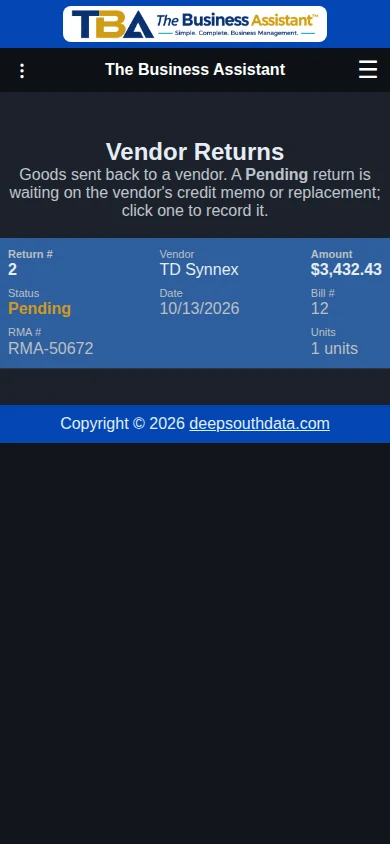
The Vendor Returns list shows each return as a card (number, vendor, amount, status, date, bill number, RMA, and units). The Return to Vendor, View Returns, and detail dialogs fit the screen. See Using TBA on Your Phone.
Related #
Bills, Purchase Orders, Inventory, Vendors, Bill Payments, and AP Aging, where the vendor credit reduces what you owe.


