
To add a new client, click Add new in the Clients sidebar. This brings you to a blank client record.
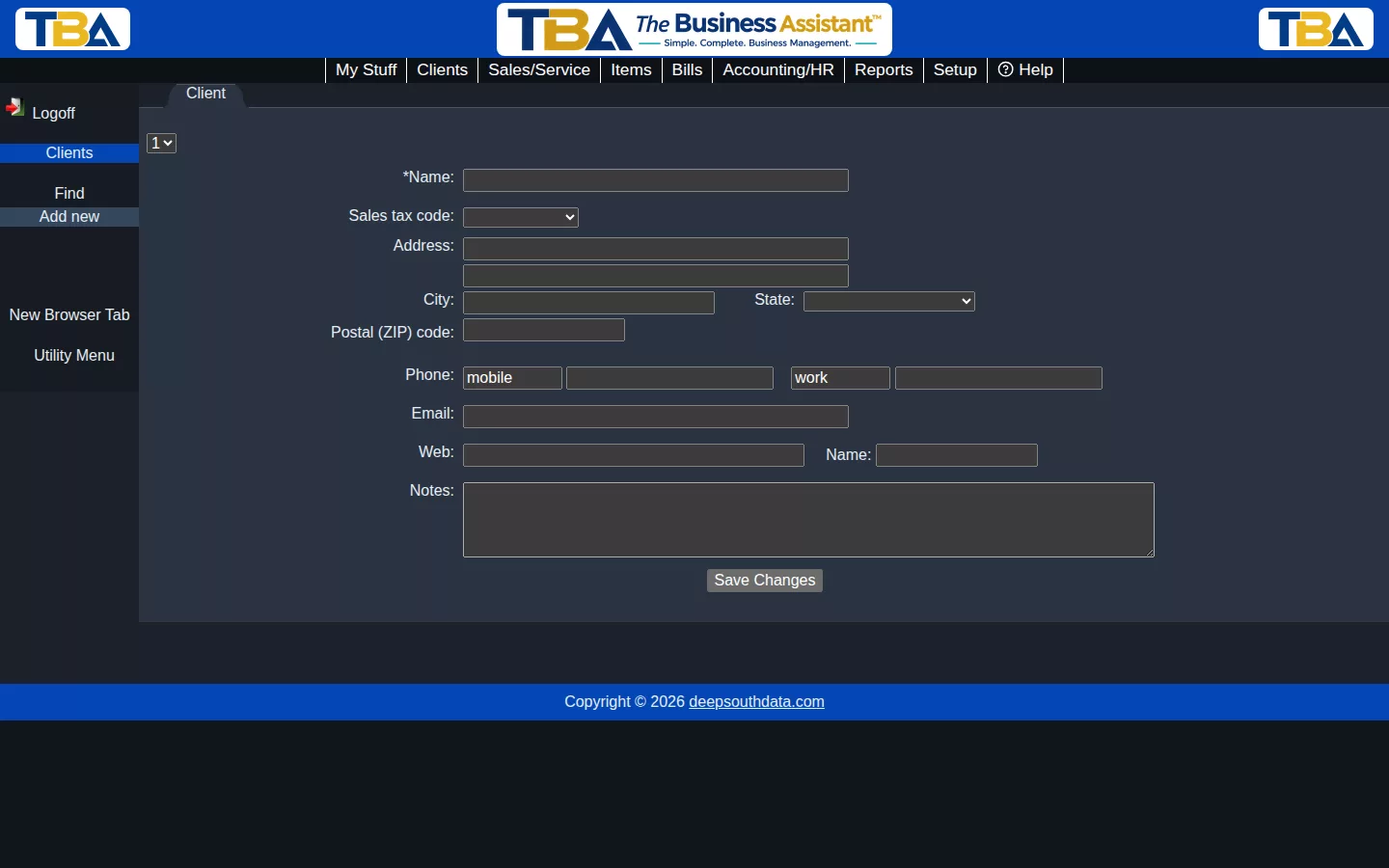
Only Name is required (marked with an asterisk). Everything else — address, sales tax code, phone, email, website, and notes — can be filled in now or added later from the client’s own Client View screen.
Sales Tax Code #
If you sell taxable items or services, choose the client’s sales tax code here. Click here to read more about setting up sales tax.
Phone Numbers #
You can enter up to two phone numbers on the Client Add screen. After the record is saved, you can add as many as you want by clicking the small folder icon with a plus sign in it. You can also label each number (mobile, work, fax, etc.).
Saving #
Click Save Changes at the bottom of the page. Once saved, you’ll be brought into Client View for this client, where you can add contacts, items, and communications, and start creating quotes, orders, and invoices.


