
Item Info is the master record for everything you sell or stock — inventory items, non-inventory items, services, and other charges. Items appear on quotes, orders, invoices, purchase orders, and bills.
The Item List #
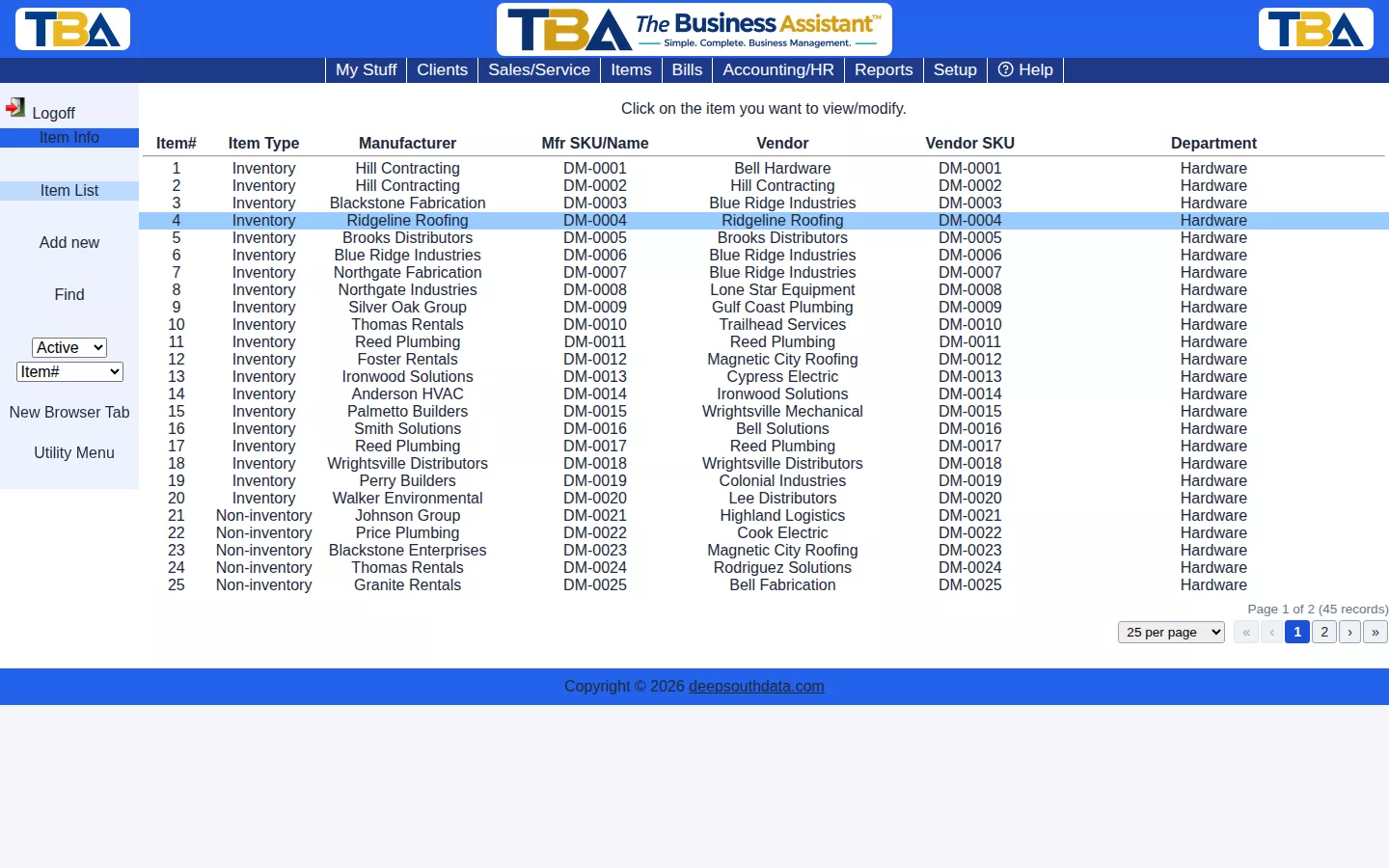
Columns: Item#, Item Type, Manufacturer, Mfr SKU/Name, Vendor, Vendor SKU, and Department. Click an item to open it. The sidebar has:
- Add new and Find.
- Status filter — Active, Inactive, or All.
- Sort — Item#, Dept/Item#, Vendor/SKU, or Mfr/SKU.
Finding an Item #
Fill in any combination of All text fields, Item#, Item type, Manufacturer, Manufacturer part/model/SKU, Vendor, Vendor part/model/SKU, Department, Order description, Invoice description, and Internal notes. Searching is not case sensitive. An ID search also finds items by a unit’s serial or ID number. For a search across every kind of record, use Global Find.
The Item Page #
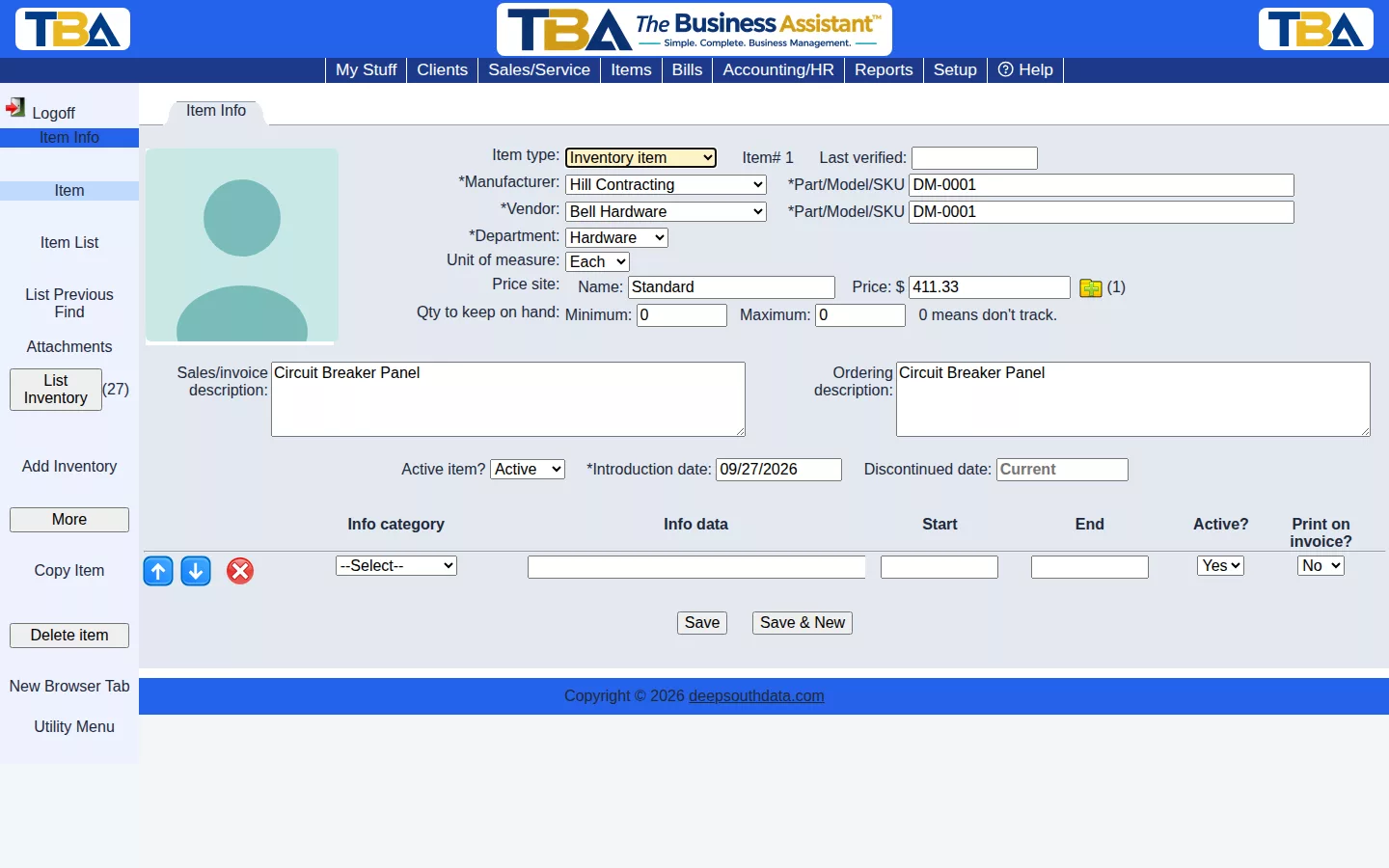
Item Types #
- Inventory item — tracked by on-hand lot; see Inventory.
- Non-inventory item — sold without tracking on-hand quantity.
- Service — labor or other billable work. Has a Service name in place of manufacturer and vendor fields.
- Other — fees, charges, or anything else that doesn’t fit the above.
The fields shown change with the type you choose.
Identification #
- Item# — assigned by TBA when you save (see Next Numbers to Assign).
- Manufacturer — who makes it. Click to choose from your vendors (with Find), or add a new one on the spot.
- Part/Model/SKU — the manufacturer’s part number.
- Vendor and its Part/Model/SKU — who you actually buy it from, and that vendor’s own number. These are often different from the manufacturer, since you may buy through a distributor.
- Service name — for Service and Other items, what the item is called.
- Department — groups items for reporting and for finding them; see Departments.
- Unit of measure — how the item is counted: each, hour, and so on. Choices come from Units of Measure Setup.
- Last verified — the date you last confirmed the item’s cost and pricing are correct. It defaults to today when you add an item.
Pricing #
- Price — the standard selling price, with an optional Name for the price (for example “Retail”) and, if you have multiple sites, which Price site it applies to.
- Selling prices — the folder icon opens the full list of prices for the item. Click Add new price to add prices that apply only to a particular site or client, over a date range, or above a minimum quantity. A price can be a Sell or a Rent price. When an item is added to a quote, order, or invoice, TBA picks the most specific price that applies, so a client-specific price beats a site price, which beats the standard price.
- More — opens a dialog with additional data: Sell cost (what the item costs you) and Cost price verified date, Rental cost, Taxable?, Internal notes, Price tag comment and Price tag form, and read-only counts of In stock, On P.O., and To be ordered. Users with accounting permission can also reveal Show G/L Accounts: the COGS/Expense, Sold revenue, Rented revenue, Inventory asset, and Order layaway asset accounts the item posts to. These default from Default G/L Settings, so most items never need them changed.
Stock Levels #
- Qty to keep on hand — Minimum / Maximum — for inventory items, the stock you want to maintain. 0 means don’t track. Items below their minimum are suggested on Purchase Orders.
Descriptions #
- Sales/invoice description — what the client sees on quotes, orders, and invoices.
- Ordering description — what the vendor sees on purchase orders. It can be worded differently from the sales description.
Status and Dates #
- Active item? — set an item Inactive to hide it from everyday lists without losing its history.
- Introduction date and Discontinued date — when you started and stopped offering the item.
Info Categories #
The table at the bottom holds extra information you track about an item, such as a warranty term or a spec. Each row has an Info category (defined in Item Info Categories), the Info data, optional Start and End dates, an Active? box, and Print on invoice? — tick it to have that information print on the invoice line.
Sidebar #
- Save and Save & New — keep your changes, or keep them and start a blank item.
- List Inventory / Add Inventory — for inventory items, see the stock on hand, or receive more; see Inventory.
- Copy Item (under More) — saves this item, then starts a new one pre-filled with the same type, manufacturer, department, unit of measure, descriptions, costs, taxable setting, and stock levels, so you only change what differs.
- Attachments — photos or documents for the item; see Attachments and Pictures.
- Delete item — removes the item from your lists. It is archived rather than destroyed, so older documents that used it still display correctly.


