
G/L Accounts is your chart of accounts — every account TBA can post a General Ledger entry to, grouped by type. Most companies never need to change much beyond the defaults TBA sets up, since Default G/L Settings already points routine transactions at the right accounts.
The Account List #
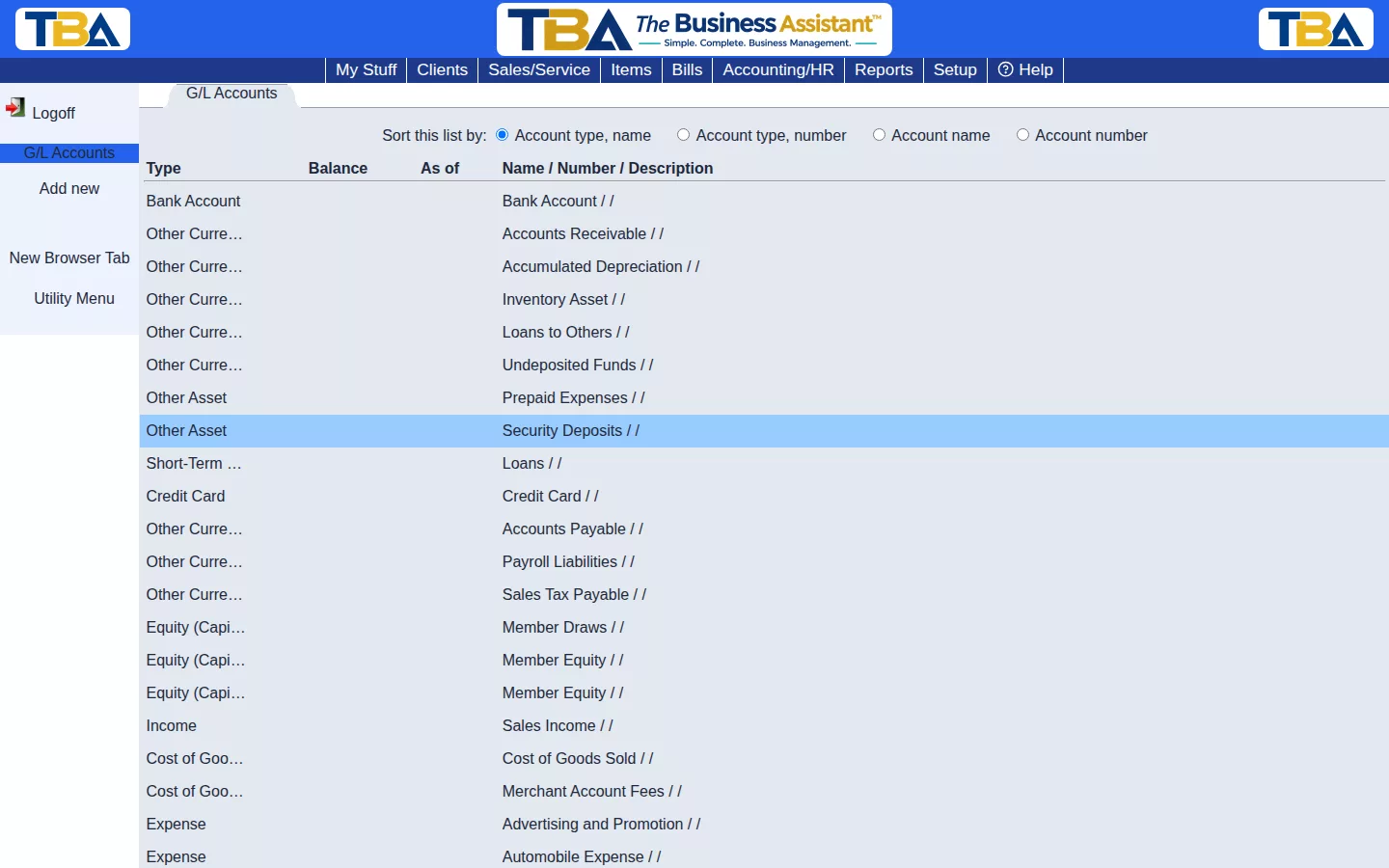
Columns: Name / Number / Description, Type, Balance, and As of (the date the balance is current to). Sub-accounts are indented under their parent. Click an account to edit it, or Add new in the sidebar to create one.
Sort this list by — use the radio buttons at the top: Account type + name, Account type + number, Account name alone, or Account number alone.
Adding or Editing an Account #
Add new and clicking an account open the same dialog:
- For site — if you have more than one site, whether the account belongs to one site or all.
- Parent account — choose a parent to make this a sub-account, or <no parent> for a top-level account.
- Account type — what kind of account it is. This decides where it appears on reports. The types are:
- Income and expense: Income, Expense, Cost of Goods Sold, Other Income, Other Expense — these appear on the Profit and Loss.
- Assets: Accounts Receivable, Inventory Asset, Fixed Asset, Bank Account, Other Current Asset, Other Asset.
- Liabilities: Accounts Payable, Credit Card, Short-Term Loan, Other Current Liability, Long Term Liability, Long-Term Loan, Other Liability.
- Equity: Equity (Capital) — these appear on the Balance Sheet.
- Account name (required) and optional Account#.
- Description.
- Beginning balance and its as of date — the balance when you started using TBA, for accounts that carry a balance forward. Enter these only when setting up the company; see Fiscal Year and Year-End Closing for the date history begins.
- Starting/next check# — for bank accounts, the next check number TBA will print.
Click Save.
Deleting an Account #
Use Delete this account in the edit dialog. An account that is used by any record will not be deleted. If you delete an account that has sub-accounts, they move up to the deleted account’s parent.
Related #
To see every transaction that touched an account, use the Account Register (for bank and credit card accounts) or the General Ledger detail on the Trial Balance. To slice income and expense accounts further, add G/L Classes.


