
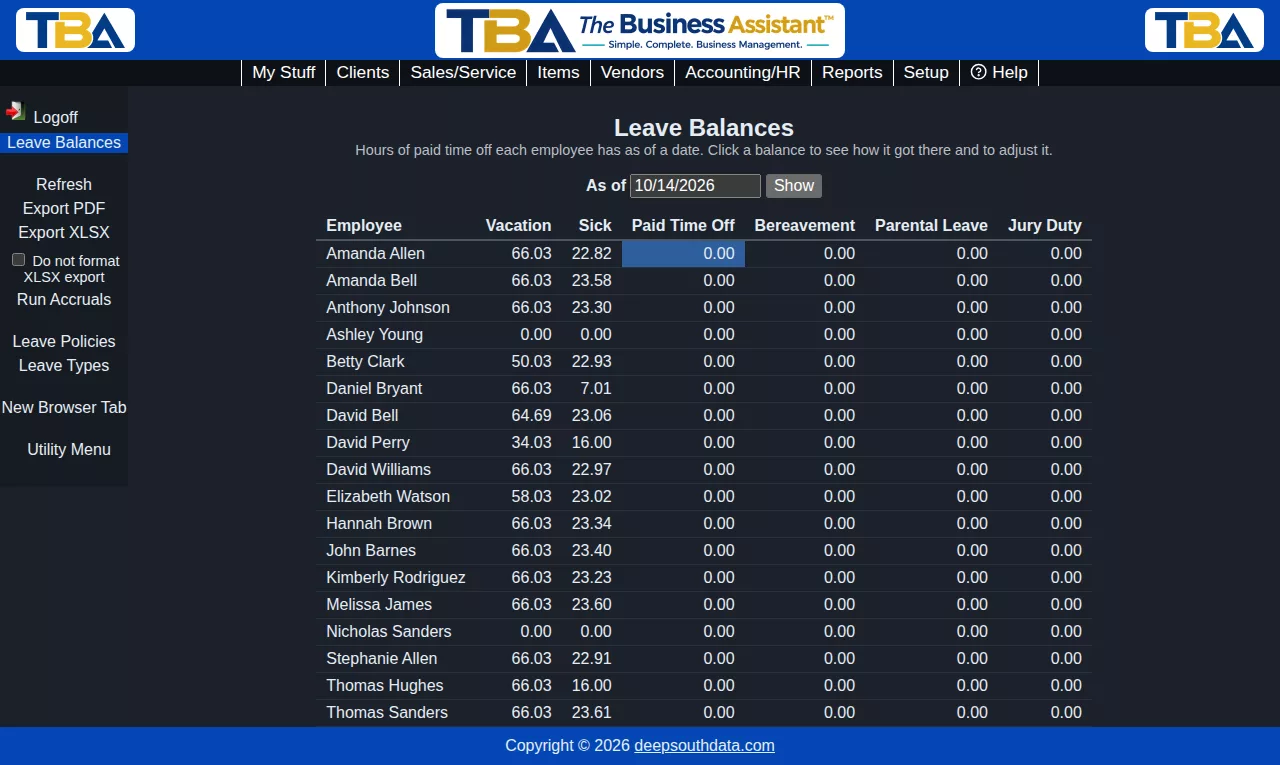
Leave Balances (HR/Payroll > Leave Balances) shows the hours of paid time off each employee has, one column per kind of leave, as of any date you choose. It needs payroll view permission.
Reading the page #
- Enter a date in As of and click Show. Only employees who haven’t terminated by that date are listed. Negative balances show in red.
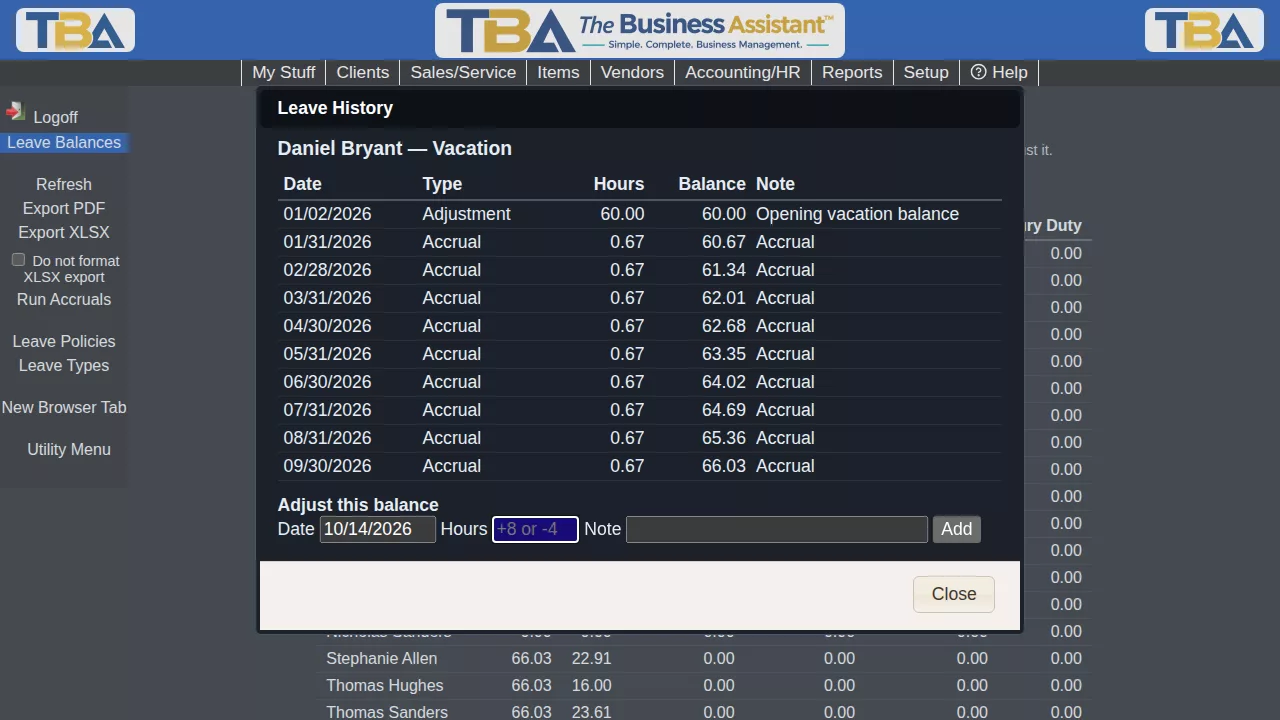
- Click a balance to open its history: every accrual, use, write-off, payout and adjustment, with a running balance. A balance is simply the total of this history.
- Export PDF and Export XLSX in the sidebar produce the same table.
Adjusting a balance #
With payroll modify permission, the history dialog has an Adjust this balance section: a date, the hours (positive to add, negative to remove) and a required note. Use it to bring in balances from a previous system or to correct a mistake. Adjustments are part of the history and can’t be erased.
Run Accruals #
Run Accruals adds everything earned up to the As of date according to each employee’s leave policies: yearly grants, monthly or per-hour accruals, the carryover write-off at the start of a new leave year, and payouts for terminated employees. It’s safe to run again at any time – anything already added is not added twice. TBA can also run it for you every night.
Leave taken is recorded automatically: a time entry or an approved leave request using a leave pay code takes hours off the balance.
Balances from a QuickBooks import #
If you imported employees from QuickBooks, their vacation and sick hours available appear here as an Adjustment dated the import day, with the note Opening balance from QuickBooks. Assign each employee a leave policy so accruals continue from there. See QuickBooks Import.


