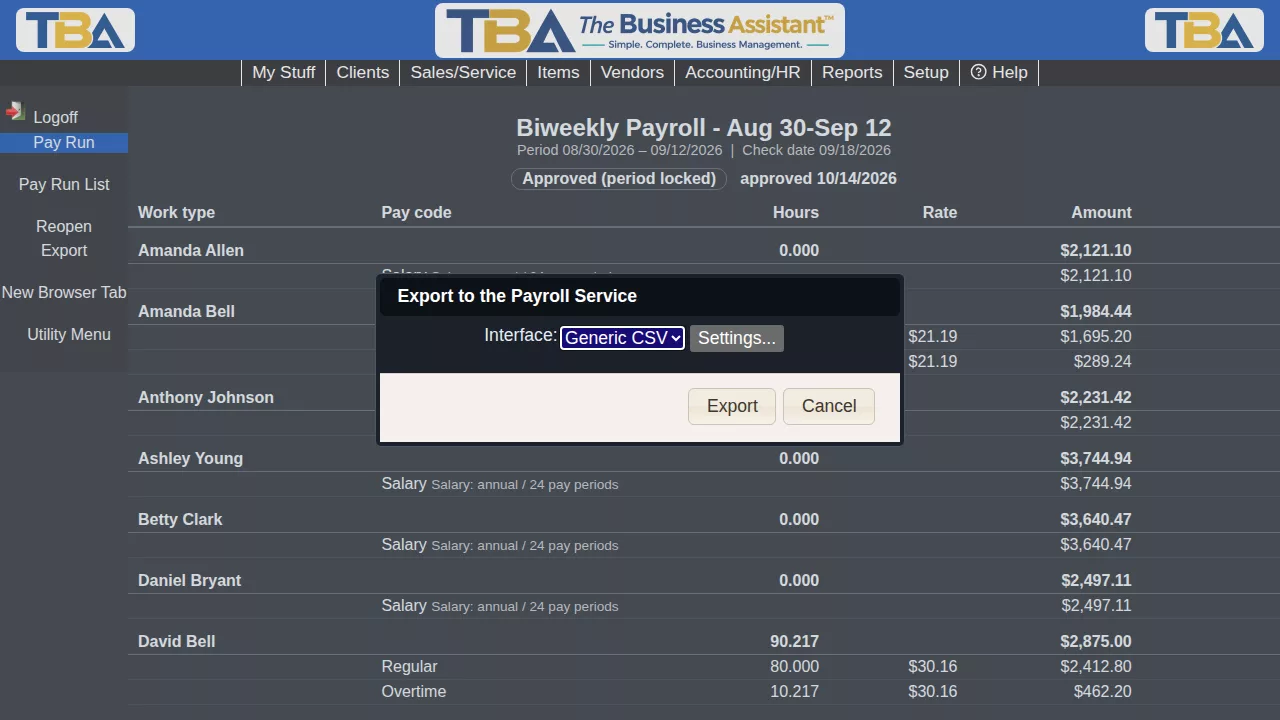
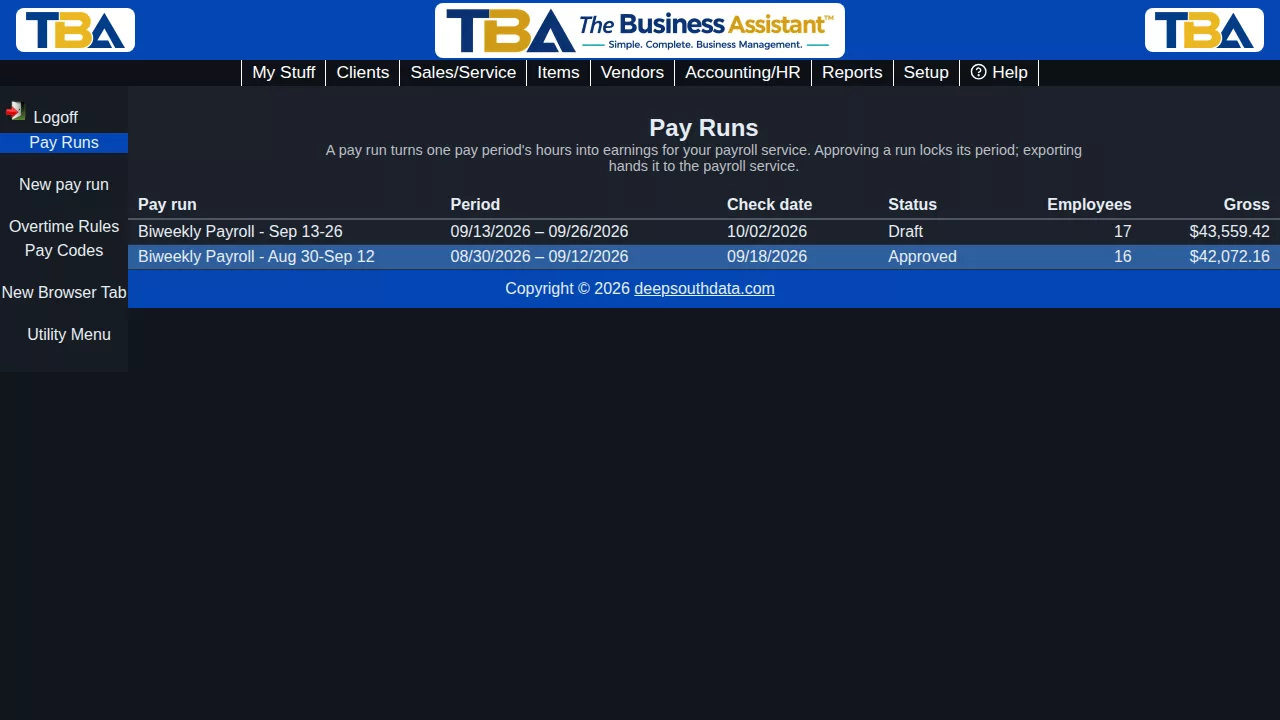
A pay run turns one pay period’s hours into earnings, ready to hand to your payroll service. Find them at HR/Payroll > Pay Runs. Viewing needs payroll view permission; creating and changing needs payroll modify; exporting needs payroll export.
The life of a pay run #
- Draft – the lines are calculated and can be recalculated; you can add lines by hand.
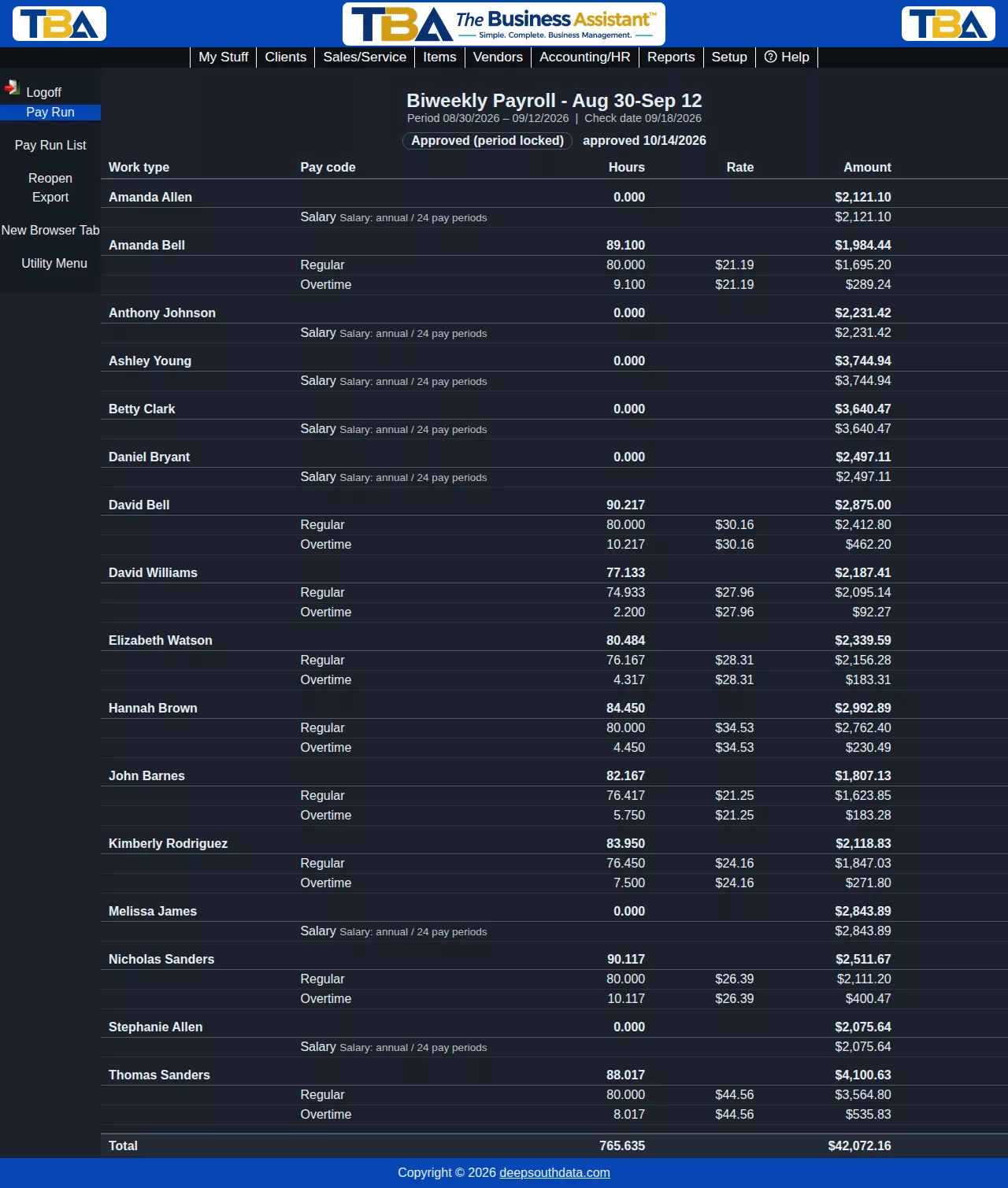
- Approved – the period is locked. Nobody can add, change or delete time entries, correct or void clock punches, add punches, or approve leave in that period until the run is reopened.
- Exported – a file has been produced for your payroll service. The period stays locked.
Creating a run #
Click New pay run, enter a name (optional), the period start and end and the check date, and click Create. TBA suggests the next two-week period. A run can cover up to about three months, and two runs can’t cover the same days.
How the lines are calculated #
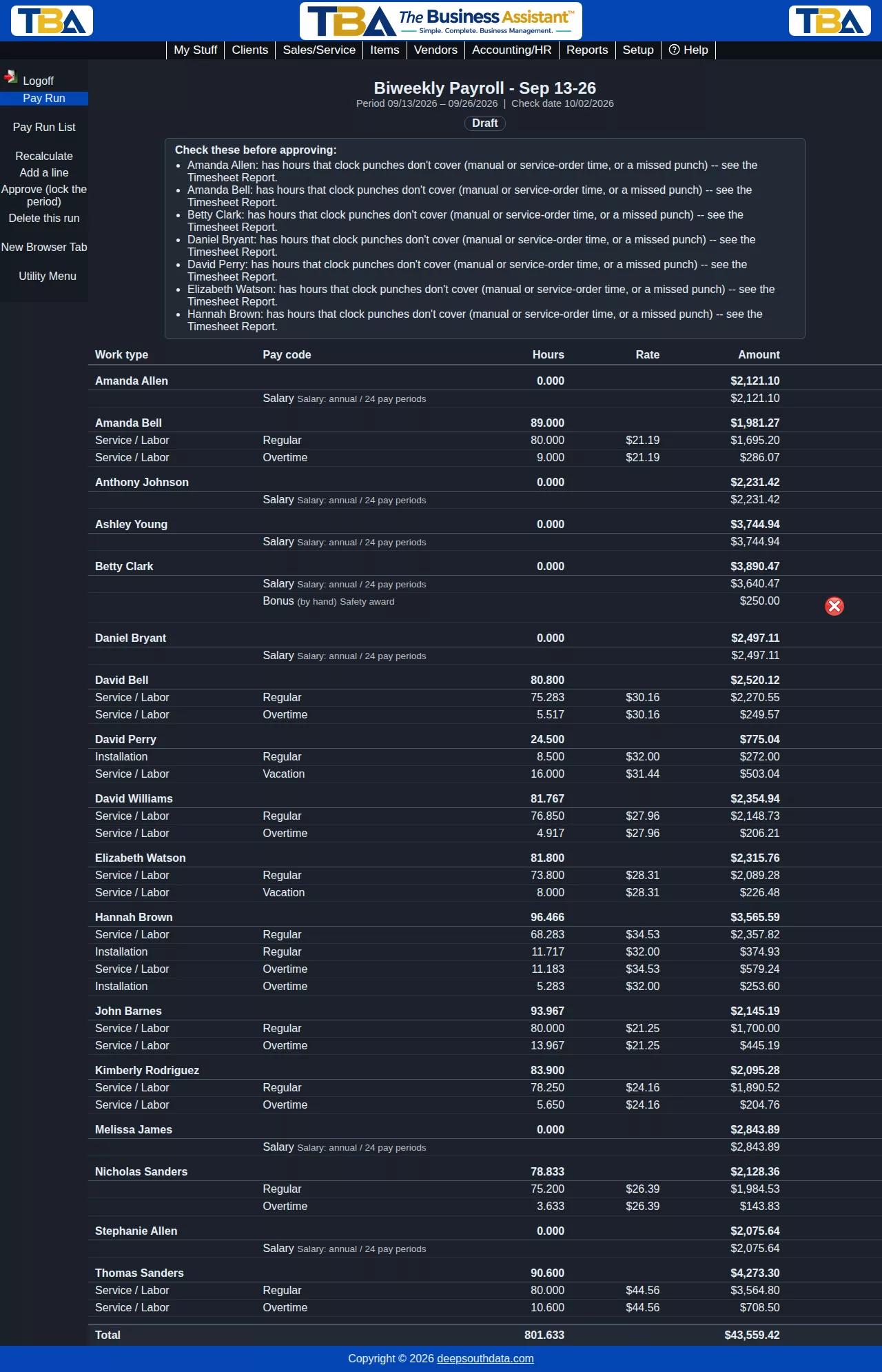
- Hourly employees – their reconciled hours for the period (clocked, service order and manual time combined) are split by work type and pay code, overtime rules are applied, and each hour is priced at the employee’s rate for that day. A rate that’s set for a specific pay code is used as it is; otherwise the pay code’s multiplier is applied to the rate (so overtime pays 1.5 times). Hours before and after a raise are priced separately. Lines are grouped by work type, pay code and rate.
- Salaried employees – one salary line per run: the annual salary divided by the pay periods in the employee’s pay frequency (52, 26, 24 or 12).
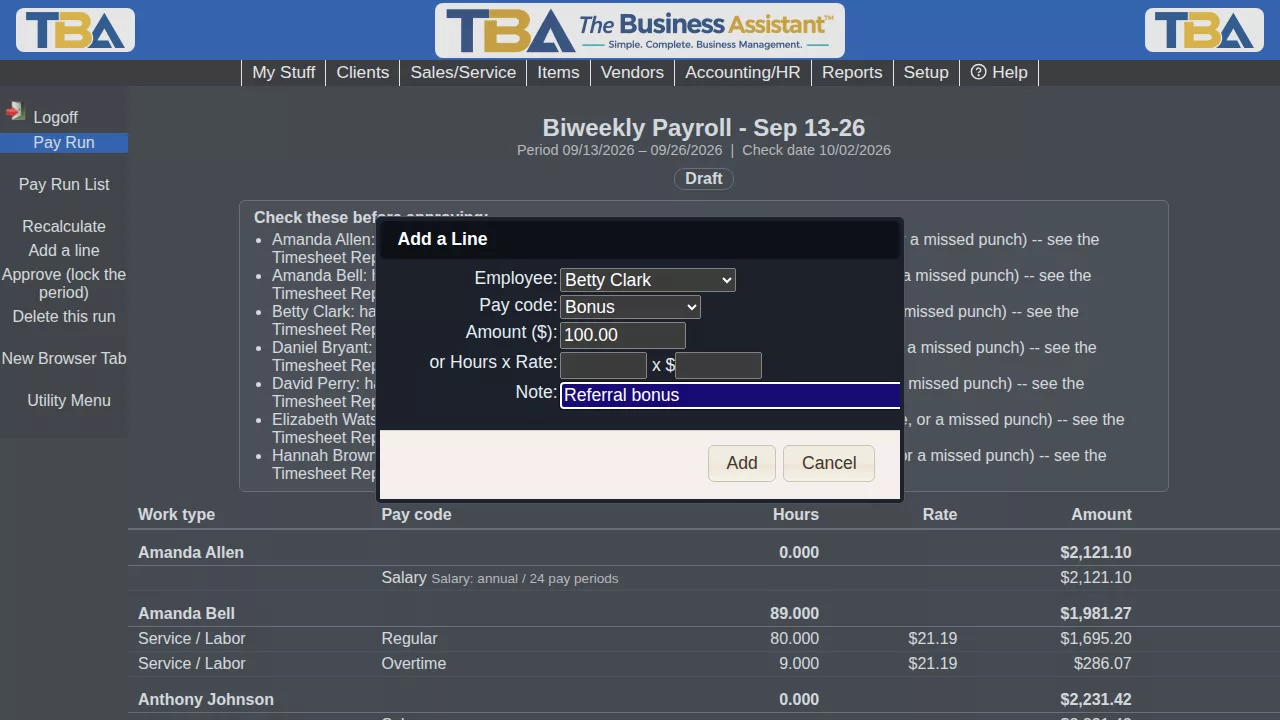
- Manual lines – use Add a line for bonuses, commissions, per-job pay and reimbursements: choose the employee and pay code and enter an amount, or hours and a rate. Remove one with the red X. Manual lines survive a recalculation.
Warnings #
A box at the top lists things to check before approving, for example an employee with hours that clock punches don’t cover (manual or service-order time, or a missed punch), an employee who isn’t set up for payroll, or hours with no hourly rate (priced at $0.00). Fix the cause, then click Recalculate.
Actions #
- Recalculate (draft) – rebuild the calculated lines from the current hours, rates and rules.
- Approve (lock the period) – confirms, then locks the period.
- Reopen (approved, not yet exported) – unlocks the period and returns the run to a draft.
- Export – choose a payroll interface and click Export. The file downloads and the run is marked Exported. Exporting a run again warns you: importing the same file into a payroll service twice can pay people twice.
- Delete this run (draft only).
Payroll interfaces #
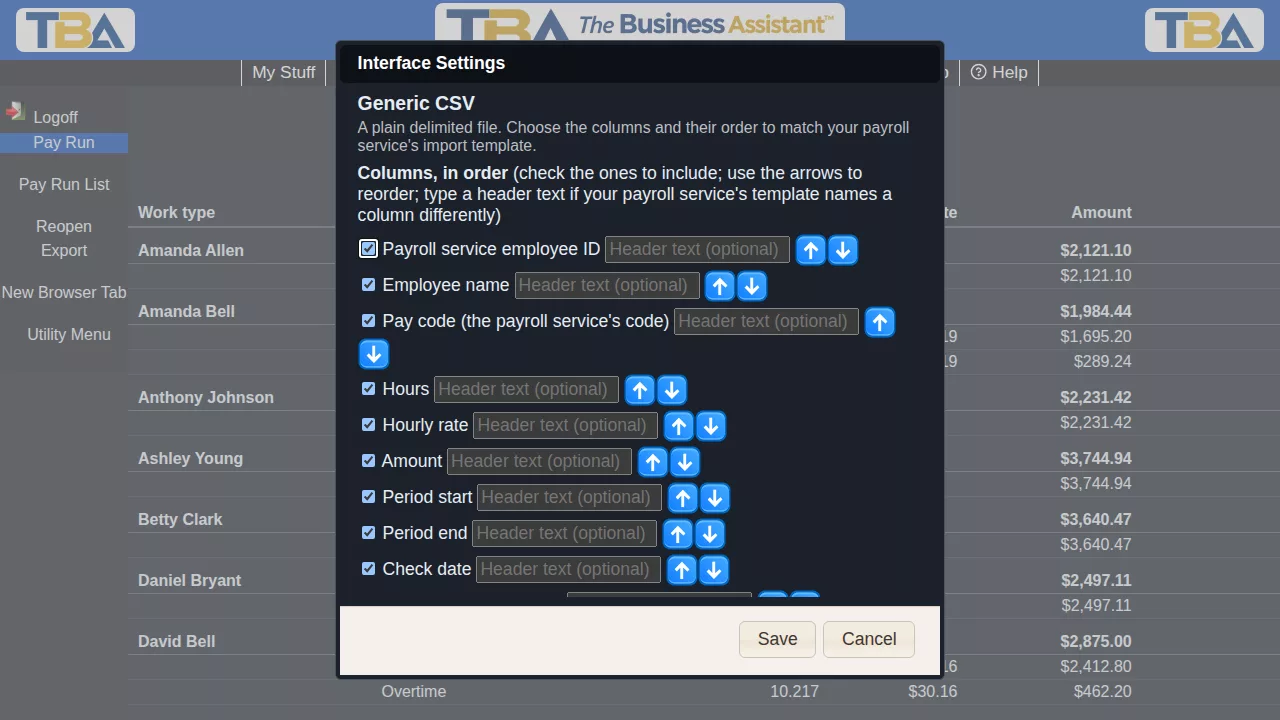
An interface turns a pay run into the file a particular payroll service wants. Generic CSV produces a plain delimited file; iSolved starts from a simple layout. In the export dialog click Settings… to choose which columns are included, their order, and optional header text for each column (use the names your service’s import template uses), whether there’s a header row, and the separator (comma, tab, semicolon or pipe). Settings are remembered for each interface.
The export needs each employee’s Payroll service employee ID (on the Payroll tab of their personnel record) when that column is included; TBA lists anyone who is missing one. Pay codes are sent using the Payroll code from Pay Codes.
TBA does not calculate taxes or deductions. Your payroll service does that and pays the employees.