
The Price Tag Designer is where you set up the paper your price tags print on and design what each tag shows. Tags always print as a PDF, so they work with any printer: sheets of labels or cards in an ordinary printer, or a label printer such as a Dymo, Brother or Zebra. You find it under Items > Price Tag Designer and Reports > Price Tag Designer. You need the Report Designer permission to design; printing only needs permission to see the item or inventory lot.
Choosing or Making a Design #
The Design box at the top lists your designs. New Design starts another, Save saves it, Save As Copy keeps the original and starts a copy under a new name, and Delete removes one (any item or lot that used it is set back to having no price tag form).
1. Paper and Labels #
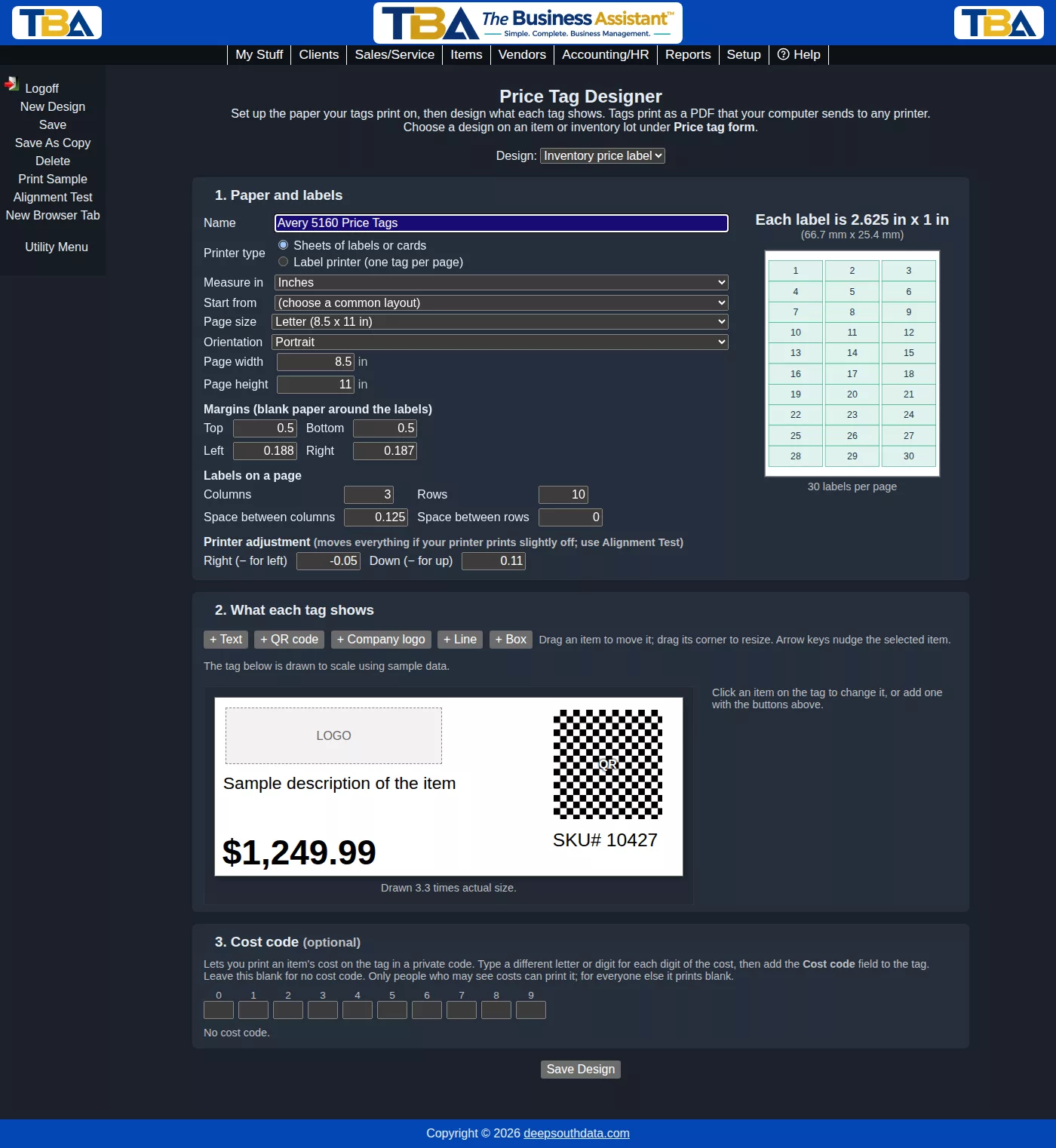
Give the design a Name and pick the Printer type: Sheets of labels or cards, or Label printer (one tag per page). Choose whether to measure in inches or millimeters, and use Start from to fill in a common layout (several Avery sheets, Dymo and Brother rolls, and common thermal label sizes) that you can then adjust.
For sheets, set the Page size and Orientation, the Margins (blank paper around the labels), the number of Columns and Rows, and the Space between columns and Space between rows. For a label printer, you enter the label’s width and height and each tag prints on its own page of that size.
As you type, Each label is … x … shows the size of one label in both units, with a numbered picture of the sheet. If the numbers leave no room for the labels, you are told so and the design can’t be saved. Printer adjustment moves everything right or down (or left and up, with a minus sign) if your printer prints a little off; use Alignment Test to see how your printer lines up.
2. What Each Tag Shows #
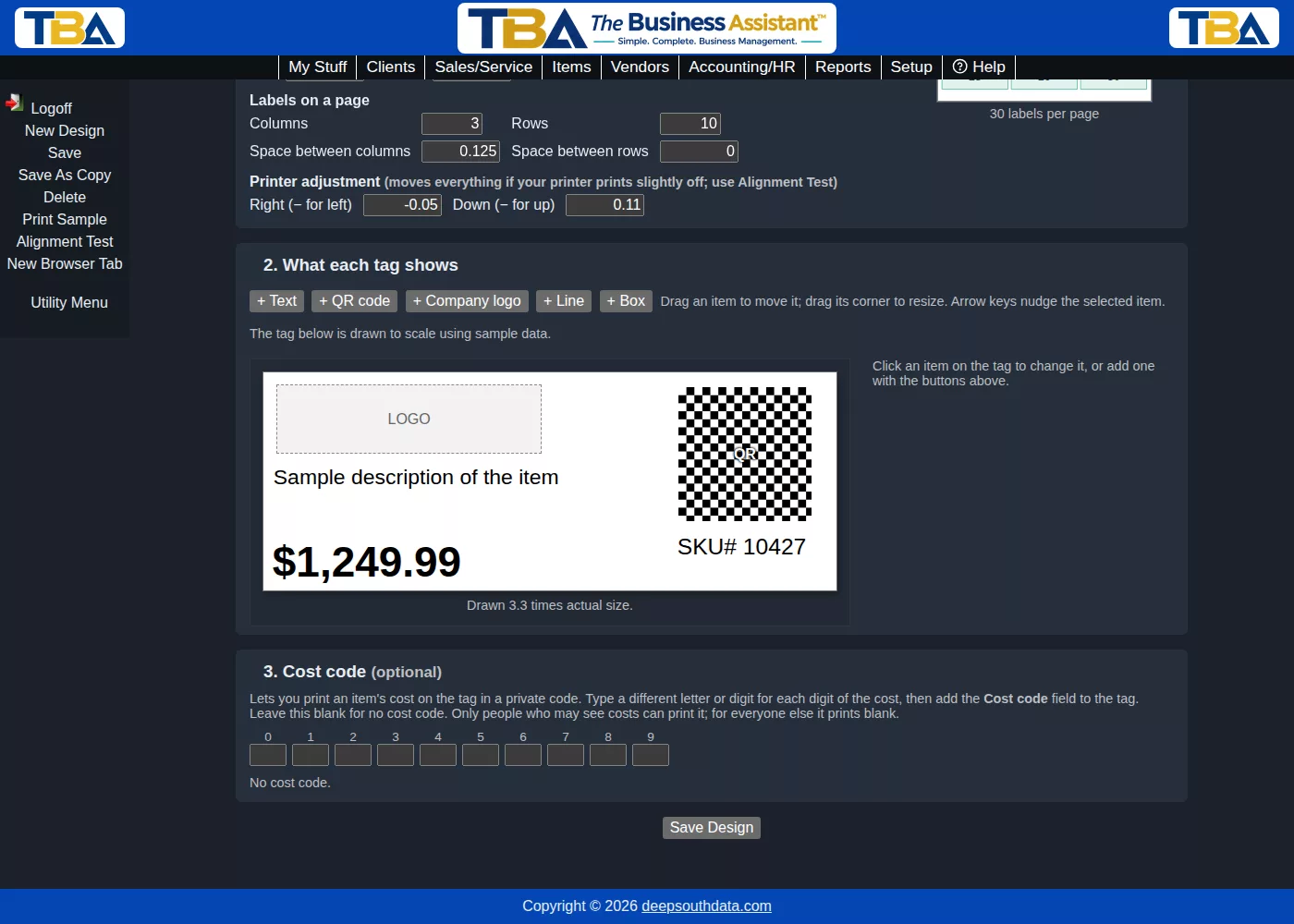
The tag is drawn to scale with sample data. Add things with + Text, + QR code, + Company logo, + Line and + Box. Drag an item to move it, drag its corner to resize it, and use the arrow keys (hold Shift for bigger steps) to nudge the selected item. The panel beside the tag changes the selected item: its position and size in your units, and then:
- Text — type the words and use Insert field… to add live fields such as the item name, description, price, inventory SKU #, manufacturer and its part number, vendor and its part number, department, unit of measure, color, size, price tag comment, cost code, today’s date and date received. Choose the font, size, bold, italic, underline, color and alignment, and what happens to long text: cut off at the edge, shrink to fit on one line, or wrap onto more lines.
- QR code — what the code holds is your choice: the Inventory SKU #, the Manufacturer and its SKU, the Vendor and its SKU, or A specified ID name and data that you type (the data can include the same live fields). The code always starts with what kind of data follows: SKU:, MFR:, VND:, or your own ID name. An item with no inventory lot has no SKU #, so its code reads ITEM: and the item number.
- Company logo — your logo from General Options.
- Line and Box — thickness and color, and a fill color for a box.
Duplicate, Bring forward, Send back and Delete work on the selected item.
3. Cost Code (optional) #
A cost code lets you print an item’s cost on the tag in a private code. Type a different letter or digit for each digit 0 through 9, then add the Cost code field to the tag. With a code of ABCDEFGHIJ, a cost of $82.50 prints as ICFA. Leave all ten boxes blank for no cost code. Only people allowed to see costs can print it; for everyone else it prints blank.
Sample and Alignment Printouts #
Save the design, then Print Sample prints a sheet with sample data, and Alignment Test prints an outline and number for every label so you can check it against your real label stock. Print at 100% / Actual size, not Fit to page, or everything shifts.
Printing Tags #
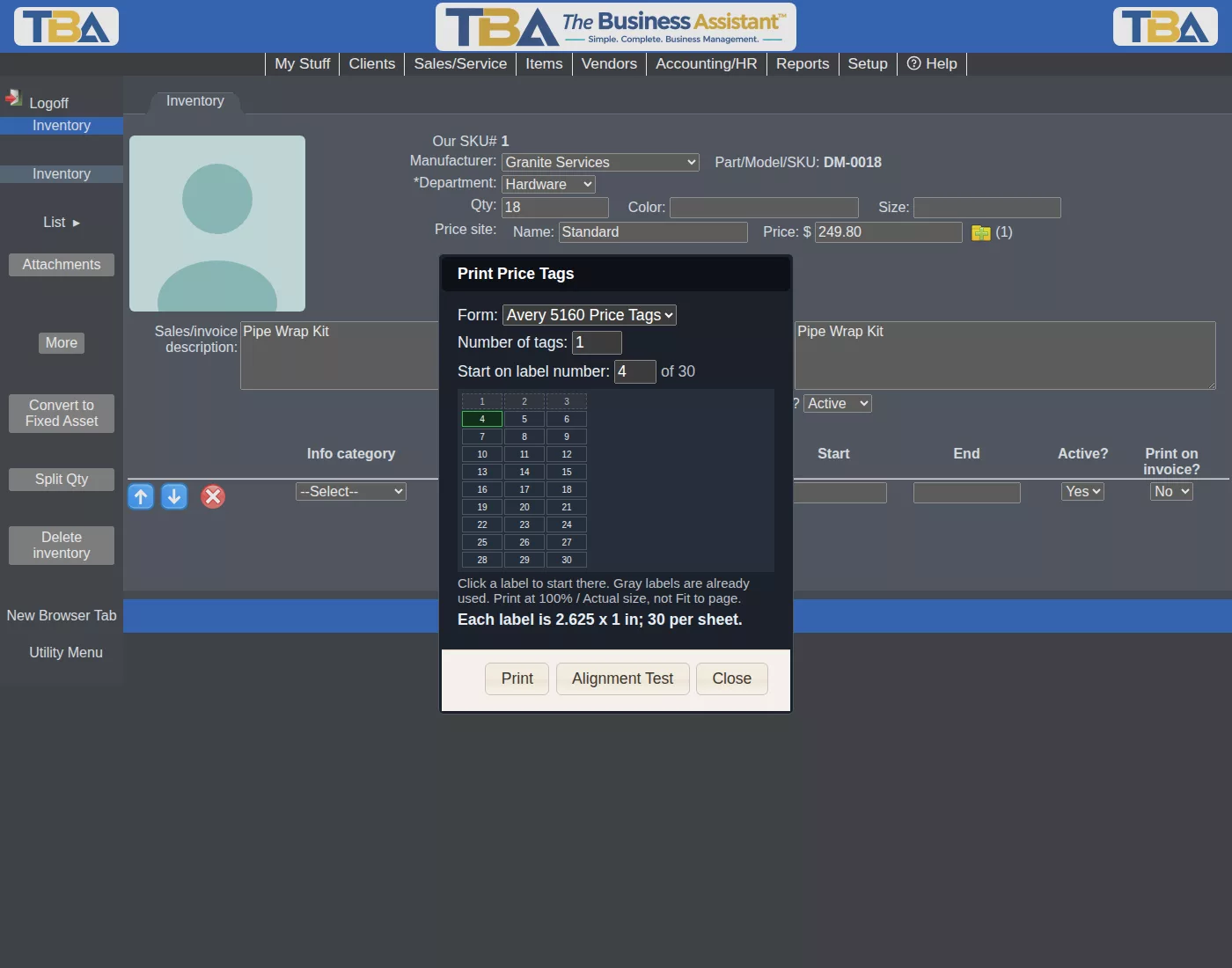
On Item Info and Inventory, the plus-folder icon next to Price tag form picks the design for that item or lot, and the printer icon opens the print window. Choose the Form, the Number of tags, and for sheets Start on label number: the grid shows used labels in gray and the ones about to print highlighted, and you can click a label to start there. After you print, the form remembers where the next print should start, so a partly used sheet isn’t wasted. Alignment Test is also available there. On an Inventory lot the Price tag qty is the number of tags that lot normally needs, and the Price tag comment on the lot (or the item) is available to the tag as a field.


