
If an adviser signed you up for TBA, or helps you with it, they can help you inside your own account — but only if you let them. Many small businesses use an outside accountant or bookkeeper this way: they keep your books for you, working from the receipts and emails you send. Adviser Access (under Setup > Company) is where you decide how much they may do. You need the Setup modify permission to change it. If you have no adviser, the page says so and nothing is needed.
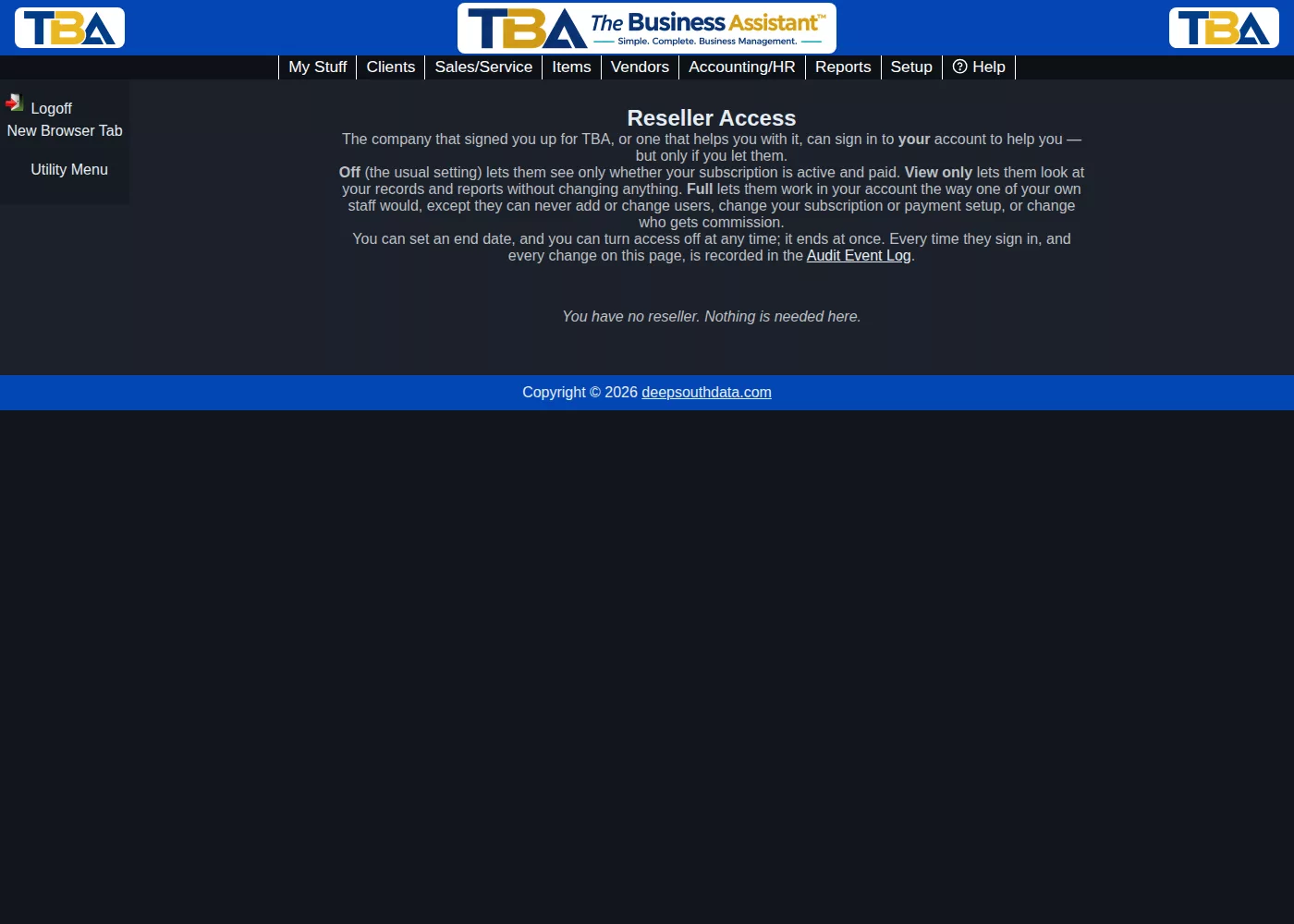
The Choices #
Each adviser is listed with how they relate to you: Signed you up or Helps with support. For each, choose an Access level and click Save:
- Off — the usual setting, and the starting one. The adviser can see only whether your subscription is active and paid. They cannot open your account. If they try, they are told you have not given them access and are pointed to this page.
- View only — they can sign in and look at your records and run reports, but cannot add, change or delete anything. They cannot see your users or permission profiles, or your item costs.
- Standard — they can work in your account the way one of your own staff would, for example a bookkeeper who keeps your books. They cannot add or change users or permission profiles, and they cannot touch your subscription or payment setup. You are asked to confirm before Standard is saved.
- Administrator — the same as one of your own administrators: everything Standard allows, plus adding and changing your users and their permissions. You are asked to confirm before Administrator is saved. Your subscription and payment setup stay off limits unless you also choose the extra option described below.
Whatever you choose, an adviser can never create companies, change this page, or change an adviser’s permissions (including their own). That way an adviser can never extend its own access, or take away your ability to end it.
Until is an optional end date. Leave it blank for no end date. When the date passes the adviser can no longer sign in; a visit already in progress ends when it has been idle for 20 minutes.
Letting Your Adviser Handle Your Subscription and Payments #
By default your subscription and your card payment processing setup stay in your hands, at every level. That covers your plan and add-ons, cancelling or restoring your subscription, the card or bank account you pay your subscription with, and how your own customers’ card payments are processed and where they are deposited (Stripe).
If your adviser or accountant handles everything for you, you can hand these over too. For an adviser set to Administrator, tick Also let them manage my subscription and payment setup and click Save. You are asked to confirm, and the message lists exactly what they will be able to do. The option only appears for the Administrator level, and it is off until you tick it.
You stay in control. Untick the box, lower the level, turn access Off, or let the end date pass, and it ends on their very next click. Every change they make to your subscription or payment setup is recorded in your Audit Event Log as Adviser Changed Billing, and an email saying who changed what is sent to your company’s contact address.
Fine-Tuning What They Can Do #
Each level is only a starting point. To give an adviser something in between — for example Standard access but no payments, or View only plus the right to add invoices — open the Permissions screen (see Users and Permissions) and edit the user whose name starts with ~a followed by the adviser’s number, shown with the adviser’s company name. Set its permissions the way you would for any other user.
Every person from that adviser gets those permissions the next time they sign in. People already signed in keep what they had until their next visit. Once you have changed them, the Adviser Access page shows Fine-tuned on the Permissions screen. To go back to the standard set for the level, tick Put the starting permissions back and save; choosing a different level does the same.
How a Visit Works #
An adviser signs in to the adviser console with their own login and two-factor code, and clicks Open beside your company. That signs them in to your account under their own name and their company’s, never using one of your users’ logins. Each person at the adviser has their own sign-in, so your records show exactly who did what. An orange bar across the top of every page shows who they are and what level they have, with End this visit. A visit signs out after 20 idle minutes and does not use up one of your paid concurrent-user seats.
Your adviser can only open your account if they have also given that person permission to open clients’ accounts, and your client is one of the clients assigned to them. Your setting on this page always has the last word: even if the adviser’s list still shows Open, TBA checks your own setting at the moment they try, and refuses if it is Off or has ended.
An adviser who opens your account in the same web browser you are using will replace your own TBA sign-in in that browser. If both of you test this on one computer, use a separate browser or a private window for one of you.
Staying in Control #
Turning access to Off ends that adviser’s visits immediately. Every change on this page, and every time one of their people signs in, is recorded in the Audit Event Log (Adviser Access Changed and Adviser Signed In, plus Adviser Changed Billing if you let them manage your subscription and payment setup), so you can always see who came in and when. Your adviser also keeps its own activity log of these visits, showing the time worked, which it may use to bill you for its time.
In your user list you will see one entry for each adviser, named ~a and the adviser’s number — that is the user whose permissions you set above. The individual people from the adviser do not appear in your list. None of these can be used to sign in the ordinary way, so you do not need to manage them.
If Your Adviser Signed You Up Wholesale #
Some advisers bill their own clients and pay Deep South Data a wholesale rate. If yours did, your company was set up by your adviser, you were emailed a temporary password (you choose your own at first sign-in), and your adviser bills you — not Deep South Data. Your adviser is given Standard access to your account when it is created so it can set things up for you. You can change or turn that off on this page at any time, exactly as described above.
If your adviser does not pay Deep South Data, your account can be suspended after a grace period: nobody can sign in, and your administrator is emailed with your adviser’s contact details. Your data is not touched, and the account is restored as soon as your adviser pays. Deep South Data keeps a phone number and email address for your company so it can reach you directly if that ever happens.


