
Besides the tiles TBA gives you, you can make your own tiles. A tile can open any page you are allowed to use, no matter which menu it is on, and a group is a tile with a flyout menu of the pages you choose, in the order you choose. Every tile has an icon.
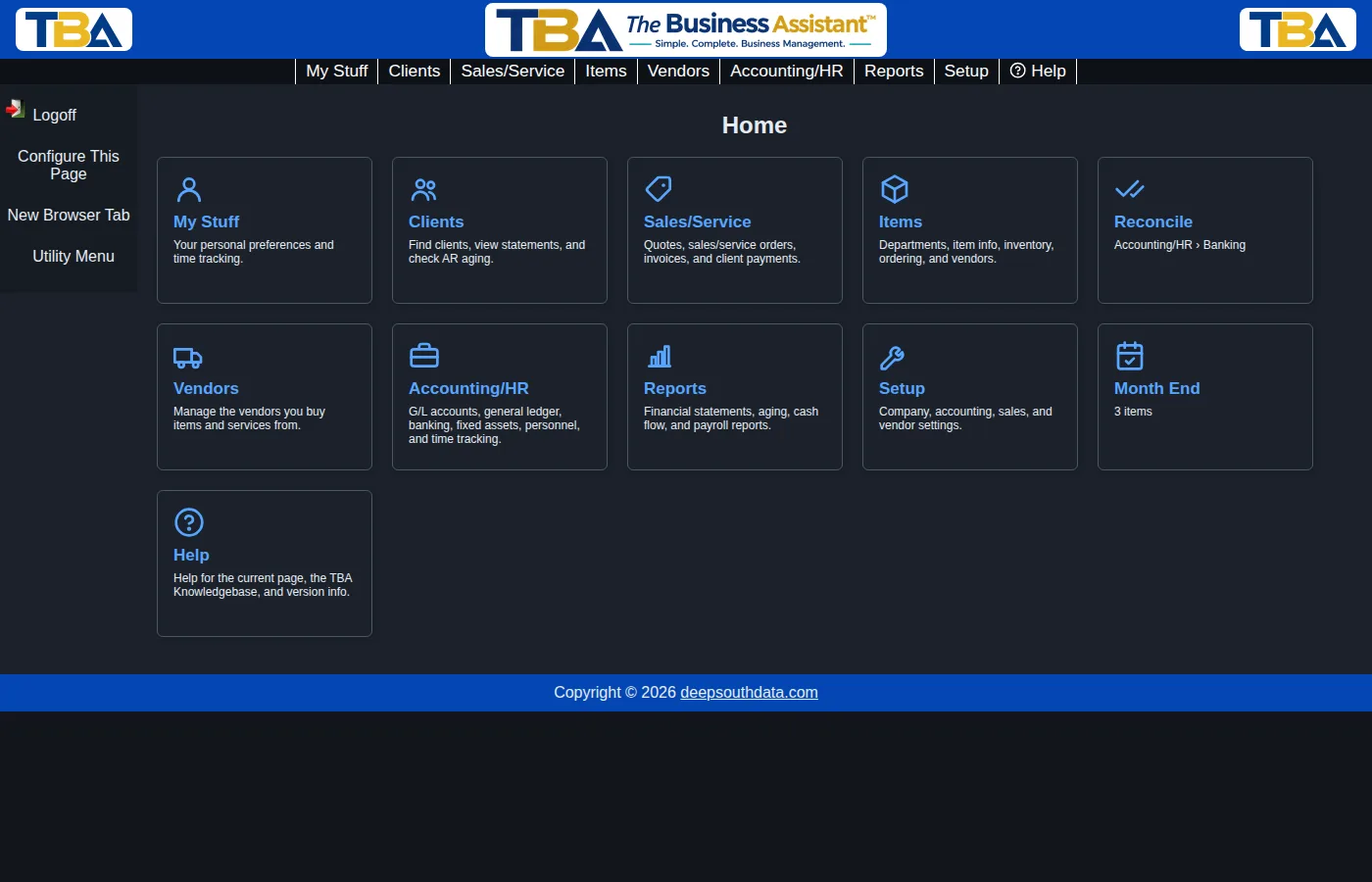
You can do this on your home page and on every section’s menu page: Sales/Service, Items, Bills, Accounting/HR, Banking, Accounting, HR/Payroll, and Reports.
Add a Tile #
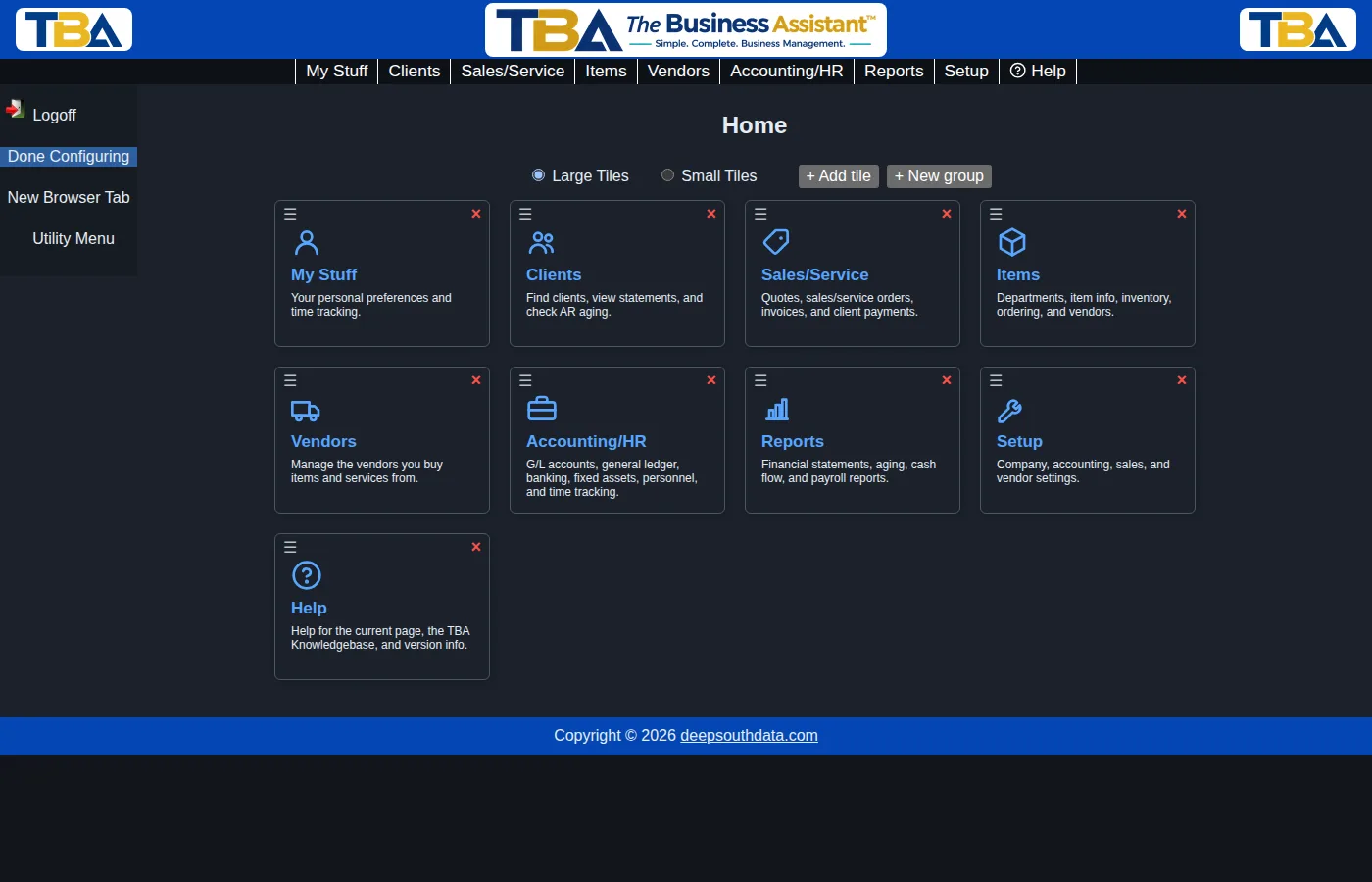
- Click Configure This Page at the top of the page. Two buttons, + Add tile and + New group, appear next to Large Tiles / Small Tiles.
- Click + Add tile.
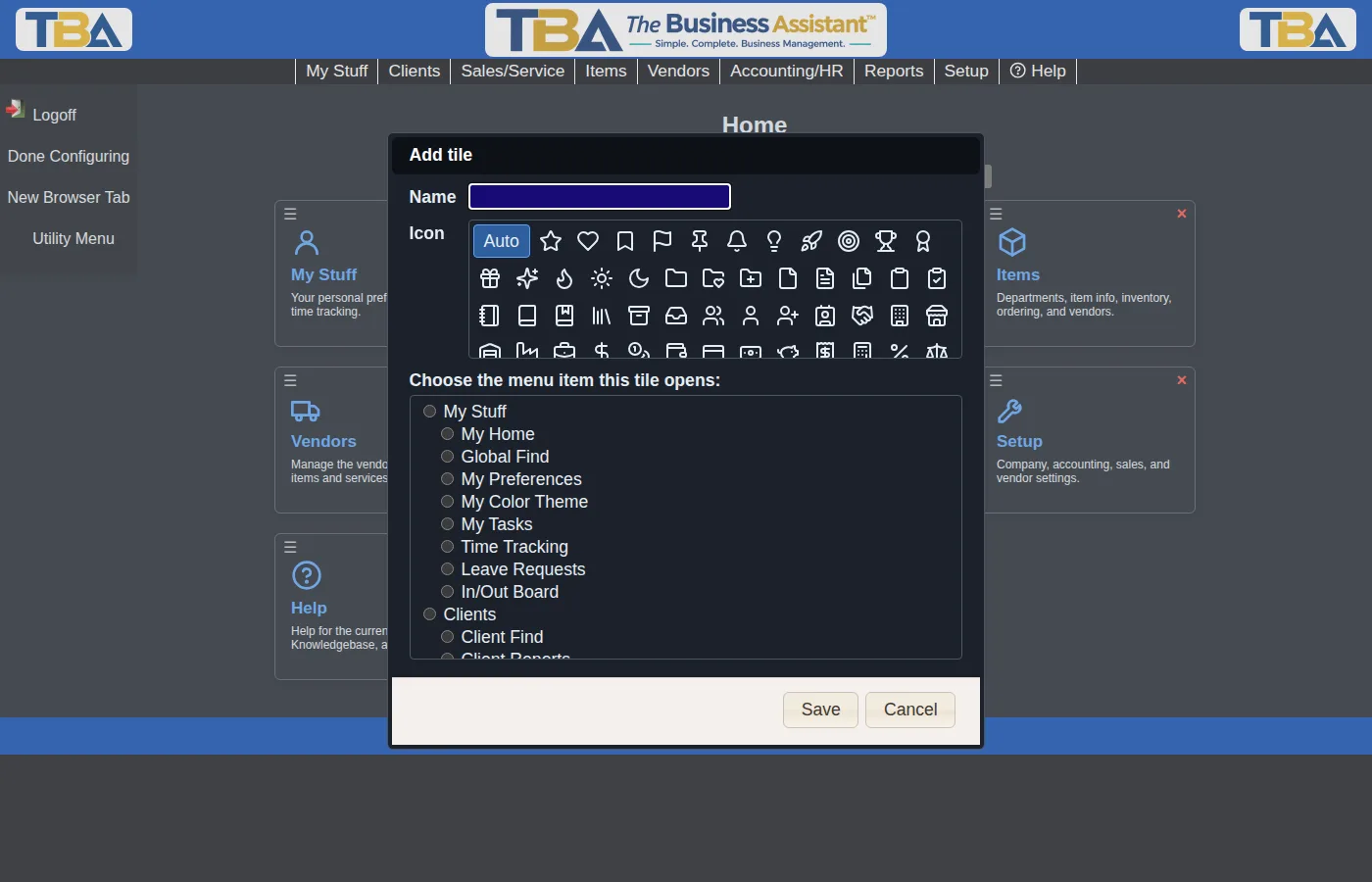
- Choose the page the tile should open from the list. The list is your whole menu, as you see it in the menu bar, with every section expanded. It only contains pages you are allowed to use.
- Optionally change the Name (up to 40 characters). Until you type one, the tile is named after the page you picked.
- Optionally pick an Icon. Auto chooses one that suits the page; or click any of about 200 icons.
- Click Save. The new tile appears in the first free spot. Drag it wherever you want, like any other tile.
Configure This Page, with the new buttons (step 1):
The Add tile window (steps 2 and 3):
With a page picked, the name fills in for you (step 4):
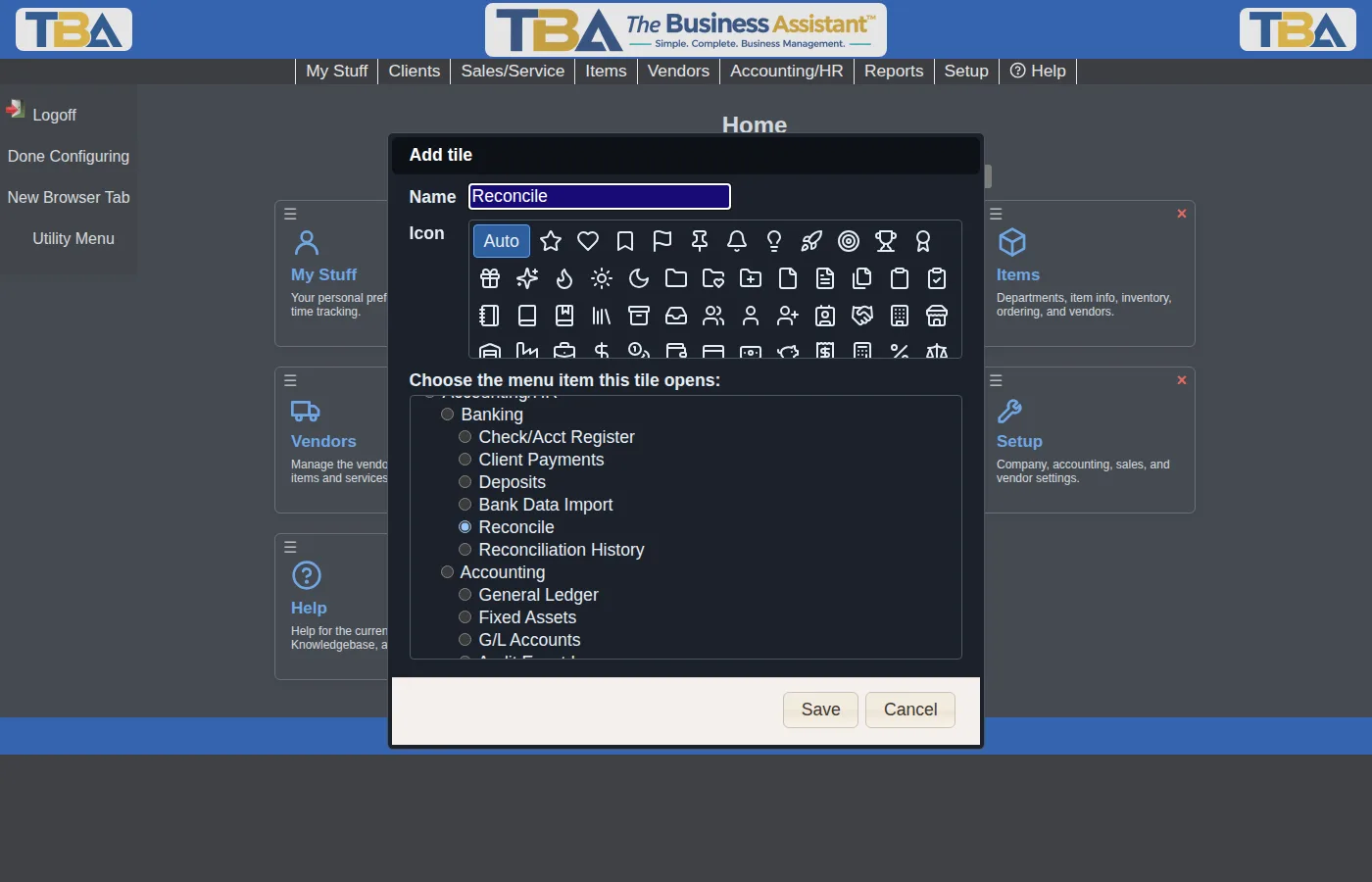
The tile shows your icon and name, and under the name the part of the menu it lives in, for example Accounting/HR › Banking. If you pick a heading rather than a single page (for example Financial Reports), the tile shows that heading’s pages in a flyout when you hover over it.
Make a Group #
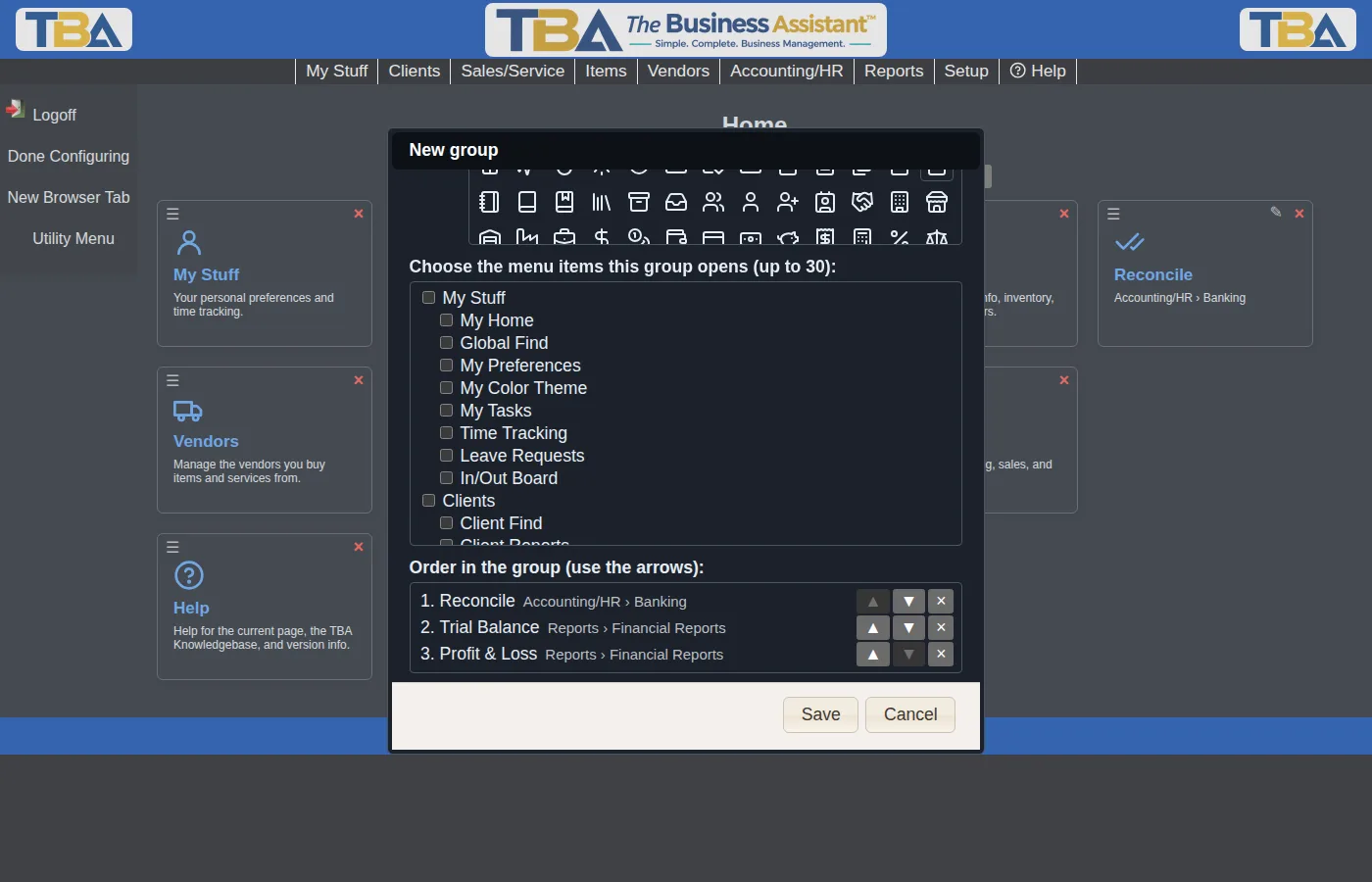
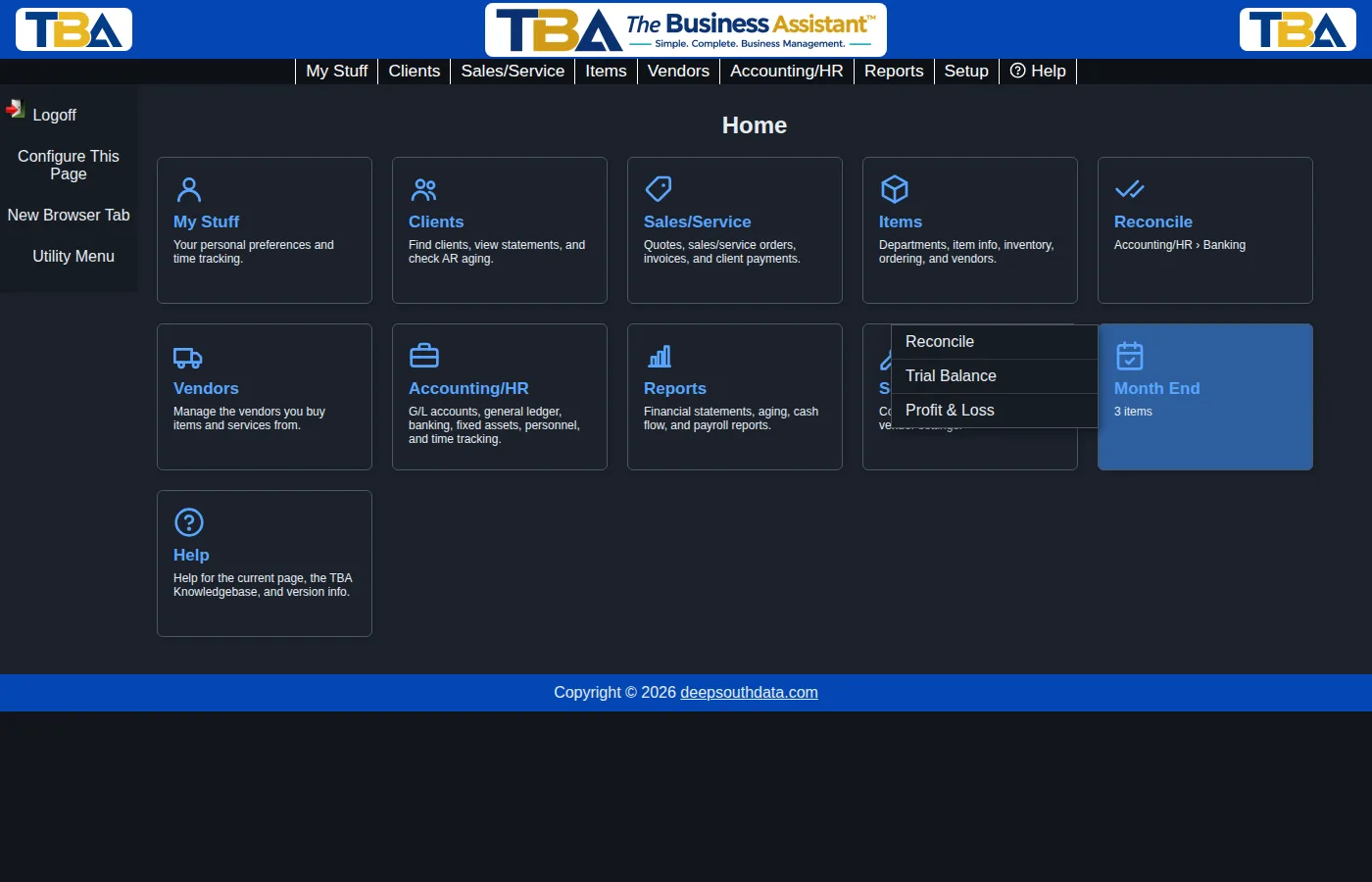
A group puts the pages you use together in one tile, even if they live in different menus. A month-end group might hold Reconcile, Trial Balance, and Profit & Loss.
- In Configure This Page, click + New group.
- Type a Name (required) and, if you like, choose an Icon.
- Tick every page you want in the group (up to 30). Each one you tick is added to the Order in the group list underneath.
- Put them in the order you want with the ▲ and ▼ buttons. The × button takes an item out of the group (unticking it in the list above does the same).
- Click Save.
Hover over the group’s tile to see its flyout, with your pages in the order you set, and click one to go straight to it. The group’s own description tells you how many items it holds. A group has no page of its own, so clicking the tile itself does nothing; use the flyout.
Change or Delete a Tile #
While you are in Configure This Page, each tile you made has a small pencil next to its ×.
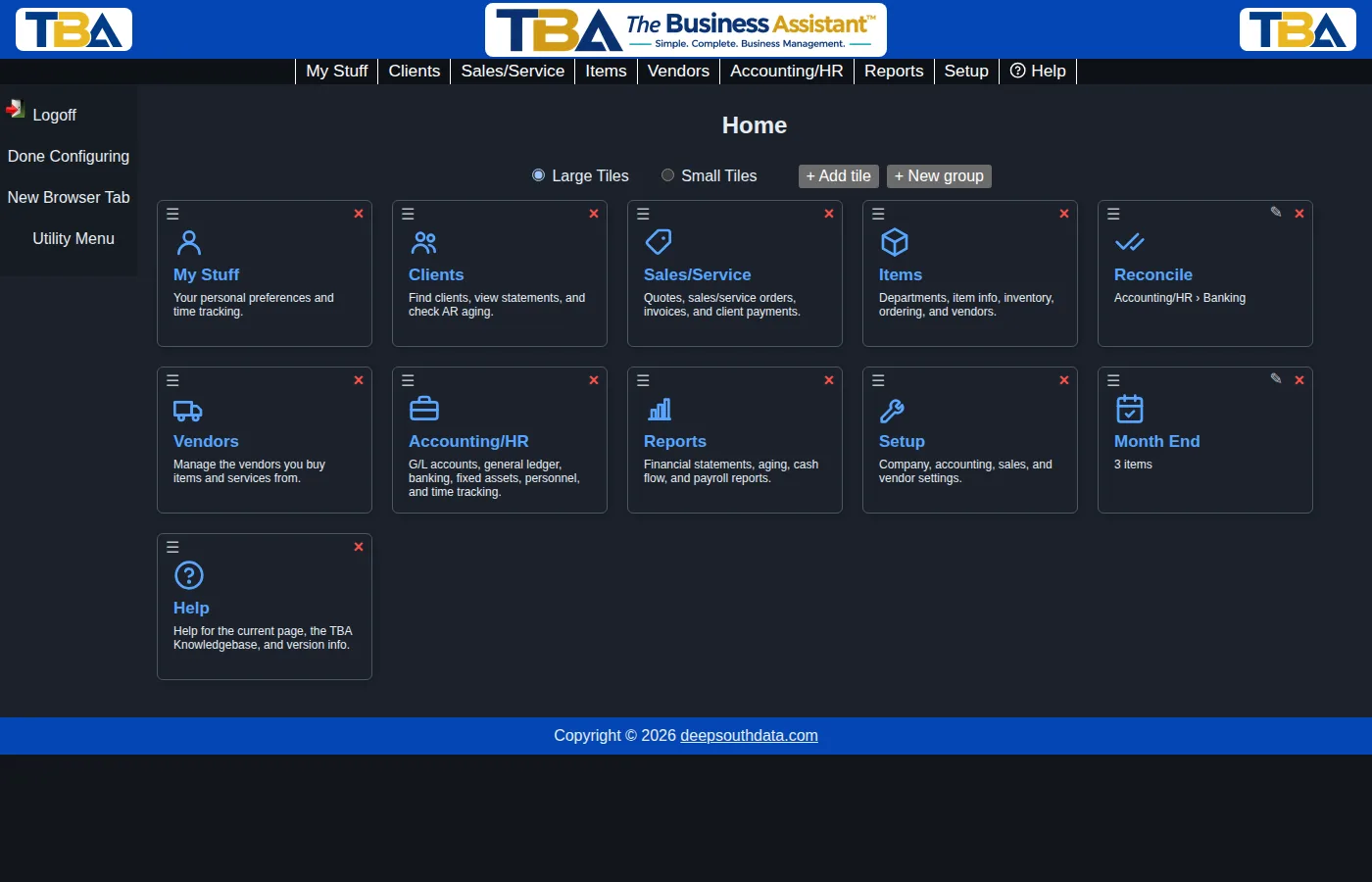
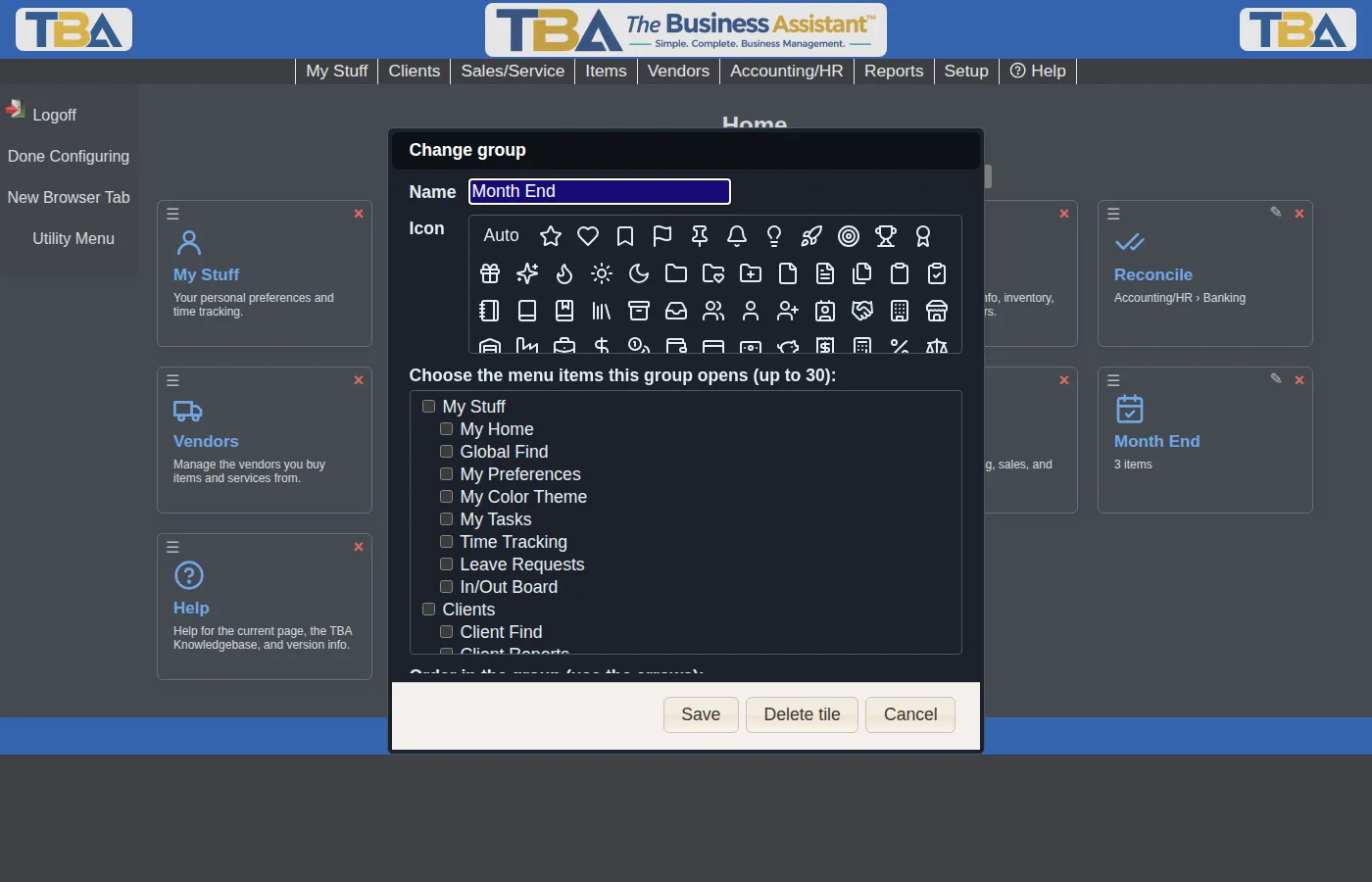
- Click the pencil to change its name, icon, page, or (for a group) its items and their order.
- Click Delete tile in that window to remove it for good. You are asked to confirm.
- The × on a tile only hides it, exactly as with the built-in tiles. A hidden tile waits in the Hidden tiles tray, and clicking it there brings it back.
Good to Know #
- You can only choose pages you can use. If an administrator later takes away your access to a page, its tile quietly disappears; if the access comes back, so does the tile. A group simply shows the pages you can still open. See Users and Permissions. If you have just been given access to something new, log in again or use Reload permissions in the Utility Menu before you look for it in the list.
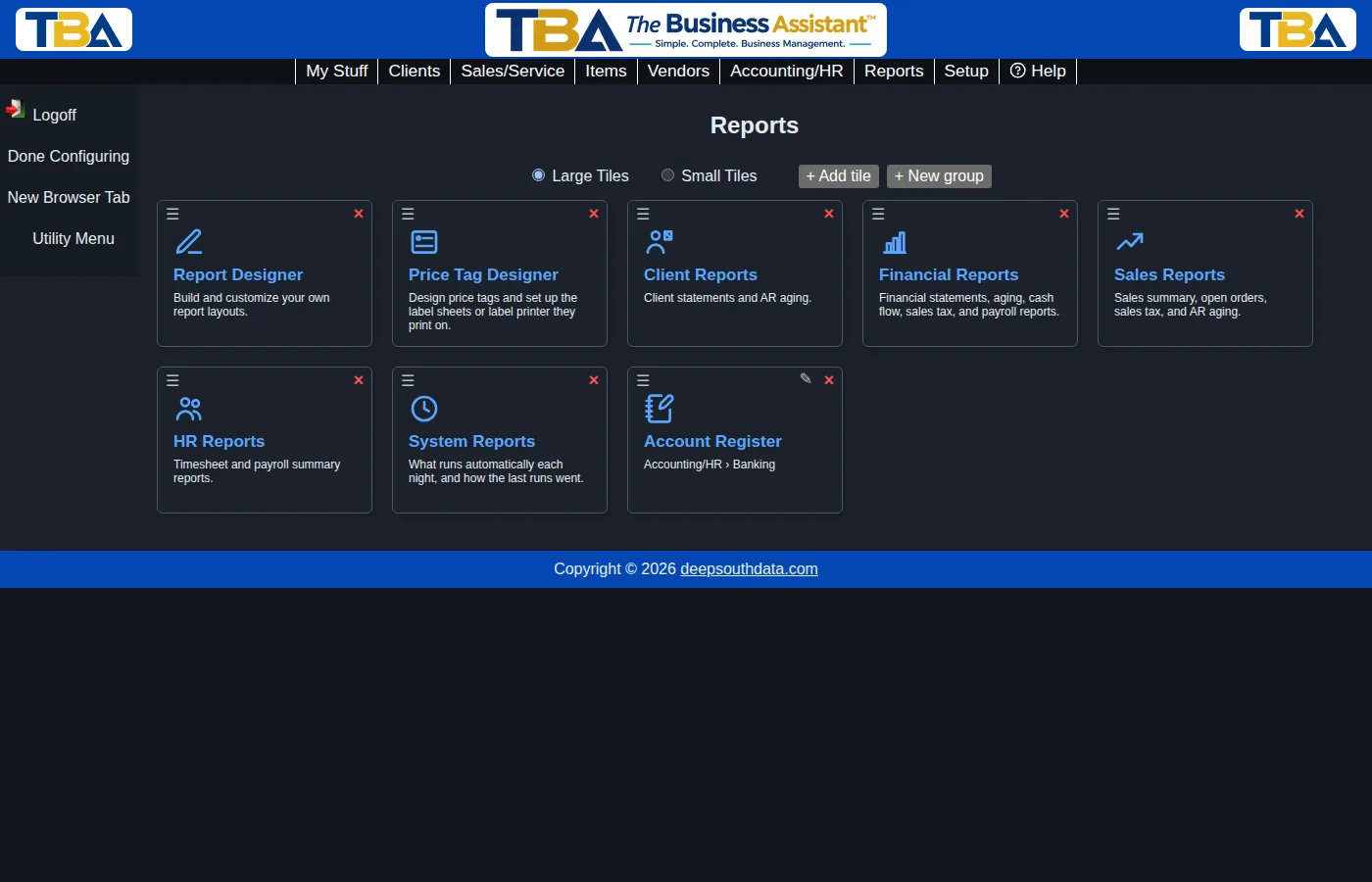
- Each page is separate. Tiles you make on Reports appear only on Reports, and the ones on your home page only on your home page, but any page of the program can go on any of them. Here, an Account Register tile from the Banking menu sits on the Reports page:
- They belong to you. Your own tiles are saved with your login and follow you to any computer or phone. Other people do not see them.
- Limits: up to 100 tiles of your own on a page, and up to 30 pages in a group.
- Every tile has an icon. The built-in tiles now get one that matches their page, too.
- Large or small: your own tiles follow the same Large Tiles / Small Tiles choice as the rest of the page.
See Home Page and Menu Pages for moving, hiding, and resizing tiles, and The Basics for finding your way around TBA.


