
The demo lets you try The Business Assistant with a company of your own for 30 days, free, with no credit card. It comes filled with sample clients, vendors, items, orders, invoices, and payroll, so every screen has something to look at from the first minute.
Everything in a demo is temporary. It is a place to explore, not to keep your books. Please do not enter real customer or financial information.
Start Your Demo #
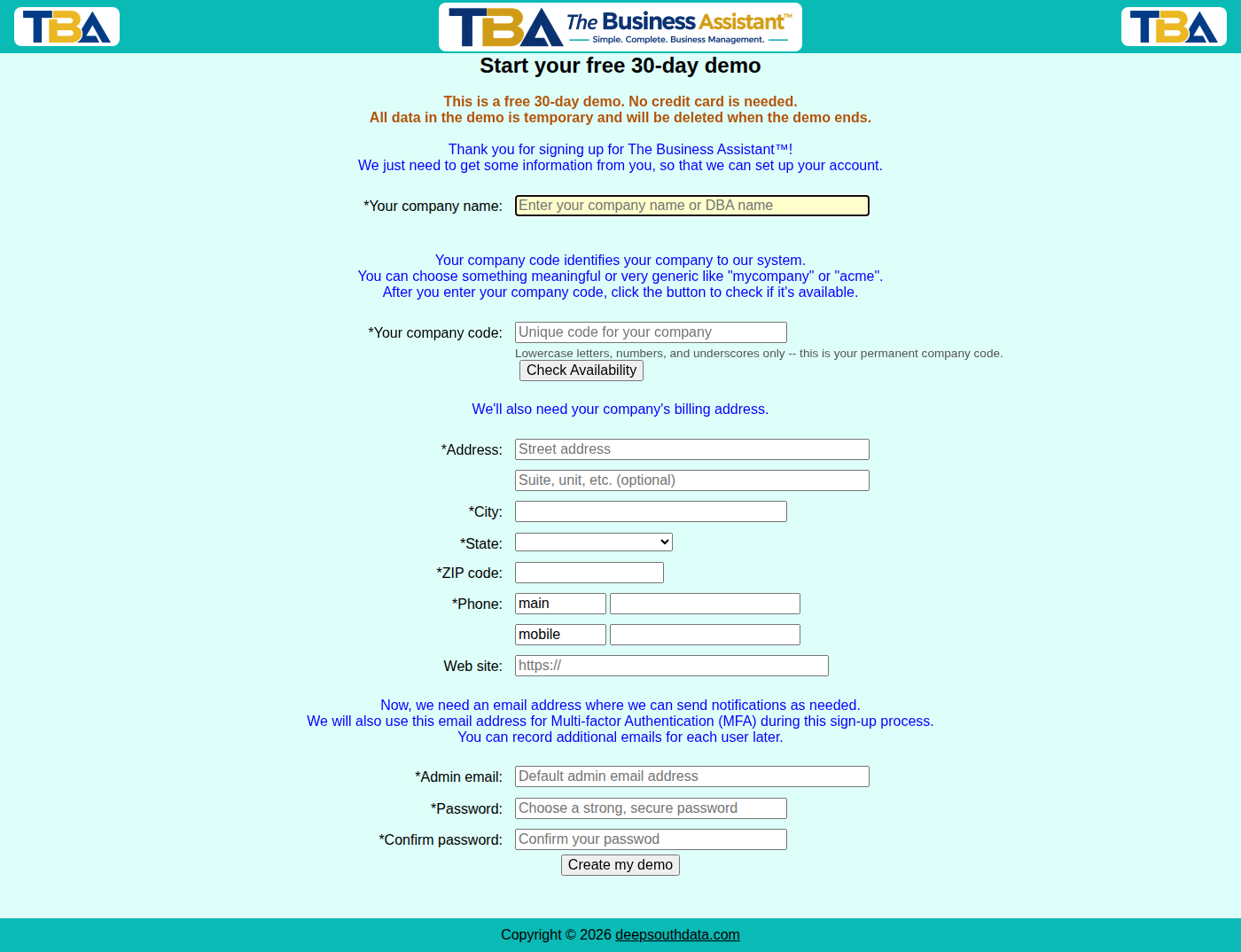
- Open the demo sign-up page. It tells you at the top that this is a free 30-day demo.
- Fill in your company name, a company code (lowercase letters, numbers, and underscores; click Check Availability to make sure it is free), your address, a phone number, your email address, and a password.
- If you are offered a Kind of business list, pick the sample company closest to yours. Each one comes with different sample data.
- Click Create my demo. If an I am human box appears first, complete it; it usually finishes by itself.
- We email a 6-digit code to the address you gave. Type it in to confirm that the address is yours. If it does not arrive, check your spam folder.
- After you enter the code, the page shows Building your demo… while your sample company is set up. This takes about 10 to 15 seconds; please wait and do not click the button again.
- The first time you sign in, TBA asks you to set up two-factor sign-in. Choose Authenticator App (recommended) and scan the code with an app such as Google Authenticator or Microsoft Authenticator, or choose Email to receive a code by email. See Logging In and Two-Factor Authentication.
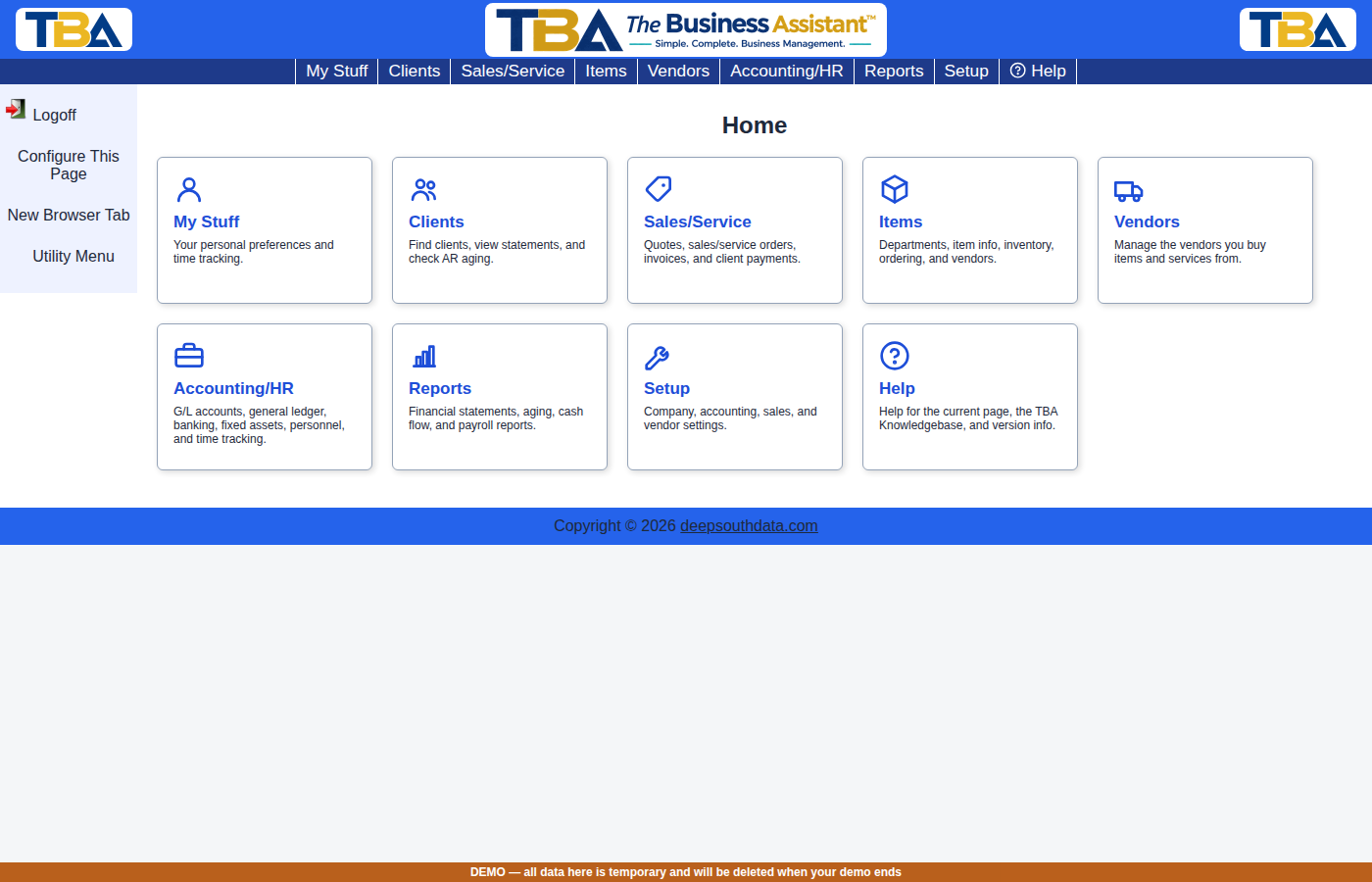
- You are signed in as the user admin with the password you chose.
Use your own email address. You can have one active demo per email address at a time, and there is a limit on how many a single location can start in a day. Once a demo has ended and been deleted, you can start a new one with the same email address, and you can even reuse its company code.
While You Are in the Demo #
- A bar at the bottom of the window reminds you that all data here is temporary and will be deleted when your demo ends.
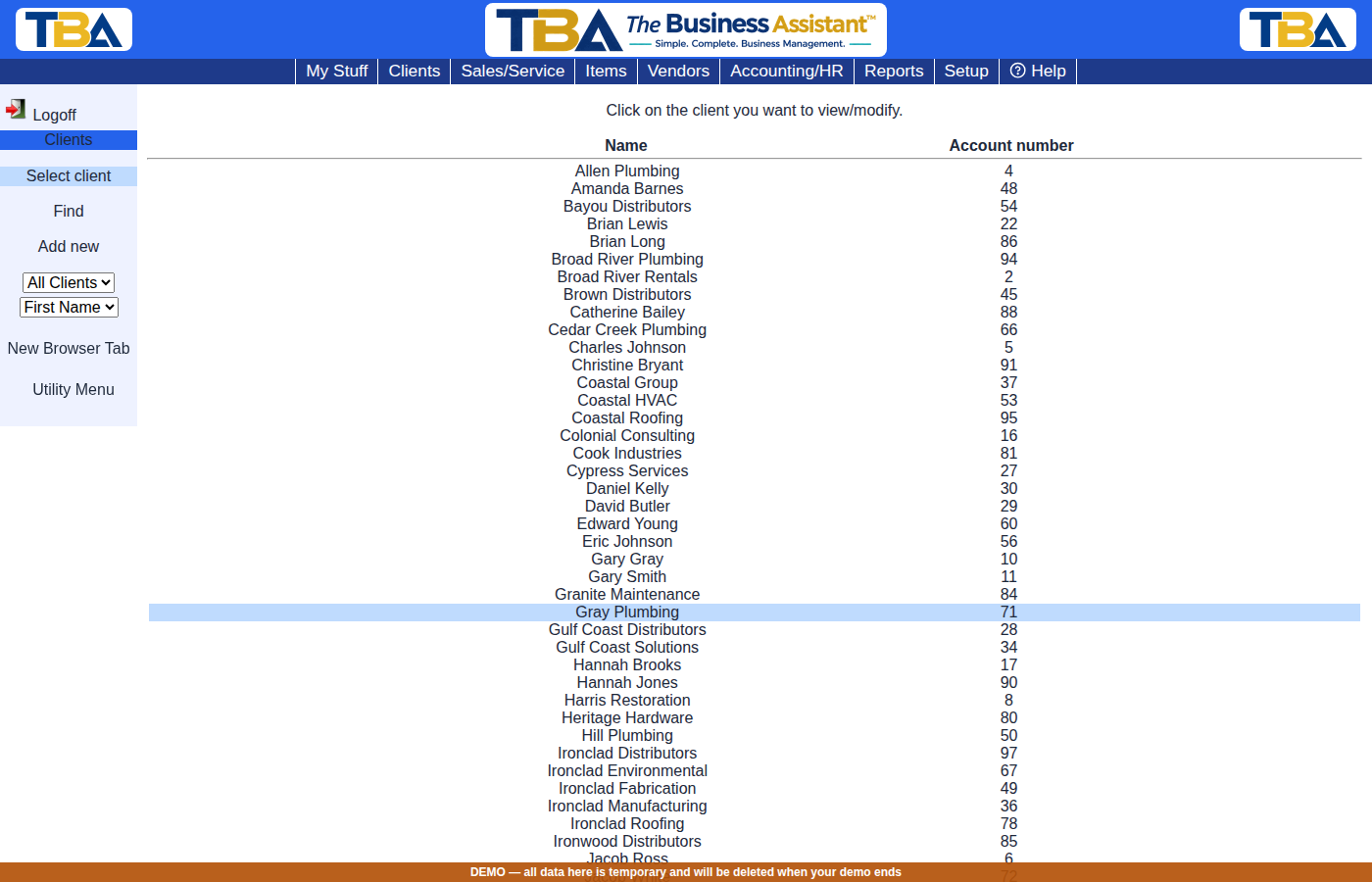
- Everything in TBA works: clients, quotes, orders, invoices, bills, inventory, accounting and reports, time tracking, pay runs, and the rest. Add, change, and delete anything you like.
- Every PDF you print carries a small Demo data – sample information only line at the bottom of each page, so it cannot be mistaken for a real document.
- The sample company has its own users and permissions. You can add more users to see how permission profiles work; see Users and Permissions.
- New to TBA? The Basics and the Quick Start Setup Wizard are good places to begin.
What Is Turned Off #
The demo never touches real money or outside services, so a few things are switched off. If you try one, TBA tells you This feature is not available in the demo version of TBA.
- Card payments and Stripe: taking card payments from clients, saving cards, and the links that ask a client to update a card.
- Your TBA subscription and billing: choosing a plan, adding a card, or cancelling.
- Sending a pay run to a payroll service. Pay codes, work types, leave, pay runs, and the payroll reports all work.
Email in the Demo #
The sample clients and vendors have made-up addresses, and the demo will not email a stranger on your behalf. Email only goes to the address you signed up with. That is enough to try emailing a quote, an invoice, or a statement: send it to yourself and see exactly what a client would receive. Sending to any other address stops with a message that says so.
When Your Demo Ends #
- We email you 3 days before your last day.
- After the last day, signing in shows Your 30-day demo has ended. The company is locked, and we email you again to tell you when its data will be deleted.
- About a week after the last day, the demo company and everything in it are deleted for good.
Moving to your own company starts fresh. Demo data is not carried over, so there is nothing to clean out. When you are ready, contact us to set up your own company, and see Quick Start Setup Wizard for how a new company gets going, including bringing your books over from QuickBooks (QuickBooks Import). Need more time to look around? Ask us; we can extend your demo before it ends.
If Something Goes Wrong #
- A demo has already been created for that email address: you already have an active demo. Sign in to it at demo.TheAsst.com, or contact us.
- Too many demo requests from your location today: try again tomorrow at demo.TheAsst.com.
- We are at capacity for demos right now: try again in a few days.
- The code never arrived: check spam, then go back and try again after a few minutes.
- The page seems stuck after you enter the code: building a demo can take up to 15 seconds. If it is still not done after a minute, contact us.


