
A pay run is TBA’s figures for a pay period. Your payroll service then works out the taxes and the net pay. Import results brings what the service actually did back into the run so you can compare, and Close this run finishes the run for good.
Before you start #
Each employee needs their payroll service ID, entered on their Payroll tab in Personnel. The import matches rows to employees by that ID.
Importing the results #
- Open the pay run (it must be Approved or Exported).
- Click Import results in the sidebar.
- Choose the service’s CSV file, or paste its rows into the box.
- Click Import.
Each row needs the employee’s ID and any of these columns, found by their headings: Gross, Employer Taxes, Employer Other (employer-paid benefits) and Net. The delimiter (comma, tab or semicolon) is detected for you. Importing again replaces the earlier results. Rows that match no employee are skipped, and the dialog tells you how many.
Comparing #
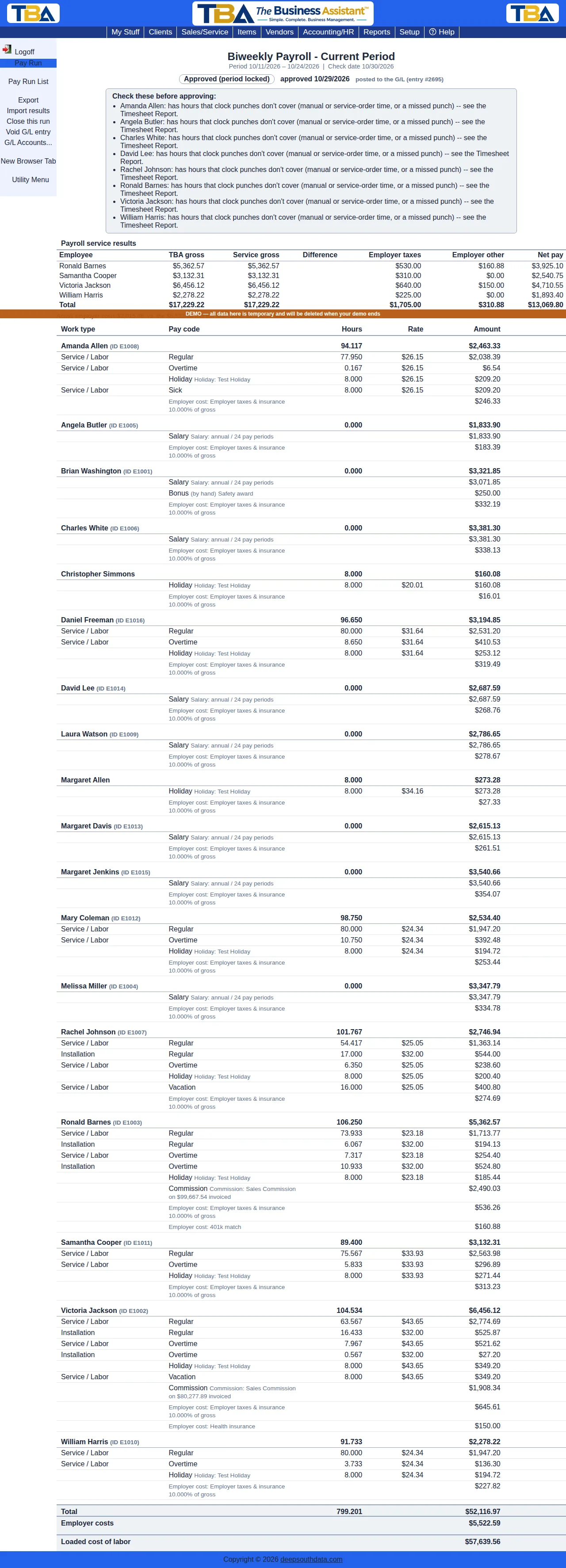
The run now shows Payroll service results: for each employee TBA’s gross next to the service’s gross, any difference in red, plus the employer taxes, other employer costs and net pay. Below it, Actual employer costs are set against what the run estimated for those same employees.
Closing the run #
Click Close this run. It needs results to have been imported, and it stays locked for good (a closed run cannot be reopened, and its G/L entry cannot be voided).
If the run was posted to the G/L and you chose an employer costs account, closing also posts a Pay Run True-up entry for the difference between the service’s actual employer costs and the run’s estimate, so your books carry the real figure.
Once results are imported, Reopen is no longer offered: the results belong to the figures as they were.


